
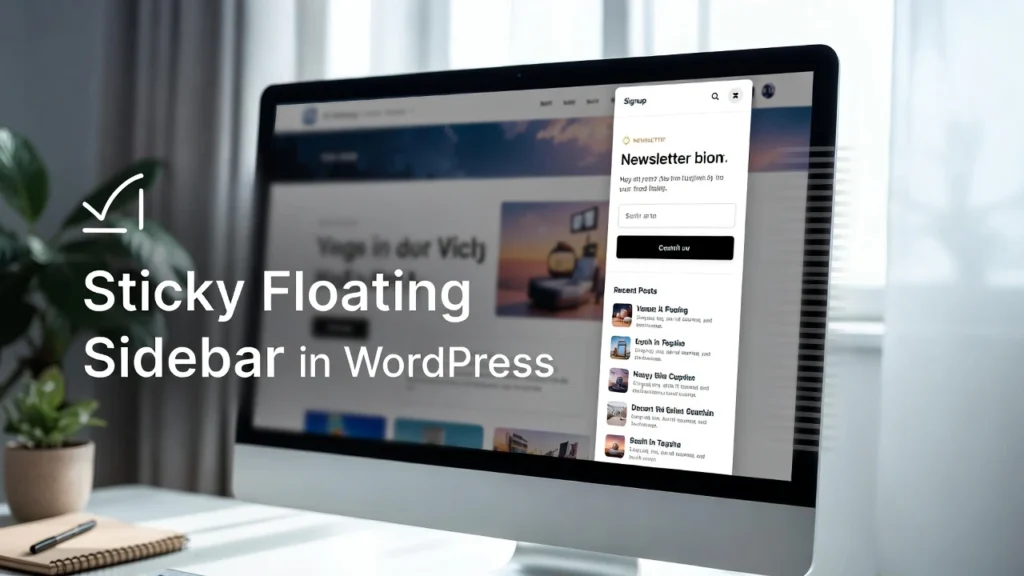
A sticky (floating) sidebar widget stays visible as users scroll down the page, making key elements like CTAs, contact forms, recent posts, or opt-in forms always accessible. This simple feature can significantly improve user engagement, reduce bounce rates, and increase conversions—especially on long-form content or blog posts. with mobile traffic dominating and user attention spans short, sticky sidebars remain a high-impact UX and conversion optimization technique. At Cope Business, we frequently add sticky elements during our technical SEO audit services to help clients improve on-page performance and user retention.
This guide covers two easy, effective methods to create a sticky floating sidebar widget in WordPress — no advanced coding required.
Why Add a Sticky Floating Sidebar?
- Keeps Important Content Visible — CTAs, email signups, or social links stay in view.
- Boosts Conversions — More visibility = more clicks and sign-ups.
- Improves UX — Users can quickly access navigation or info without scrolling back up.
- SEO Benefits — Lower bounce rates and higher time-on-page signal quality content.
- Mobile-Friendly Options — Can be configured to disable or adapt on small screens.
Ideal for blogs, service pages, product pages, or any long-scrolling content.
Method 1: Using a Plugin (Recommended for Beginners)
Plugins make sticky sidebars simple with drag-and-drop setup and mobile controls.
Recommended Plugin: Q2W3 Fixed Widget (Free)
This lightweight plugin is specifically designed for sticky widgets and works perfectly with most themes.
Step-by-Step Setup
- Install and activate Q2W3 Fixed Widget from Plugins > Add New.
- Go to Appearance > Widgets.
- Add the widget you want to make sticky (e.g., Text, Custom HTML, Recent Posts, or Call-to-Action).
- In the widget settings, check the box “Fixed widget” (or “Sticky”).
- Adjust additional options:
- Margin top/bottom (space from header/footer)
- Disable on mobile (recommended for better UX)
- Stop floating at footer
- Save and refresh your site — the widget will now stick when scrolling.
Alternative Plugins:
- Sticky Menu & Sticky Header (free/pro) — Works for sidebars and headers.
- Fixed Widget (free) — Simple and lightweight.
Pros: Free, easy, mobile disable option. Cons: Basic design — style with CSS if needed.
Method 2: Using Custom CSS + Sticky Position (Advanced & Lightweight)
For full control without extra plugins.
Steps
- Identify your sidebar widget ID/class (use browser dev tools — right-click widget → Inspect).
- Common classes: .widget, .sidebar, .secondary
- Go to Appearance > Customize > Additional CSS.
- Add this CSS code (adjust selector and top value):
CSS.your-sidebar-widget-class { position: sticky; top: 100px; /* Distance from top when sticky */ z-index: 999; } /* Optional: Disable on mobile */ @media (max-width: 768px) { .your-sidebar-widget-class { position: static; } }- Replace .your-sidebar-widget-class with your actual class/ID (e.g., #secondary, .widget-area).
- Publish and test scrolling.
Tips: Use position: -webkit-sticky for older browsers. Combine with padding/margin for perfect positioning.
Best Practices for Sticky Sidebars
- Mobile Consideration: Disable sticky on mobile (use media queries) — floating elements can cover content.
- Performance: Sticky elements have minimal impact, but keep widget content lightweight.
- Accessibility: Ensure keyboard navigation works; add focus styles.
- SEO: Sticky sidebars improve time-on-page — pair with good internal linking.
- Testing: Check on multiple devices; avoid overlapping with headers/footers.
A well-placed sticky sidebar can increase conversions by 10–30% on key pages.
Final Thoughts
Creating a sticky floating sidebar widget in WordPress is a simple yet powerful way to improve UX and conversions. Start with Q2W3 Fixed Widget for quick results, or use custom CSS for precise control.
This small addition can make a big difference in user engagement.
Need help adding sticky elements, optimizing your sidebar, or improving overall site performance? Contact Cope Business for a free technical SEO consultation — we’ll review your site and implement tailored enhancements.


