
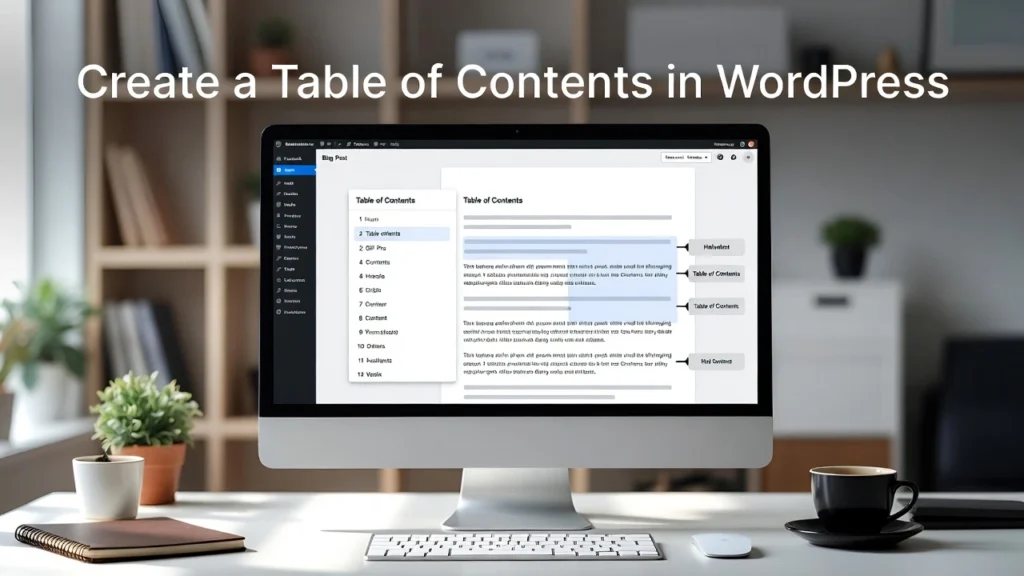
A table of contents in wordpress improves readability on long-form content, helps users navigate quickly, reduces bounce rates, and signals to search engines that your page is well-structured — all of which support better SEO rankings. with Google’s continued emphasis on user experience and helpful content, a clean, auto-generated TOC is a must-have for blog posts, guides, and in-depth pages. At Cope Business, we frequently add and optimize TOCs for clients as part of our technical SEO audit services to enhance on-page engagement and performance.
On this page
ToggleThis guide shows you two simple, effective ways to create a beautiful, functional table of contents in WordPress — no coding required.
Why Add a Table of Contents to WordPress?
- Better User Experience — Visitors jump directly to sections they care about.
- Lower Bounce Rates — Users stay longer when navigation is easy.
- SEO Benefits — Google loves structured content; TOCs can appear as jump links in search results.
- Improved Accessibility — Helps screen reader users navigate long pages.
- Professional Appearance — Makes detailed articles look polished and authoritative.
TOC is especially valuable for 2,000+ word posts, guides, and tutorials.
Method 1: Using the Easy Table of Contents Plugin (Best Free Option)
Easy Table of Contents is lightweight, highly customizable, and works perfectly with the block editor.
Step-by-Step Setup
- Install and activate Easy Table of Contents from Plugins > Add New.
- Go to Settings > Table of Contents.
- Basic Settings:
- Enable for: Posts & Pages (or custom post types)
- Position: Before/After first heading (recommended)
- Initial View: Expanded or Collapsed
- Auto Insert: Check “Enable Insertion”
- Appearance:
- Choose hierarchy (show headings levels)
- Customize label (“Table of Contents”, “In this article”, etc.)
- Set width, font size, colors to match your theme
- Advanced:
- Exclude specific headings (e.g., “Table of Contents” itself)
- Minimum headings required before showing TOC (usually 3–4)
- Save changes.
- Test: Create or edit a long post with multiple H2/H3 headings — the TOC will appear automatically.
Pros: Free, no performance hit, customizable, sticky/floating option. Cons: Slightly basic design (can be styled with CSS).
Method 2: Using All in One SEO (AIOSEO) Pro (Best for Integrated SEO)
AIOSEO Pro includes a powerful TOC block with schema support for rich results.
Step-by-Step Setup
- Install All in One SEO Pro (free version doesn’t include TOC).
- Edit any post/page.
- Add the Table of Contents block from the block inserter.
- AIOSEO automatically detects headings and creates the TOC.
- Customize:
- Title
- Bullet/Number style
- Collapsible
- Highlight current section
- Exclude specific headings
- Enable “Jump to” anchor links for smooth scrolling.
- Save and publish.
Pros: Built-in schema markup (improves rich results), perfect integration with AIOSEO SEO features. Cons: Requires Pro version.
Bonus Tips for a Professional Table of Contents
- Make It Sticky/Floating — Use CSS or plugins to keep TOC visible while scrolling.
- Mobile Optimization — Ensure it collapses or becomes a dropdown on small screens.
- SEO Boost — Add schema markup (AIOSEO does this automatically) for jump links in SERPs.
- Performance — TOCs are lightweight — pair with caching (see our caching guide).
- Accessibility — Use semantic headings and test with screen readers.
- Customization — Style with your brand colors using theme customizer or additional CSS.
A well-placed TOC can increase time on page by 20–40% on long-form content.
Final Thoughts
Adding a table of contents in WordPress is a simple yet powerful upgrade that improves user experience and SEO. Easy Table of Contents is perfect for free, reliable implementation, while AIOSEO Pro offers integrated SEO benefits.
Start with one method today — your readers (and Google) will thank you.
Need help adding TOC, optimizing long-form content, or building your full SEO strategy? Contact Cope Business for a free technical SEO consultation — we’ll create a tailored plan to elevate your site.


