Starting a website is easier and more powerful than ever, and WordPress remains the top choice for over 43% of all websites worldwide. Whether you’re launching a blog, business site, online store, or portfolio, WordPress offers unmatched flexibility, thousands of themes and plugins, and strong SEO foundations. At Cope Business, we help clients build high-performing WordPress sites through our technical SEO services, ensuring they rank well and convert visitors. This updated guide walks you through every step to create your own professional WordPress website – no coding required.
Perfect for beginners or anyone starting fresh, follow these steps and you’ll have a live site in hours. For ongoing optimization or troubleshooting, our Google Search Console fixing services can keep your new site healthy.
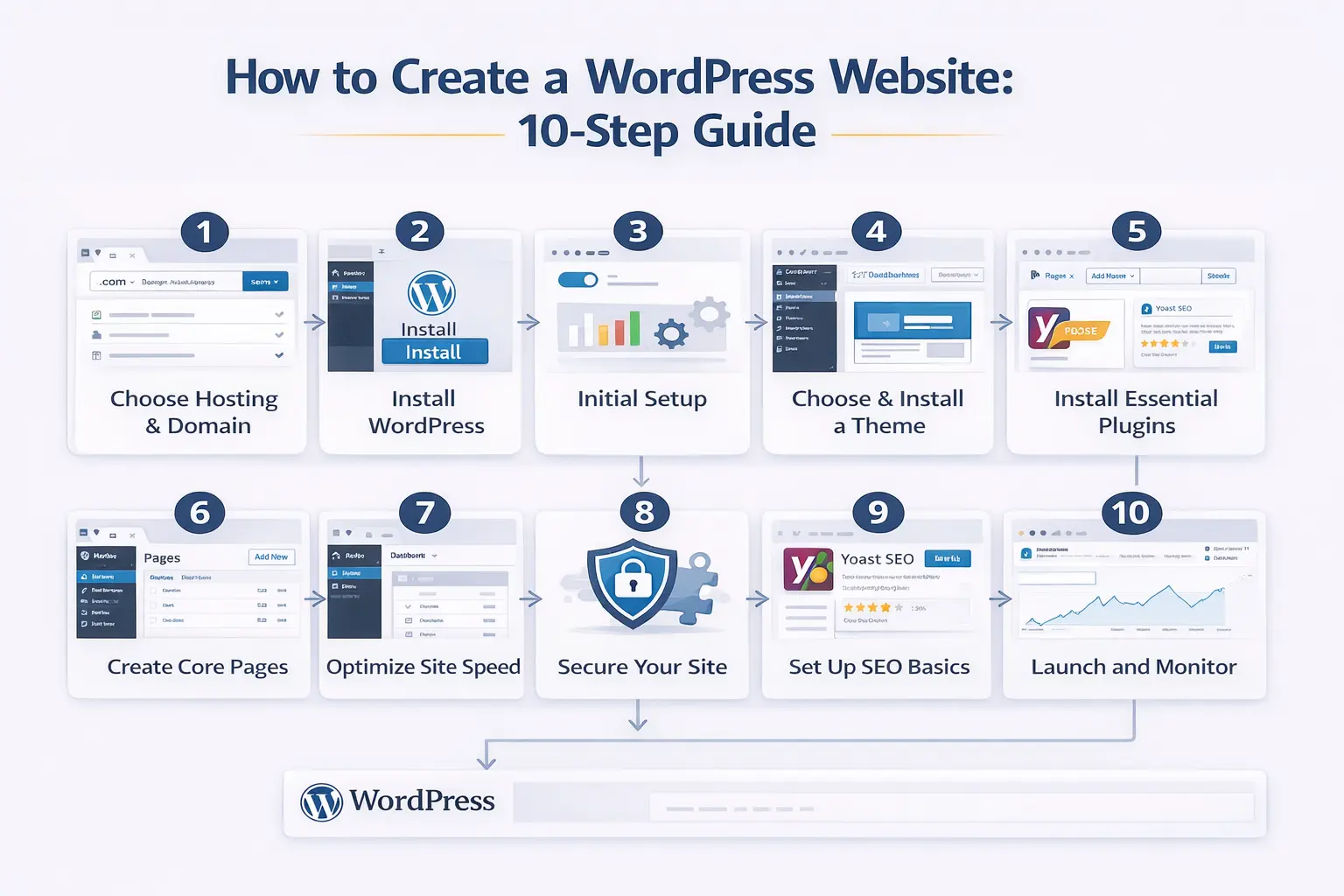
Step 1: Choose the Right Hosting and Domain Name
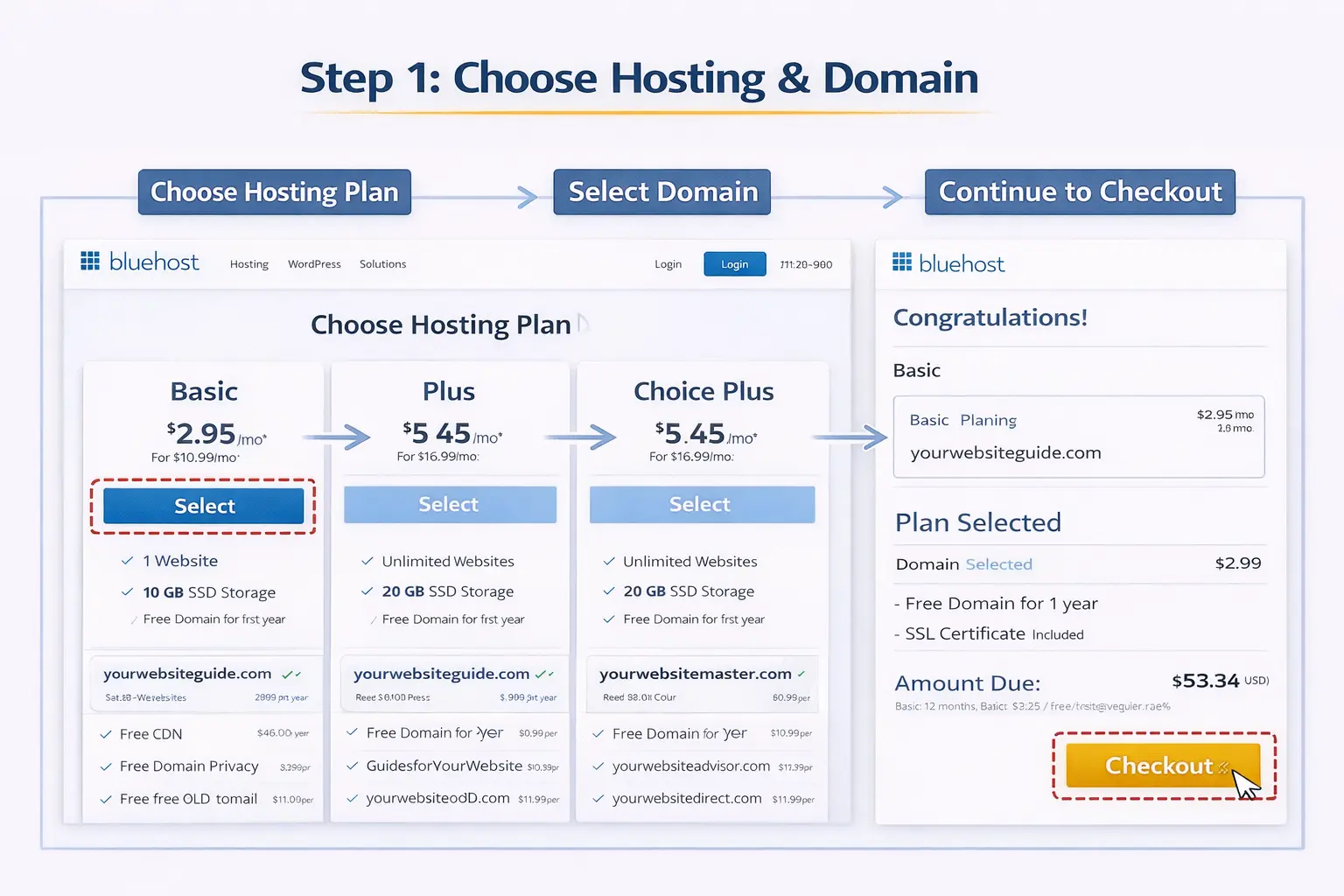
Your foundation starts with reliable hosting and a memorable domain.
Recommended Hosting Providers
- SiteGround – Best overall for speed, security, and WordPress-optimized servers.
- Bluehost – Official WordPress-recommended, great for beginners with one-click install.
- Hostinger – Budget-friendly with excellent performance and AI tools.
- WP Engine – Premium managed hosting for growing businesses.
Look for hosts offering:
- Free SSL certificate (HTTPS)
- One-click WordPress installation
- Automatic updates and backups
- 24/7 support
Register Your Domain Name
Choose something short, memorable, and relevant to your brand. Use .com when possible. Most hosts include a free domain for the first year.
Step 2: Install WordPress
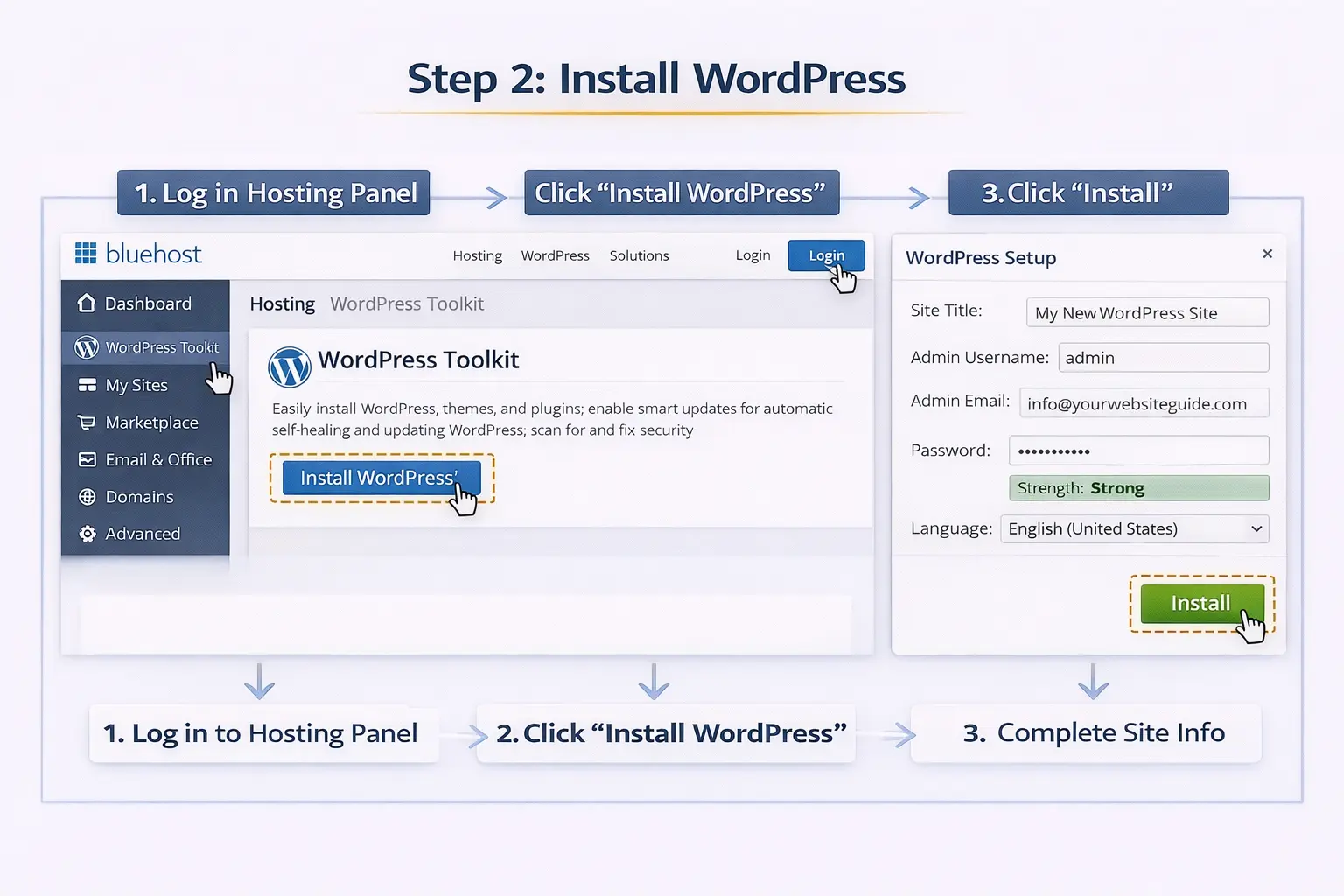
Most modern hosts make this effortless.
One-Click Installation
- Log into your hosting dashboard.
- Find the WordPress installer (often under “Softaculous” or “WordPress Manager”).
- Click install, choose your domain, and set admin credentials.
- Complete the setup – WordPress will be ready in minutes.
Manual Installation (Rarely Needed)
Download from wordpress.org and upload via FTP – but one-click is far easier.
Step 3: Complete the Initial WordPress Setup
Log into your new dashboard at yoursite.com/wp-admin.
Essential First Settings
- Settings > General: Set site title and tagline.
- Settings > Permalinks: Choose “Post name” for SEO-friendly URLs.
- Settings > Reading: Uncheck “Discourage search engines” to allow indexing.
- Delete default content (sample post/page and “Hello World” comment).
Step 4: Choose and Install a Theme
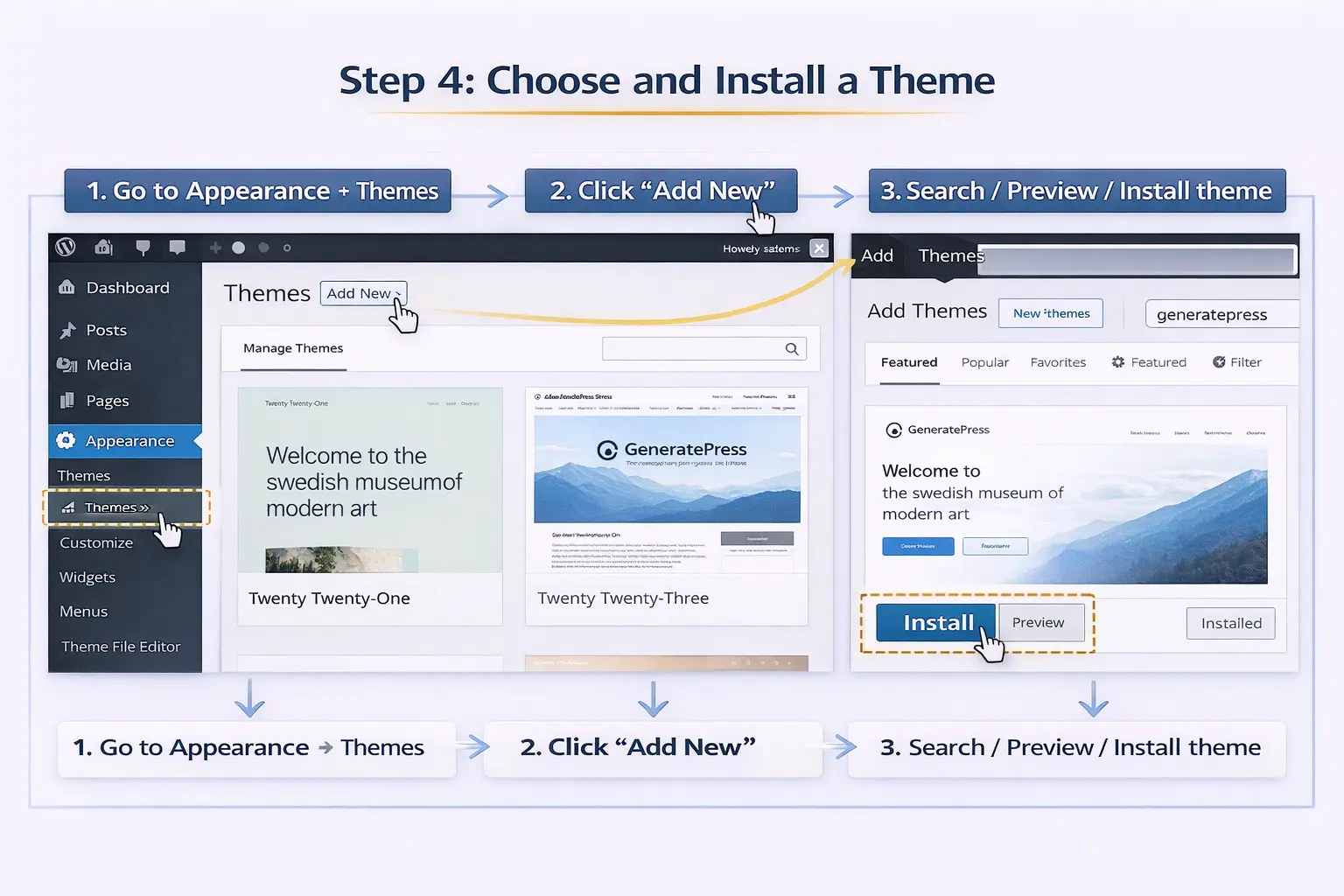
Your theme controls the design and layout.
Best Free Themes
- Astra – Lightweight, fast, highly customizable
- GeneratePress – Performance-focused with excellent accessibility
- Kadence – Modern blocks and starter templates
- Neve – Mobile-first with great WooCommerce support
Premium Options
Consider GenerateBlocks Pro, Kadence Pro, or Astra Pro for advanced features.
Installation Steps
- Go to Appearance > Themes > Add New.
- Search for your chosen theme.
- Install and activate.
- Use the customizer (Appearance > Customize) or starter templates for quick setup.
Step 5: Install Essential Plugins
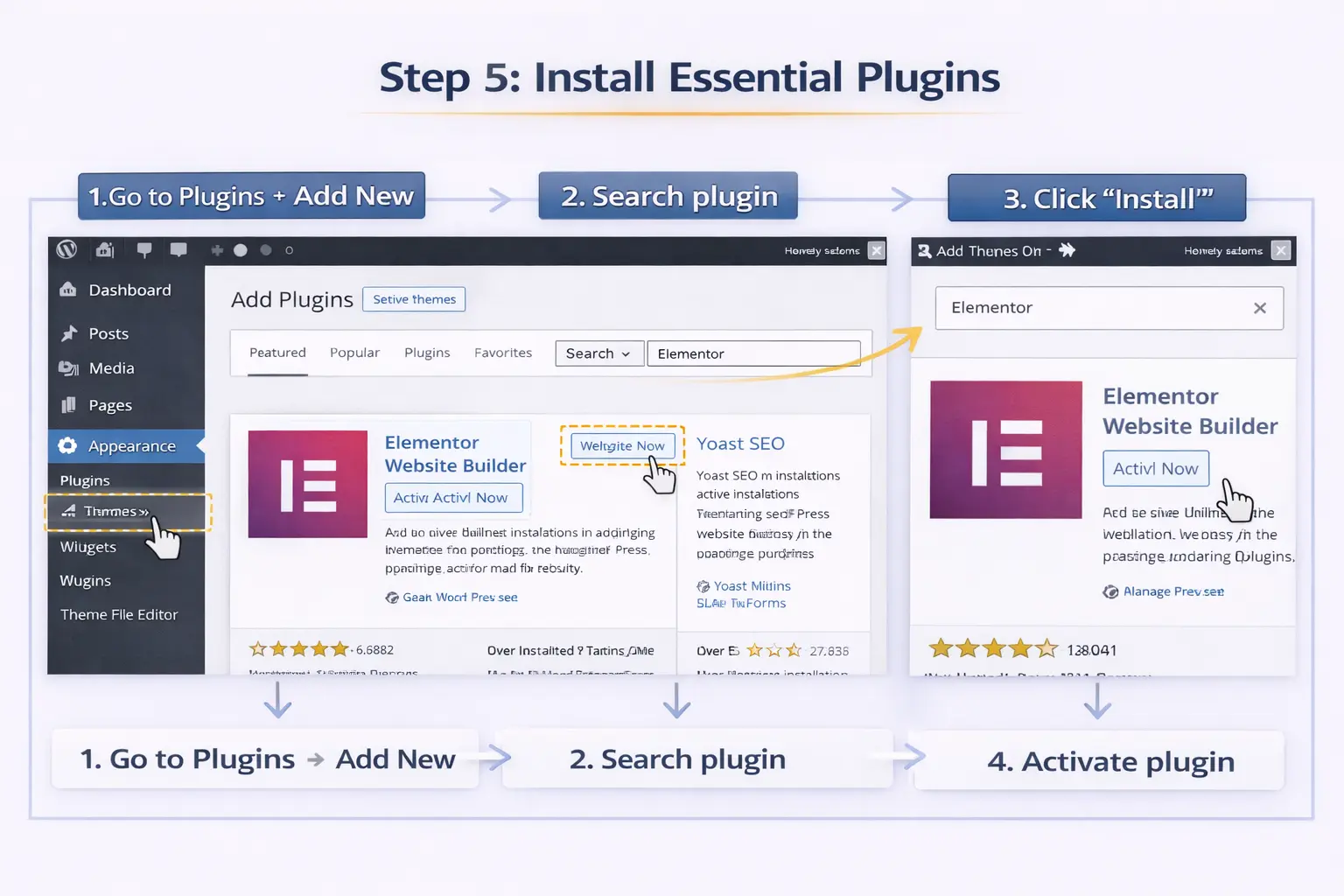
Plugins extend WordPress functionality.
Must-Have Plugins
- All in One SEO – Complete SEO toolkit with sitemaps, schema, and optimization.
- WP Rocket or LiteSpeed Cache – Speed optimization and caching.
- MonsterInsights – Google Analytics integration.
- UpdraftPlus – Automatic backups.
- Wordfence or Solid Security – Security protection.
- Smash Balloon – Social media feeds.
- WPForms – Contact forms.
Install from Plugins > Add New.
Step 6: Create Your Core Pages and Content
Build the foundation of your site.
Essential Pages to Create
- Home (set as static front page)
- About
- Contact (with form)
- Services/Products
- Blog
- Privacy Policy (required for analytics)
Use the block editor (Gutenberg) – it’s powerful and intuitive.
Step 7: Optimize for Speed and Performance
Speed is crucial for user experience and SEO.
Key Optimizations
- Use a caching plugin
- Optimize images (compress and use WebP format)
- Enable lazy loading
- Use a CDN (Cloudflare free tier works great)
- Choose lightweight themes and limit plugins
Step 8: Secure Your Website
Security is non-negotiable.
Basic Security Steps
- Enable SSL/HTTPS (free via Let’s Encrypt)
- Use strong passwords
- Limit login attempts
- Keep everything updated
- Install a security plugin
Step 9: Set Up SEO Basics
Start ranking from day one.
Immediate SEO Actions
- Install and configure All in One SEO
- Submit sitemap to Google Search Console
- Verify site in Google Search Console and Bing Webmaster Tools
- Create cornerstone content with proper keyword research
Step 10: Launch and Monitor
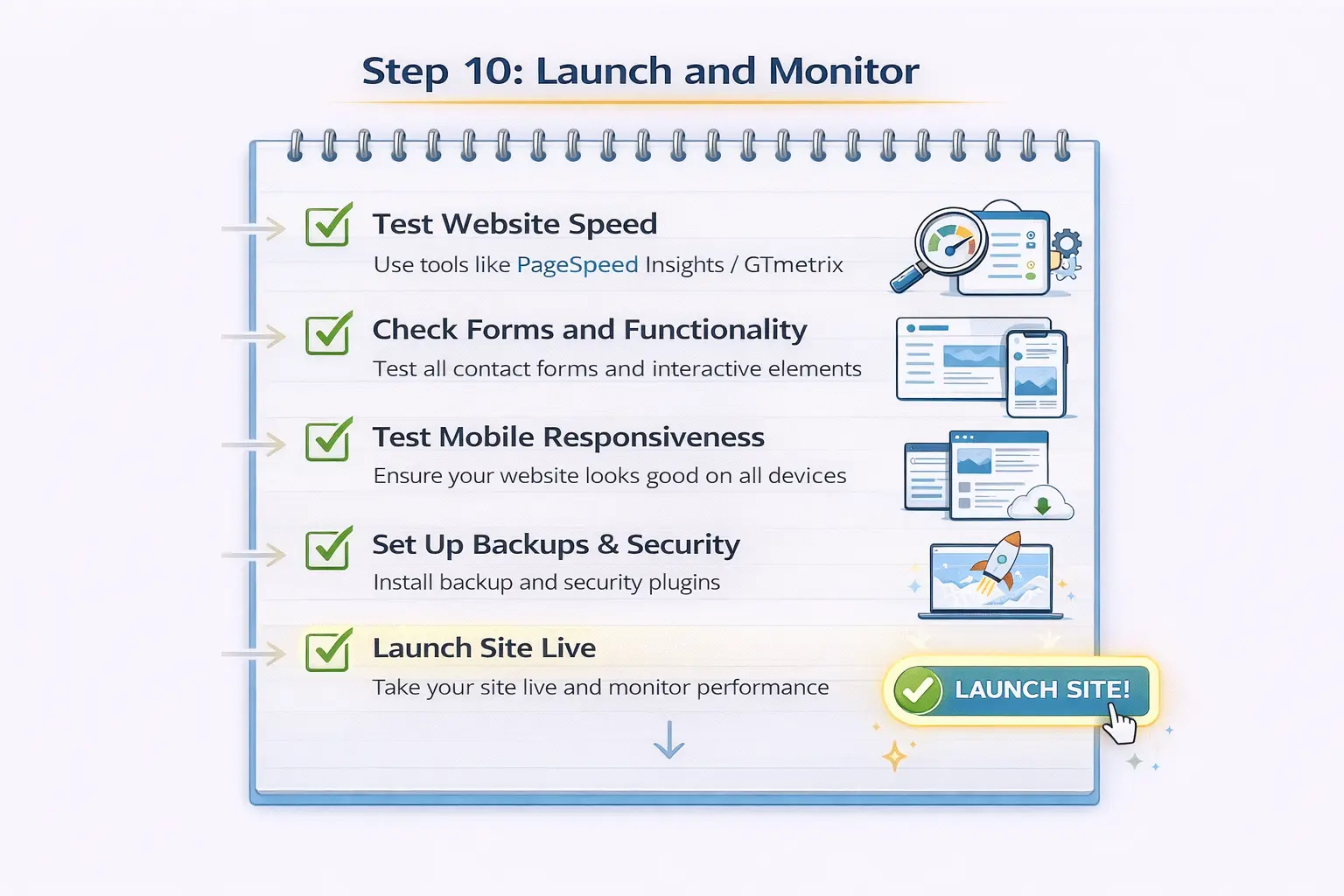
Final Checklist Before Going Live
- Test all links and forms
- Check mobile responsiveness
- Run speed tests
- Set up backups
- Enable SSL
After Launch
- Monitor Google Search Console for errors
- Track traffic with Google Analytics
- Create regular content
- Build backlinks gradually
FAQs
Basic setup: $50–150/year (hosting + domain). Professional design: $500–5000+.
Yes – add WooCommerce plugin (free) for full eCommerce functionality.
No – modern WordPress with block themes and page builders requires zero coding.
Yeah, it will take some time or you can hire us to get your site indexed faster.
Start building your WordPress website today! For professional setup, optimization, or migration help, contact Cope Business for a free technical consultation.