
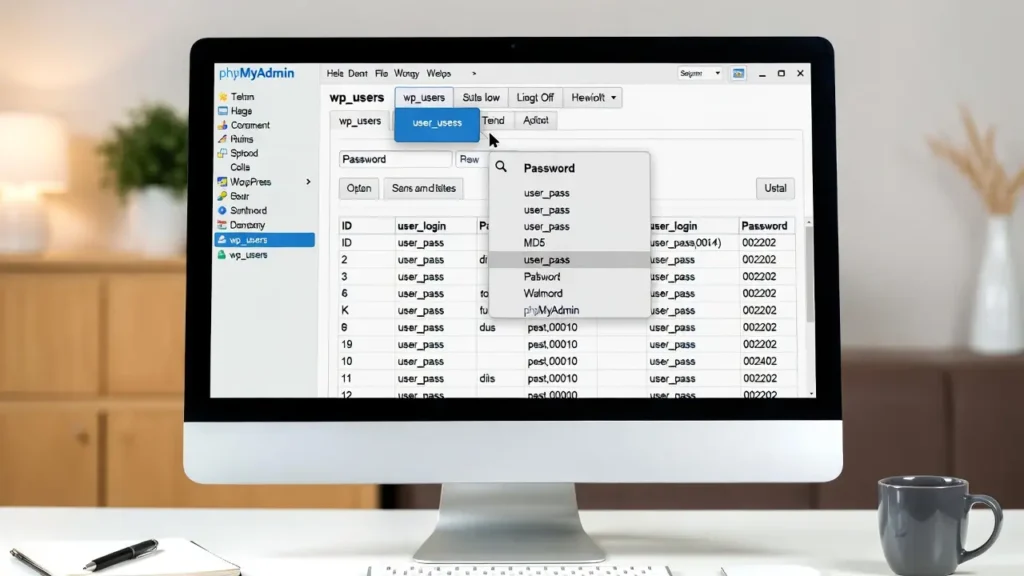
Forgetting your WordPress admin password is frustrating — especially if you’re locked out of your site and don’t have access to the registered email. The fastest and most reliable way to regain access is by resetting the password directly in the database using phpMyAdmin. This method works even when email resets fail, plugins don’t load, or you’ve lost access to the recovery email.
At Cope Business, we use this technique regularly during site recovery and security audits for clients as part of our technical SEO audit services. It’s safe when done carefully and takes only a few minutes.
Important: This guide assumes you have access to your hosting control panel (cPanel, Plesk, DirectAdmin, etc.) and phpMyAdmin. Always back up your database first.
On this page
ToggleWhy Use phpMyAdmin to Reset a WordPress Password?
- Works when email reset is broken or inaccessible
- No need for plugins or FTP access to files
- Instant access recovery
- No third-party tools or waiting for support
Prerequisites
- Access to your hosting account (cPanel / hosting dashboard)
- phpMyAdmin access (usually under “Databases” section)
- Your database name and username (found in wp-config.php or hosting panel)
Step-by-Step: Reset WordPress Password via phpMyAdmin
Step 1: Log in to phpMyAdmin
- Log in to your hosting control panel (cPanel, etc.).
- Find and open phpMyAdmin.
- On the left sidebar, select your WordPress database (usually named something like yourname_wp123).
Step 2: Find the wp_users Table
- In the left sidebar, locate and click the table named wp_users (or whatever your prefix is — e.g., cope_users if you changed the prefix).
- Click the Browse tab to see all users.
Step 3: Locate Your Admin User
- Look for your username in the user_login column.
- Or find your email in the user_email column.
- Click Edit (pencil icon) on that row.
Step 4: Reset the Password
- In the edit view, find the row where Field = user_pass.
- In the Function dropdown next to it, select MD5.
- In the Value field, type your new password (plain text).
- Example: If you want the password to be NewPass123!, type exactly that.
- Leave all other fields unchanged.
- Scroll down and click Go (or Save) at the bottom.
WordPress will automatically hash the password using MD5 → bcrypt internally.
Step 5: Test the New Password
- Go to your login page (yoursite.com/wp-login.php).
- Enter your username/email and the new password you just set.
- You should now be logged in successfully.
Important: Change the password again from the WordPress dashboard (Users → Your Profile → Generate Password) to use a stronger, properly hashed one.
Alternative: One-Click Reset Using a Plugin (If You Can Still Access the Dashboard)
If you still have partial access or another admin account:
- Install Reset Password by Email or Login LockDown (temporary) → reset via email.
- Or install WP Reset or Emergency Reset Password (use carefully — only on staging).
But phpMyAdmin is the most reliable when locked out completely.
Best Practices After Resetting
- Immediately change password again from inside WordPress (uses stronger hashing).
- Enable 2FA (use Two Factor or Wordfence 2FA).
- Limit login attempts (see our guide).
- Use strong, unique passwords (password manager recommended).
- Change database prefix if not already done (adds extra security layer).
- Backup regularly — prevent future lockouts.
Final Thoughts
Resetting a lost WordPress password via phpMyAdmin is fast, reliable, and works even when everything else fails. Always back up first and change the password again from the dashboard afterward.
A quick recovery keeps your site running — and your SEO safe.
Locked out or need help securing your WordPress site? Contact Cope Business for a free technical SEO consultation — we’ll get you back in control quickly and harden your site against future issues.


