
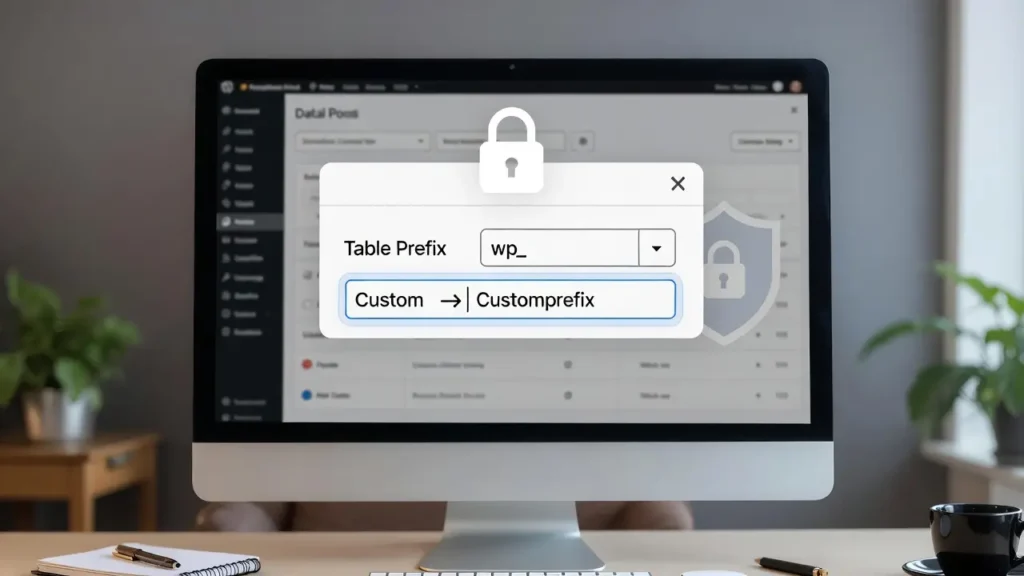
By default, WordPress prefixes all its database tables with wp_ (e.g., wp_posts, wp_users, wp_options). This makes it easy for automated hacking scripts to target WordPress sites — attackers know exactly what table names to look for. Changing the prefix to something unique (e.g., cope_, x7k9_, or mywp_) adds a simple but effective layer of security by making those automated scripts fail.
While modern security plugins, 2FA, and strong passwords are essential, changing the database prefix remains a quick, low-risk hardening step recommended by most security experts. At Cope Business, we frequently change database prefixes for clients during our technical SEO audit services and security hardening projects — especially on high-value or public-facing sites.
Important Note: This is not a silver bullet — it only stops very basic automated attacks. Always combine it with strong passwords, 2FA, security plugins, regular updates, and proper file permissions.
When Should You Change the Database Prefix?
- New site installation → Do it during setup (easiest)
- Existing live site → Possible but requires extra care
- High-risk sites (eCommerce, membership, high traffic) → Strongly recommended
- Already hacked or under frequent attack → One of the first post-hack hardening steps
Do NOT change it if:
- You’re not comfortable with database access
- Your site has heavy custom database queries hard-coded with wp_
- You’re on managed hosting that blocks database changes (some do)
Step-by-Step: How to Change the Database Prefix
Method 1: During New WordPress Installation (Easiest & Safest)
- During WordPress setup (via hosting one-click installer or manual install):
- Look for Database Prefix or Table Prefix field
- Change wp_ to something unique (e.g., cope_, x7k9_, mysite_)
- Use only letters, numbers, and underscores — no special characters
- Complete installation — all tables will use your custom prefix.
Best Practice: Do this on every new site — it takes 10 seconds and adds instant security.
Method 2: On an Existing Live Site (More Involved – Backup First!)
Warning: This involves editing your database — always make a full backup first!
Step 1: Backup Everything
- Full site backup (files + database) using UpdraftPlus, Duplicator, or your host
- Download a copy of wp-config.php and the database via phpMyAdmin
Step 2: Change Prefix in wp-config.php
- Open wp-config.php in root folder.
- Find this line:
PHP$table_prefix = 'wp_';- Change it to your new prefix:
PHP$table_prefix = 'cope_'; // or whatever you choose- Save and upload.
Step 3: Rename All Tables in Database
- Log in to phpMyAdmin (via hosting control panel).
- Select your WordPress database.
- Check all tables starting with wp_ → Click With selected: → Replace table prefix.
- In the tool:
- From: wp_
- To: cope_ (your new prefix)
- Click Go
- Wait — phpMyAdmin will rename all tables (e.g., wp_posts → cope_posts).
Step 4: Update Options Table References
Some settings store the old prefix — update them manually:
- In phpMyAdmin, open cope_options (your new prefix).
- Search for wp_ in option_name column.
- Update these rows (common ones):
- wp_user_roles → cope_user_roles
- Any custom plugin options containing wp_
- Also search and replace inside option_value if needed (carefully).
Step 5: Test Your Site
- Clear browser cache & site cache (WP Rocket, etc.)
- Log in to /wp-admin — everything should work normally.
- If errors: Re-check wp-config.php prefix and table names.
Tools to Make It Easier:
- Change Database Prefix plugin (free) — Automates most steps (use only on staging first)
- Better Search Replace plugin (free) — Safely replace wp_ inside database values
Best Practices After Changing Database Prefix
- Backup Regularly — Use UpdraftPlus or hosting backups
- Security Plugins — Wordfence, Sucuri, or iThemes Security
- Strong Passwords & 2FA — Still essential
- Keep Updated — Core, themes, plugins
- Monitor Logs — Check for failed login attempts
Changing the prefix alone stops ~80–90% of basic automated attacks — combine with other security layers for best protection.
Final Thoughts
Changing the WordPress database prefix is a quick, low-risk security improvement that stops many automated bots in their tracks. Do it during new installs for zero hassle; on live sites, always backup first and test carefully.
Security is layered — every small step counts.
Experiencing security concerns or need a full site hardening audit? Contact Cope Business for a free technical SEO consultation — we’ll secure your WordPress site and optimize it for performance and peace of mind.


