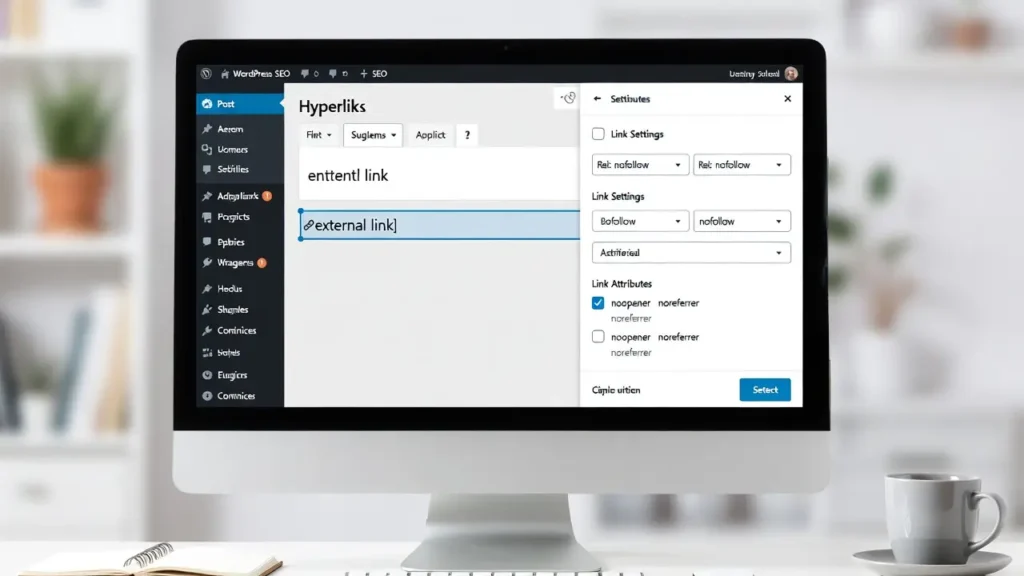
Adding rel=”nofollow” to external links in WordPress is a common SEO practice that tells search engines not to pass link equity (PageRank) to the linked site. This is useful for untrusted links, affiliate links, sponsored content, user-generated comments, or any external link you don’t want to endorse fully. With Google’s continued focus on link quality and E-E-A-T (Experience, Expertise, Authoritativeness, Trustworthiness), properly managing external links helps maintain your site’s authority while protecting against potential SEO penalties.
At Cope Business, we implement nofollow strategies for clients during our technical SEO audit services to ensure safe linking practices without manual effort on every post.
This guide shows you three easy ways to automatically add rel=”nofollow” to external links in WordPress — using plugins (recommended), code snippets, and built-in options.
Why Add Nofollow to External Links?
- Preserve Link Juice — Keep authority on your own site
- Avoid SEO Risk — Prevent passing value to low-quality or spammy sites
- Affiliate & Sponsored Compliance — Many affiliate programs require nofollow
- Comment Spam Protection — Stop spammers from gaining backlinks
- Control Crawl Budget — Encourage Google to focus on your internal pages
Note: Google says nofollow is now a “hint” (not a directive) since 2020 — but it still reduces link value and helps with spam control.
Method 1: Using a Plugin (Easiest & Recommended)
Plugins automate nofollow on all external links — no manual work needed.
Recommended Plugin: External Links (Free) or All in One SEO (Free/Pro)
Using External Links Plugin (Free & Simple)
- Install External Links from Plugins > Add New.
- Activate → Go to Settings > External Links.
- Enable options:
- Open in new tab/window (recommended)
- Add nofollow (main feature)
- Add sponsored (for affiliate/sponsored links)
- Add noreferrer (extra privacy)
- Choose where to apply:
- Posts & Pages
- Comments
- Widgets
- Exclude domains (optional): Add your own site or trusted partners.
- Save Changes — all external links now have rel=”nofollow” (or sponsored).
Alternative Plugin: All in One SEO (free version)
- Go to All in One SEO > Search Appearance > Advanced → Enable “Nofollow external links” toggle.
Pros: Automatic, safe, reversible, works site-wide.
Cons: Adds one lightweight plugin.
Method 2: Using Custom Code (Lightweight – No Plugin)
For full control without extra plugins.
Steps
- Install WPCode (free) from Plugins > Add New — safest way to add code.
- Go to Code Snippets > Add Snippet → Create new snippet titled “Auto Nofollow External Links”.
- Set to run “Everywhere” or “Frontend Only”.
- Paste this PHP code:
PHPfunction cope_nofollow_external_links($content) { $content = preg_replace_callback( '/<a([^>]+)href=["\']([^"\']+)["\']([^>]*)>/i', function($match) { $url = $match[2]; $current_host = parse_url(home_url(), PHP_URL_HOST); $link_host = parse_url($url, PHP_URL_HOST); // Skip internal links and empty URLs if (!$link_host || $link_host === $current_host) { return $match[0]; } // Add nofollow (and optionally noreferrer, sponsored) $rel = 'nofollow'; if (strpos($match[1], 'rel=') !== false) { // If rel already exists, append $match[1] = preg_replace('/rel=["\'](.*?)["\']/i', 'rel="$1 nofollow"', $match[1]); } else { $match[1] .= ' rel="nofollow"'; } return '<a' . $match[1] . ' href="' . $match[2] . '"' . $match[3] . '>'; }, $content ); return $content; } add_filter('the_content', 'cope_nofollow_external_links'); add_filter('comment_text', 'cope_nofollow_external_links');- Save & Activate → All external links in posts and comments now have rel=”nofollow”.
Pros: No plugin bloat, fully customizable.
Cons: Requires testing; may need tweaks for edge cases.
Method 3: Manual Nofollow (For Specific Links Only)
For occasional use:
- Edit post/page → Switch to Text/HTML view (or Code Editor block).
- Add rel=”nofollow” manually to any external link:
HTML<a href="https://example.com" rel="nofollow">External Link</a>or
HTML<a href="https://example.com" rel="nofollow sponsored">Sponsored Link</a>Pros: Precise control.
Cons: Manual — not scalable.
Best Practices for Nofollow
- Use Sponsored for Affiliates — Google requires rel=”sponsored” for paid links
- Don’t Nofollow Internal Links — Keep internal links dofollow
- Exclude Trusted Sites — Add exceptions for partners (e.g., Google, trusted sources)
- Performance — Nofollow has no speed impact — pair with caching
- SEO — Nofollow doesn’t hurt your site; it just doesn’t pass authority
- Test — Use browser dev tools (F12 → Elements) to verify rel=”nofollow” is added
Final Thoughts
Adding nofollow to external links in WordPress is a quick SEO and trust improvement. Use External Links plugin for automatic site-wide control or code for a lightweight solution — both take minutes and give you peace of mind.
Smart linking protects your authority and keeps your site safe.
Need help setting up nofollow rules, optimizing your link strategy, or improving overall SEO? Contact Cope Business for a free technical SEO consultation — we’ll review your site and implement the best linking practices for your goals.