
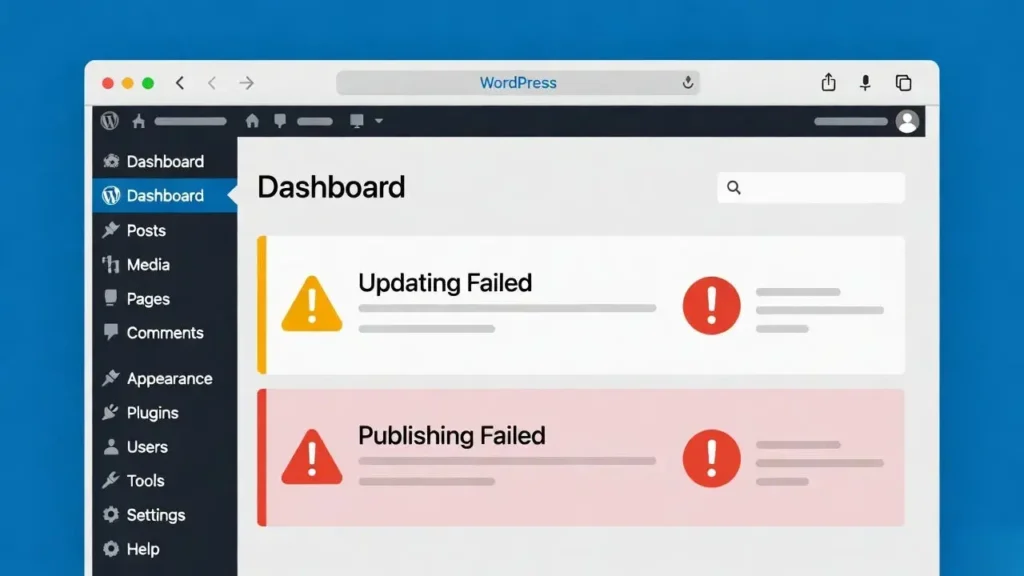
The “Updating failed” or “Publishing failed” error in the WordPress block editor can be frustrating—preventing you from saving or publishing posts and pages. This issue typically stems from problems with the REST API, which the block editor relies on for saving content. In 2026, with Gutenberg as the default editor, these errors remain common but are usually easy to resolve. At Cope Business, we encounter and fix these regularly during our technical SEO audit services, ensuring clients can edit content smoothly without disruptions.
On this page
ToggleThis guide covers the most common causes and 10 proven fixes, from simple checks to advanced troubleshooting.
Common Causes of the Error
- REST API Issues: Blocked or corrupted API endpoints.
- SSL/HTTPS Problems: Mixed content or invalid certificates.
- Plugin/Theme Conflicts: Incompatible code blocking API requests.
- Server Configuration: Mod_security rules, firewalls, or low PHP limits.
- Permalinks Corruption: Broken rewrite rules.
- Browser or Cache Problems: Local issues interfering with requests.
The error often includes “The response is not a valid JSON response” for more clues.
10 Proven Fixes for Updating/Publishing Failed Errors
1. Check Your Internet Connection and Site URL
Basic but often overlooked:
- Ensure your connection is stable.
- In Settings > General, confirm WordPress Address (URL) and Site Address (URL) match and use HTTPS.
2. Clear Browser Cache and Cookies
Cached data can interfere with API requests.
- Clear cache/cookies or test in incognito mode.
- Try a different browser.
3. Switch to a Default Theme Temporarily
Theme conflicts are common.
- Switch to Twenty Twenty-Six or another default theme via Appearance > Themes.
- Test saving a post—if it works, your theme is the culprit (contact theme developer or switch).
4. Deactivate All Plugins
Plugins often block REST API.
- Go to Plugins > Installed Plugins and deactivate all.
- Test saving—if successful, reactivate one by one to find the conflicting plugin.
- Common culprits: Security plugins (Wordfence, iThemes), caching, or optimization tools.
For safety, use FTP to rename the plugins folder if you can’t access admin.
5. Re-Save Permalinks
Corrupted permalinks break API routes.
- Go to Settings > Permalinks.
- Without changing settings, click “Save Changes” to flush rewrite rules.
This fixes many REST API-related errors instantly.
6. Check and Fix SSL/HTTPS Issues
Mixed content prevents secure API calls.
- Ensure your site uses valid HTTPS (free via Let’s Encrypt).
- Install Really Simple SSL plugin to force HTTPS and fix mixed content.
- Check for HTTP resources in Tools > Site Health > Status.
See our SSL setup guide for details.
7. Disable Security Plugin Rules or Firewall Temporarily
Overzealous security can block API.
- In Wordfence/Sucuri, whitelist your IP or disable learning mode.
- Check hosting firewall (e.g., SiteGround’s SG Security) for blocked REST API requests.
8. Increase PHP Memory Limit
Low memory causes failed requests.
- Add to wp-config.php: define(‘WP_MEMORY_LIMIT’, ‘256M’);.
- Or contact your host to increase limits.
9. Check Server Error Logs
For deeper issues:
- Access error logs via hosting panel (cPanel > Errors).
- Look for REST API or JSON-related errors.
- Common fixes: Mod_security rule disabling (ask host) or PHP version upgrade.
10. Switch to Classic Editor Temporarily
As a workaround:
- Install Classic Editor plugin.
- Use it until the block editor issue is resolved.
This confirms if Gutenberg-specific problems exist.
Prevention Tips for the Future
- Keep WordPress, themes, and plugins updated.
- Use reputable hosting with good support (SiteGround recommended).
- Install only trusted plugins.
- Enable auto-updates for minor releases.
- Regular backups with UpdraftPlus.
Most errors are resolved with the first 5 fixes—start there.
Experiencing this error or other WordPress issues? Contact Cope Business for a free technical SEO audit—we’ll diagnose and fix it quickly to get your site back to full functionality.


