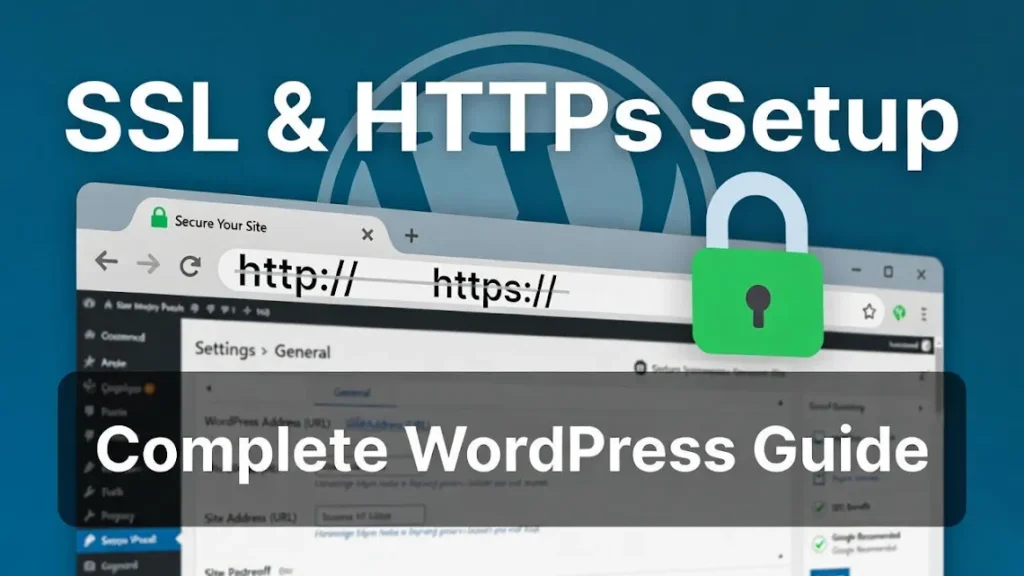
Switching your WordPress site from HTTP to HTTPS with an SSL certificate is a critical step for modern websites, safeguarding sensitive information and signaling reliability to visitors. Without it, browsers may flag your site as insecure, deterring users and potentially harming your search rankings. At Cope Business, we’ve assisted numerous clients in implementing HTTPS through our technical SEO audit services, identifying vulnerabilities and ensuring seamless transitions. This guide outlines why HTTPS matters, the prerequisites, straightforward setup methods, troubleshooting tips, and post-setup best practices to keep your site optimized.
Whether you’re running a blog, online store, or business portal, adding HTTPS can improve performance and compliance. If implementation reveals broader issues like crawl errors, our Google Search Console fixing services can address them promptly.
What Is HTTPS and How Does It Work?
HTTPS stands for Hypertext Transfer Protocol Secure, an encrypted version of HTTP that protects data exchanged between browsers and servers. It uses an SSL (Secure Sockets Layer) or TLS (Transport Layer Security) certificate to verify your site’s identity and encrypt connections, preventing unauthorized access to details like passwords or payment info.
When active, browsers show a lock icon in the address bar, assuring users of a safe environment. Without HTTPS, data travels in plain text, exposing it to risks.
Benefits of Adding HTTPS and SSL to Your WordPress Site
Google has prioritized HTTPS since 2018, labeling non-secure sites with warnings that can scare off visitors. Key advantages include:
- Enhanced Protection: Shields against data breaches and man-in-the-middle attacks.
- SEO Advantages: Provides a minor ranking lift and supports secure features like AMP.
- Increased Confidence: The secure indicator encourages form submissions and purchases.
- Regulatory Needs: Essential for handling payments through gateways like Stripe or WooCommerce.
Failing to adopt HTTPS can lead to traffic losses—our traffic recovery services have helped sites rebound from such oversights.
Prerequisites for Implementing HTTPS/SSL in WordPress
Before starting:
- Acquire an SSL Certificate: Many hosts offer free ones via Let’s Encrypt. If unavailable, buy from providers like Namecheap or GoDaddy for affordable options.
- Host Installation: Your hosting service must enable the certificate on your domain—contact support if needed.
For premium certificates with added features like warranties, expect to pay a small fee, but free ones suffice for most sites.
Easy Ways to Enable HTTPS in WordPress
Choose between plugin-based simplicity or manual precision based on your expertise.
Option 1: Plugin Method (Ideal for New Users)
- Add and enable the Really Simple SSL plugin from the WordPress repository.
- Access the plugin’s Security settings; it will scan for your SSL and prompt activation.
- Upon enabling, it automatically:
- Confirms the certificate.
- Switches site URLs to HTTPS.
- Establishes redirects from HTTP.
- Resolves mixed content via buffering (minimal performance hit on initial loads).
- Retain the plugin to maintain fixes; removal could revert problems.
This approach is quick and hands-off. If site speed is affected, pair it with our WordPress speed optimization services.
Option 2: Manual Configuration (For Better Efficiency)
- In Settings > General, update both “WordPress Address” and “Site Address” to start with https://. Save and log back in.
- For redirects, edit your .htaccess file (Apache)
:text<IfModule mod_rewrite.c> RewriteEngine On RewriteCond %{HTTPS} off RewriteRule ^(.*)$ https://%{HTTP_HOST}%{REQUEST_URI} [L,R=301] </IfModule>For NGINX, modify the server config:textserver { listen 80; server_name yourdomain.com www.yourdomain.com; return 301 https://yourdomain.com$request_uri; }Substitute yourdomain.com with yours.- Secure the admin by adding to wp-config.php (before the stop editing line):
textdefine('FORCE_SSL_ADMIN', true);Manual setups avoid plugin overhead but require caution—back up files first.
Addressing Mixed Content Warnings
Mixed content happens when HTTPS pages pull resources over HTTP, undermining security. Spot these via browser developer tools.
Updating Database Links
- Use the Search & Replace Everything plugin.
- Under Tools > WP Search & Replace, swap http://yourdomain.com for https://yourdomain.com in all tables.
Correcting Theme References
- Inspect elements to find HTTP sources.
- Update theme code to use https:// or protocol-relative // paths.
Handling Plugin Conflicts
- Report hardcoded HTTP to developers.
- Switch plugins if fixes aren’t forthcoming.
Use a staging environment for testing. Our SEO tools audit errors fixing can automate deeper scans for lingering errors.
Registering Your HTTPS Site in Google Search Console
To maintain SEO:
- Create a new property for the HTTPS version in Search Console.
- Verify via HTML tag.
- With All in One SEO plugin: Navigate to All in One SEO > General Settings > Webmaster Tools > Google Search Console, insert the code, and save.
- Keep both versions but prioritize HTTPS to transfer rankings smoothly.
Common Queries About SSL and HTTPS in WordPress
Free through hosts or Let’s Encrypt; paid options start low for extras.
SSL/TLS provides encryption; HTTPS is the protocol that employs it.
User distrust from warnings, SEO disadvantages, and payment restrictions.
Further Optimization Tips
Once set up, monitor for issues and renew certificates annually. Explore our related guides on permalink optimization, Core Web Vitals, and competitor analysis for comprehensive SEO.
For professional assistance with HTTPS implementation or audits, contact Cope Business for a free technical SEO evaluation.