
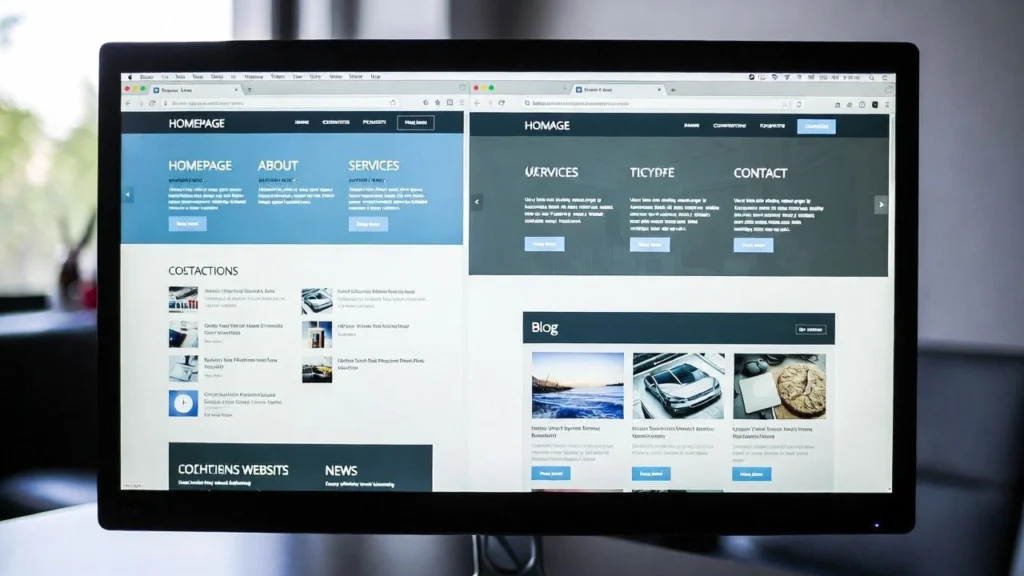
By default, WordPress displays your latest blog posts on the homepage, which works for simple blogs but not for business sites needing a custom front page. Creating a separate page for blog posts lets you set a static homepage while keeping your blog organized and accessible. This improves user experience, navigation, and SEO by allowing focused content on each page. At Cope Business, we often configure this during our technical SEO audit services to help clients build professional, high-performing sites. This guide provides a simple step-by-step process to set it up, plus tips for optimization.
On this page
ToggleWhether you’re building a business site, portfolio, or eCommerce store, separating your blog enhances professionalism and usability.
Why Create a Separate Page for Blog Posts?
- Custom Homepage: Use for services, about us, or CTAs instead of posts.
- Better Navigation: Clear “Blog” link in menu for easy access.
- SEO Benefits: Optimized homepage for conversions; blog for content marketing.
- Improved Performance: Static pages load faster than dynamic post lists.
- Professional Look: Essential for non-blog-focused sites.
Without this setup, your homepage becomes cluttered with posts as your blog grows.
Step-by-Step Guide to Set Up a Separate Blog Page
Step 1: Create Your Blog Page
- Go to Pages > Add New.
- Title it “Blog” or “News” (no content needed yet).
- Publish the page.
This empty page will serve as your blog’s home.
Step 2: Create a Custom Homepage (Optional but Recommended)
- Create a new page titled “Home” or similar.
- Add content: Hero section, services overview, testimonials, etc. (use a page builder like SeedProd for design).
- Publish.
Step 3: Set Your Static Front Page and Posts Page
- Go to Settings > Reading.
- Under “Your homepage displays”, select “A static page”.
- Set “Homepage” to your custom home page.
- Set “Posts page” to your new blog page.
- Save changes.
Your homepage is now static, and blog posts appear on the designated page.
Step 4: Update Your Menu for Navigation
- Go to Appearance > Menus.
- Add your “Blog” page to the main menu.
- Save the menu.
This ensures visitors can easily find your blog.
Tips for Optimizing Your Separate Blog Page
- Customize the Blog Layout: Use a theme like Astra or GeneratePress for grid/list views.
- Add Pagination: Ensure infinite scroll or numbered pages for better UX.
- SEO Optimization: Use All in One SEO to add meta titles/descriptions for the blog page; include categories/tags for internal linking.
- Performance Boost: Enable caching and lazy loading for faster loads (see our caching guide).
- Mobile-Friendly: Test responsiveness—blog pages should adapt seamlessly.
- Analytics Tracking: Use MonsterInsights to monitor blog traffic separately.
This setup also supports topic clusters for advanced SEO (see our guide).
Common Issues and Fixes
- No Posts Showing: Ensure you have published posts; check if the posts page is set correctly.
- Homepage Redirect Loop: Clear cache and confirm URL settings match.
- SEO Impact: Update sitemap in Google Search Console after changes.
A separate blog page not only organizes your site but also improves focus and conversions.
Need help setting this up or optimizing your WordPress structure for better SEO? Contact Cope Business for a free technical consultation—we’ll review your site and implement tailored improvements.


