
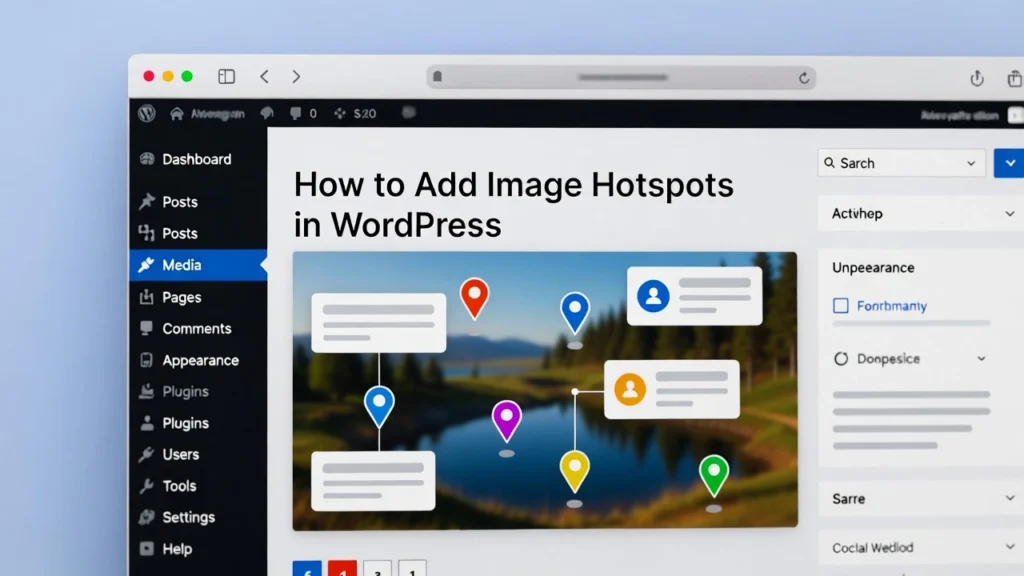
Image hotspots are interactive elements added to images that reveal additional information (text, links, videos) when hovered or clicked—perfect for product demos, tutorials, maps, or infographics. In WordPress, adding hotspots makes your content more engaging, improves user experience, and can boost dwell time for better SEO. At Cope Business, we often incorporate hotspots for clients during our technical SEO audit services to enhance on-page interaction and conversions. This guide covers what hotspots are, why they’re useful, and two simple methods to add them in WordPress—no advanced coding required.
On this page
ToggleWhether you’re building an eCommerce site, blog, or portfolio, hotspots can transform static images into dynamic tools.
What Are Image Hotspots and Why Use Them?
Image hotspots are clickable areas on an image that trigger popups, tooltips, or links. For example, on a product photo, hotspots could highlight features with descriptions.
Benefits:
- Increased Engagement: Users interact more, reducing bounce rates.
- Better UX: Provides context without cluttering pages.
- SEO Gains: Longer dwell time and better accessibility (with alt text).
- Conversions: Guides users to key info or CTAs.
- Versatility: Great for tutorials, maps, or product showcases.
WordPress doesn’t have built-in hotspots, but plugins and builders make it easy.
Method 1: Using a Plugin (Recommended for Beginners)
Plugins offer drag-and-drop interfaces for quick setup.
Recommended Plugin: Image Hotspots by Devnath (Free)
This lightweight plugin is user-friendly and integrates seamlessly.
Steps
- Install and activate Image Hotspots from Plugins > Add New.
- Upload your image to the media library.
- Create a new post/page and add the Image Hotspots block (or shortcode).
- Select your image and click to add hotspots.
- For each hotspot: Set position, add tooltip text, links, icons, or popups.
- Customize styles: Colors, animations, mobile responsiveness.
- Publish and test on desktop/mobile.
Alternative Plugins:
- Hero Maps Premium (for map-based hotspots).
- WP Image Zoom (free with hotspot add-on).
Pros: No coding, visual editor, free core. Cons: Premium for advanced popups.
Method 2: Using a Page Builder (For Advanced Customization)
Page builders like Elementor allow hotspots with more design flexibility.
Using Elementor (Free/Pro)
- Install Elementor (free version works; Pro unlocks more widgets).
- Edit a page with Elementor.
- Add an Image widget and upload your photo.
- Use the Hotspots widget (Pro) or add overlays with sections/buttons positioned absolutely.
- For each hotspot: Add icon/text, set hover effects, link to pages or modals.
- Style with CSS if needed for animations.
- Publish and preview.
Alternative: Beaver Builder or SeedProd with similar hotspot modules.
Pros: Full design control, responsive, integrates with other elements. Cons: Requires builder plugin; Pro version for hotspots widget.
Best Practices for Image Hotspots
- Mobile Optimization: Ensure hotspots are tap-friendly and don’t overlap.
- Accessibility: Add alt text to images and aria-labels to hotspots.
- Performance: Compress images and lazy load (see our lazy loading guide).
- SEO: Use descriptive text in hotspots with keywords; add schema if relevant.
- Testing: Check on different devices; use heatmaps to refine placement.
- Avoid Overuse: Limit to 5–10 hotspots per image to prevent clutter.
Hotspots can increase engagement by 20–30% on interactive pages.
Final Thoughts
Adding image hotspots in WordPress elevates your content from static to interactive, improving UX and conversions. Start with a plugin for simplicity or a builder for customization—either way, it’s a quick upgrade.
Engaged users stay longer, benefiting SEO and retention.
Need help adding hotspots or optimizing your site for better interactivity? Contact Cope Business for a free technical SEO consultation—we’ll review your setup and implement tailored enhancements.


