
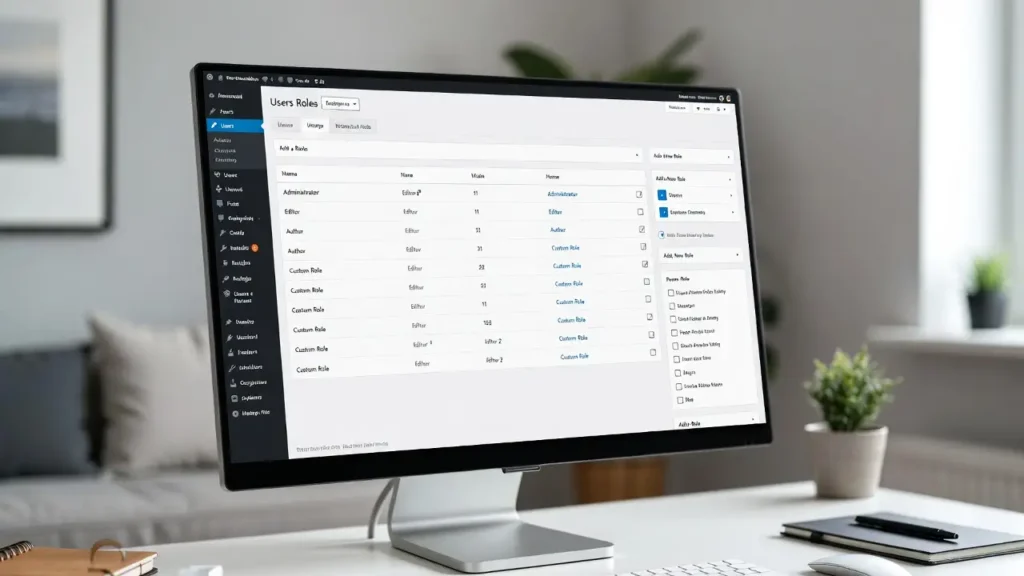
WordPress comes with several built-in user roles — Administrator, Editor, Author, Contributor, Subscriber — but they often don’t fit every site’s needs. Creating custom user roles lets you fine-tune permissions: give a team member access only to edit posts but not delete them, allow clients to view private pages without full dashboard access, or create a “Moderator” role for community management.With growing team sites, membership platforms, and agency workflows, custom roles are essential for security, organization, and scalability.
At Cope Business, we frequently set up custom user roles and capabilities for clients during our technical SEO audit services to ensure secure, role-based access that matches business needs without over-exposing sensitive areas.
This beginner-to-advanced guide shows you two easy ways to add custom user roles in WordPress — using a plugin (recommended for most users) and using code (for full control).
Why Create Custom User Roles in WordPress?
- Better Security — Limit what users can do (principle of least privilege)
- Team & Client Management — Give exact access needed (edit posts but not themes/plugins)
- Membership Sites — Create roles like “Premium Member” or “Course Student”
- Agency Efficiency — Clients get safe dashboard access without full admin rights
- Scalability — Easily manage dozens or hundreds of users with different permissions
Default roles are too broad for most professional sites — custom roles fix that.
Method 1: Using a Plugin (Easiest – Recommended)
Plugins give you a visual interface, bulk editing, and role copying — no code needed.
Recommended Plugin: User Role Editor (Free/Pro)
User Role Editor is the most popular and reliable tool for managing roles.
Step-by-Step Setup
- Install User Role Editor (free version is excellent) from Plugins > Add New.
- Activate → Go to Users > User Role Editor.
- Click Add Role.
- Fill in:
- Role ID: manager (lowercase, no spaces)
- Role Display Name: “Content Manager”
- Make role of: Copy from “Editor” (or start blank)
- Set capabilities:
- Check boxes like edit_posts, publish_posts, upload_files
- Uncheck dangerous ones: edit_theme_options, install_plugins, delete_others_posts
- Click Update Role → New role is created.
- Assign the role: Users > All Users → Edit user → Change Role to “Content Manager”.
- Test: Log in as that user — they should only see allowed actions.
Pro Version (~$29/year): Bulk user editing, role export/import, multisite support.
Alternative Plugin: Members (free) — Very clean interface, great for membership sites.
Pros: Visual, safe, reversible, bulk assign.
Cons: Adds one plugin (very lightweight).
Method 2: Using Custom Code (Lightweight – Full Control)
For developers or sites that prefer no extra plugins.
Steps
- Use a child theme or WPCode (free plugin).
- Add this code to functions.php or WPCode snippet (run on activation):
PHPfunction cope_add_custom_roles() { add_role( 'content_manager', 'Content Manager', array( 'read' => true, 'edit_posts' => true, 'publish_posts' => true, 'edit_others_posts' => false, 'delete_posts' => true, 'upload_files' => true, 'edit_pages' => false, // Optional: block page editing ) ); } register_activation_hook(__FILE__, 'cope_add_custom_roles');- Activate your plugin/child theme → Role is created.
- Assign: Users > All Users → Edit user → Change role.
To remove role (if needed):
PHP
function cope_remove_custom_roles() {
    remove_role('content_manager');
}
register_deactivation_hook(__FILE__, 'cope_remove_custom_roles');Pros: No plugin bloat, precise control.
Cons: Requires code; harder to manage visually.
Best Practices for Custom User Roles
- Least Privilege — Give only the capabilities needed
- Test Thoroughly — Create test users and try all actions
- Document Roles — Keep notes on what each role can/can’t do
- Multisite — Use network activation for role consistency
- Security — Never give manage_options or install_plugins to non-trusted users
- SEO → Custom roles don’t directly affect SEO, but better access control prevents accidental public content exposure
Final Thoughts
Custom user roles in WordPress give you precise control over who can do what — essential for team sites, agencies, or membership platforms. Use User Role Editor for visual ease or code for lightweight implementation — both are quick and effective.
Secure, role-based access keeps your site organized and safe.
Need help creating custom roles, setting up membership access, or optimizing your site for security & performance? Contact Cope Business for a free technical SEO consultation — we’ll design a role structure that fits your team and business perfectly.


