
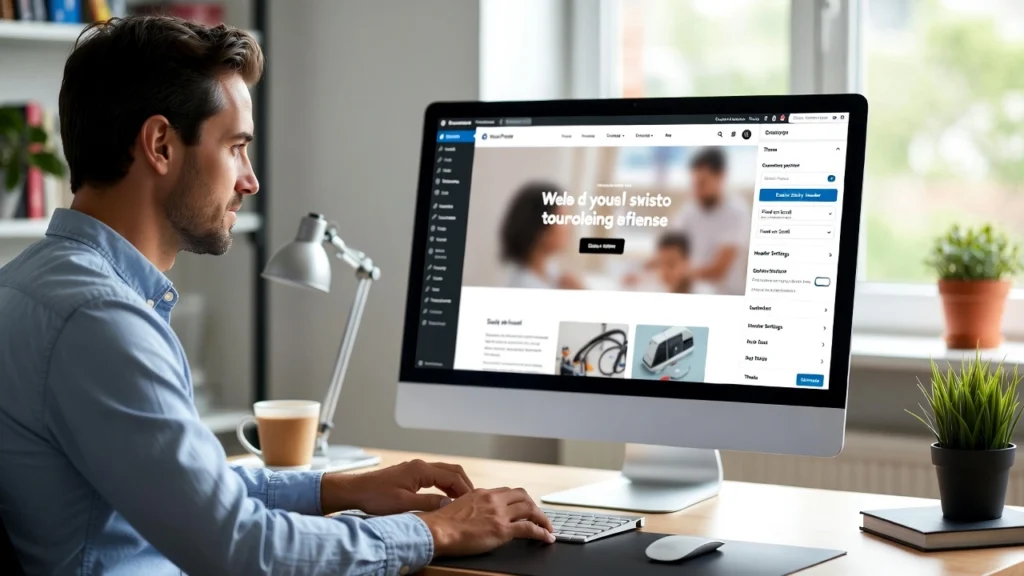
A sticky header in wordpress (also called a fixed or floating header) stays visible at the top of the screen as users scroll down your page — making navigation links, search bars, or CTAs always accessible. This simple feature improves user experience, reduces bounce rates, and can boost conversions by 10–20% on long-scrolling pages. with mobile-first designs and Core Web Vitals emphasizing smooth scrolling, a well-implemented sticky header is essential for modern WordPress sites. At Cope Business, we often add sticky headers for clients during our technical SEO audit services to enhance usability and on-page engagement without impacting performance.
This guide covers two easy methods to add a sticky header in WordPress — using plugins for beginners or CSS for lightweight customization — no advanced coding required.
Why Add a Sticky Header to Your WordPress Site?
- Improved Navigation: Users can access menus/CTAs without scrolling back up.
- Higher Engagement: Keeps important elements visible, reducing drop-offs.
- Better Conversions: Persistent CTAs (e.g., “Contact Us”) drive more actions.
- Mobile-Friendly: Essential for touch devices where scrolling is common.
- SEO Benefits: Lower bounce rates and longer sessions signal quality content to Google.
Sticky headers work great for blogs, eCommerce, portfolios, or service sites — but avoid if it covers too much content on small screens.
Method 1: Using a Plugin (Easiest & Recommended)
Plugins make sticky headers simple with one-click setup and mobile controls.
Recommended Plugin: Sticky Menu or Anything on Scroll (Free)
This lightweight plugin is highly rated and works with any theme.
Steps
- Install and activate Sticky Menu or Anything on Scroll from Plugins > Add New.
- Go to Settings > Sticky Menu (or Anything!).
- Set the Element to Stick: Use your header’s CSS selector (e.g., #header, .site-header) — find it with browser inspect tool (right-click header → Inspect).
- Adjust options:
- Sticky on: Desktop, Mobile, or both
- Space from top: 0px (or more if overlapping)
- Z-index: 9999 (to stay on top)
- Admin bar aware: Check if using WordPress admin bar
- Save changes.
- Test: Scroll down your site — the header should stick.
Alternative Plugins:
- Sticky Header Effects for Elementor (free, if using Elementor).
- WP Sticky (free/pro) — More advanced animations.
Pros: Free, easy, no code, mobile disable option.
Cons: Basic — may need CSS for perfect styling.
Method 2: Using Custom CSS (Lightweight & Code-Free)
For themes without built-in options, use CSS to make your header sticky.
Steps
- Go to Appearance > Customize > Additional CSS.
- Add this code (adjust selector):
CSS.site-header { /* Replace with your header's class/ID */ position: sticky; top: 0; z-index: 9999; background: #ffffff; /* Adjust to your background color */ } /* Optional: Admin bar fix */ body.admin-bar .site-header { top: 32px; } /* Optional: Disable on mobile */ @media (max-width: 768px) { .site-header { position: relative; } }- Replace .site-header with your theme’s header selector (use Inspect tool to find it).
- Publish and test scrolling.
Pros: No plugins, lightweight, full control. Cons: Requires basic CSS knowledge; may need tweaks for themes.
Best Practices for Sticky Headers
- Mobile Consideration: Disable sticky on mobile (use media queries) — floating headers can cover content.
- Performance: Sticky has no impact, but optimize header images/logos for speed.
- Accessibility: Ensure keyboard navigation and screen reader compatibility (add ARIA roles if needed).
- SEO: Sticky headers improve time-on-page — pair with good internal linking.
- Testing: Check on multiple devices; avoid overlapping with content.
A sticky header can reduce navigation friction and increase conversions.
Final Thoughts
Adding a sticky header in WordPress is a quick upgrade that enhances usability and engagement. Use a plugin for simplicity or CSS for customization — either way, your users will appreciate the improved navigation.
Sticky elements keep your site user-friendly.
Need help adding a sticky header, optimizing your theme, or improving overall site performance? Contact Cope Business for a free technical SEO consultation — we’ll review your setup and implement tailored enhancements.


