
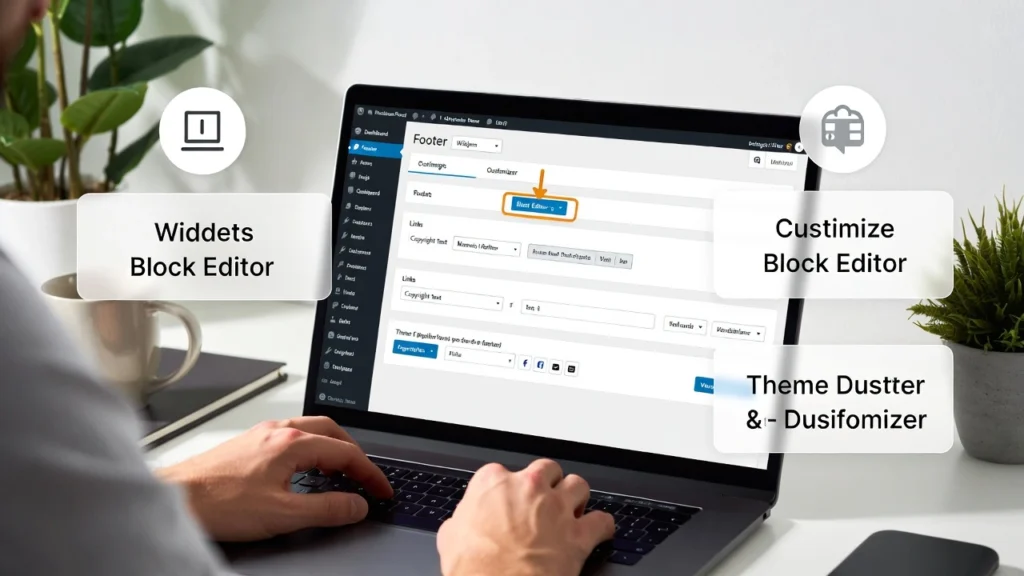
The footer of your WordPress site is prime real estate — it’s visible on every page and often the last thing visitors see before leaving. Customizing it allows you to add important elements like copyright notices, contact information, social media links, quick navigation, trust badges, or even a small call-to-action. a clean, optimized footer improves user experience, boosts credibility, and can indirectly support SEO through better internal linking and dwell time. At Cope Business, we help clients create professional, high-converting footers during our technical SEO audit services, ensuring they load fast and look great on all devices.
The best part? You don’t need to touch any code. This beginner-friendly guide shows you three easy ways to customize your WordPress footer using built-in tools, page builders, and plugins.
Why Customize Your WordPress Footer?
- Build Trust — Display copyright, privacy policy, and contact info
- Drive Engagement — Add social icons, newsletter signup, or menu links
- Improve Navigation — Quick links to important pages
- Legal Compliance — Include required notices (GDPR, terms, privacy policy)
- Branding & Conversions — Add small CTAs or trust signals
A cluttered or default footer can make your site feel unfinished — a clean one makes it look professional.
Method 1: Using the Theme Customizer (Built-in – No Plugin Needed)
Most modern themes (Astra, GeneratePress, OceanWP, Kadence) support footer customization directly in the customizer.
Steps
- Go to Appearance > Customize.
- Look for Footer or Footer Builder section (name varies by theme).
- Footer Widgets: Add/remove widget areas (text, menu, social icons).
- Footer Bar/Credits: Edit copyright text (e.g., “© Cope Business – All Rights Reserved”).
- Footer Layout: Choose columns (1–6), alignment, background color.
- Add elements:
- Text Widget: Add address, phone, email, or short bio.
- Navigation Menu Widget: Create a footer menu with links to Privacy Policy, Terms, Contact.
- Social Icons Widget: Link your profiles.
- Style: Change colors, fonts, spacing, borders.
- Preview on mobile/tablet → Publish.
Pros: No extra plugins, theme-native, fast loading.
Cons: Limited to what your theme allows (upgrade to premium theme for more options).
Recommended Themes for powerful footer builders: Astra Pro, GeneratePress Premium, Kadence Pro.
Method 2: Using SeedProd (Best for Full Control – No Code)
SeedProd is the easiest drag-and-drop way to design a custom footer without touching your theme files.
Steps
- Install SeedProd (free lite; Pro ~$39.50/year for advanced footer builder).
- Go to SeedProd > Theme Builder > Add New → Select Footer.
- Choose a template or start blank.
- Drag-and-drop elements:
- Text for copyright
- Social Icons
- Menu
- Contact Form (integrate WPForms)
- Logo, columns, background image/video
- Style everything: Colors, spacing, typography, mobile layout.
- Set display conditions: Entire site (or specific pages).
- Save & Publish — your new footer replaces the old one.
Pros: Full visual control, mobile-first design, no code, fast.
Cons: Pro required for footer builder.
Method 3: Using Widgets & Customizer (Free & Universal)
Works with any theme that supports footer widgets.
Steps
- Go to Appearance > Widgets.
- Find Footer widget areas (Footer 1, Footer 2, etc.).
- Add widgets:
- Text or Custom HTML: Copyright text, address, links
- Navigation Menu: Footer menu
- Image: Logo or badge
- Recent Posts or Categories for blog sites
- Social Icons (if your theme has it)
- Arrange columns → Save.
- Go to Appearance > Customize > Footer (if available) to adjust layout/colors.
Pros: Free, works on almost all themes.
Cons: Limited styling compared to builders.
Best Practices for Your WordPress Footer
- Keep it Clean — 3–4 columns max; avoid clutter.
- Mobile-Friendly — Stack columns vertically on phones.
- Legal Links — Privacy Policy, Terms, Cookie Notice (essential for GDPR).
- Trust Signals — Add payment icons, security badges.
- Performance — Use lightweight widgets; enable lazy loading for images.
- SEO — Add internal links; ensure footer is crawlable.
A professional footer can improve trust and navigation — don’t leave it default.
Final Thoughts
Customizing your WordPress footer without code is quick and impactful. Use the built-in customizer for simple changes, or SeedProd for complete design freedom — either way, you’ll have a polished, professional look in minutes.
Your footer is the last impression — make it count.
Need help designing your footer, adding advanced features, or optimizing your site for speed and SEO? Contact Cope Business for a free technical SEO consultation — we’ll create a footer that converts and performs beautifully.


