
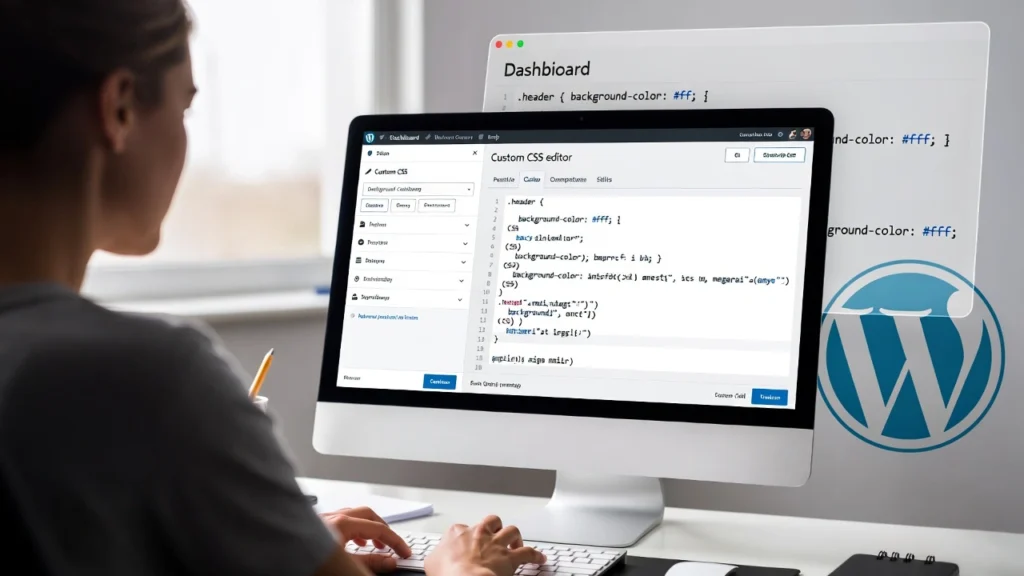
Custom CSS allows you to tweak your WordPress site’s design — changing fonts, colors, layouts, or fixing theme issues — without editing core files. In 2026, with block themes and full-site editing more common, knowing how to add CSS safely is essential to avoid breaking your site during updates. Poorly added CSS can cause conflicts, slow loading, or mobile issues, impacting SEO and user experience. At Cope Business, we optimize custom CSS for clients during our technical SEO audit services to ensure fast, responsive designs that enhance rankings and conversions.
This guide covers three easy, safe methods to add custom CSS in WordPress — no advanced coding required. We’ll also include best practices to keep your site performant.
On this page
ToggleWhy Add Custom CSS to WordPress?
- Fine-Tune Design: Override theme styles for unique branding.
- Fix Issues: Correct layout bugs or mobile responsiveness.
- Improve UX: Add hover effects, animations, or custom buttons.
- SEO Benefits: Faster, cleaner designs improve Core Web Vitals.
- No Theme Editing: Avoid losing changes on updates.
Custom CSS is powerful but use it sparingly — too much can bloat your site.
Method 1: Using the Theme Customizer (Built-in & Easiest)
Most themes support adding CSS directly in the customizer — no plugins needed.
Steps
- Go to Appearance > Customize.
- Scroll to Additional CSS (bottom of the menu).
- Paste your CSS code (e.g., to change body font):
textbody { font-family: 'Arial', sans-serif; color: #333; }- Preview changes live on the right.
- Click Publish — CSS applies site-wide.
Pros: Instant preview, no extra tools, mobile check built-in.
Cons: Limited to global styles (use IDs/classes for specificity).
Tip: Use browser dev tools (F12) to find selectors (e.g., .site-header).
Method 2: Using a Plugin (For Advanced Control & Safety)
Plugins like Simple Custom CSS let you add CSS without touching theme files.
Recommended Plugin: Simple Custom CSS and JS (Free)
- Install Simple Custom CSS and JS from Plugins > Add New.
- Go to Custom Code > Add Custom CSS.
- Paste your CSS in the editor.
- Set location: Site-wide, specific pages, or admin.
- Save — changes apply immediately.
Alternative: WPCode (free) for snippets with preview.
Pros: Version history, minification for speed, easy revert.
Cons: Adds a plugin (very lightweight).
Method 3: Using a Child Theme (Best for Permanent Customizations)
For theme-specific CSS that survives updates.
Steps
- Create a child theme (use Child Theme Configurator plugin for ease).
- In child theme folder, edit style.css.
- Add your CSS below the @import line.
- Activate the child theme in Appearance > Themes.
- Changes load automatically.
Pros: Safe for updates, full control.
Cons: Requires FTP/child theme setup.
Best Practices for Adding Custom CSS
- Specificity: Use IDs/classes (e.g., #header { background: #fff; }) to target elements.
- Mobile Responsiveness: Use media queries (e.g., @media (max-width: 768px) { … }).
- Performance: Minify CSS (plugins do this); avoid !important overuse.
- SEO: Custom CSS improves UX signals — pair with speed optimizations (see our speed guide).
- Testing: Preview on multiple devices/browsers; use GTmetrix for impact.
- Accessibility: Ensure contrast ratios and readability.
Custom CSS enhances your site — but always backup before changes.
Final Thoughts
Adding custom CSS in WordPress is straightforward and empowers you to create a unique design. Use the customizer for quick tweaks, a plugin for safety, or a child theme for permanence — all without deep coding.
Great design supports better SEO and conversions.
Need help adding custom CSS, fixing design issues, or optimizing your site’s performance? Contact Cope Business for a free technical SEO consultation — we’ll review your site and implement tailored customizations.


