
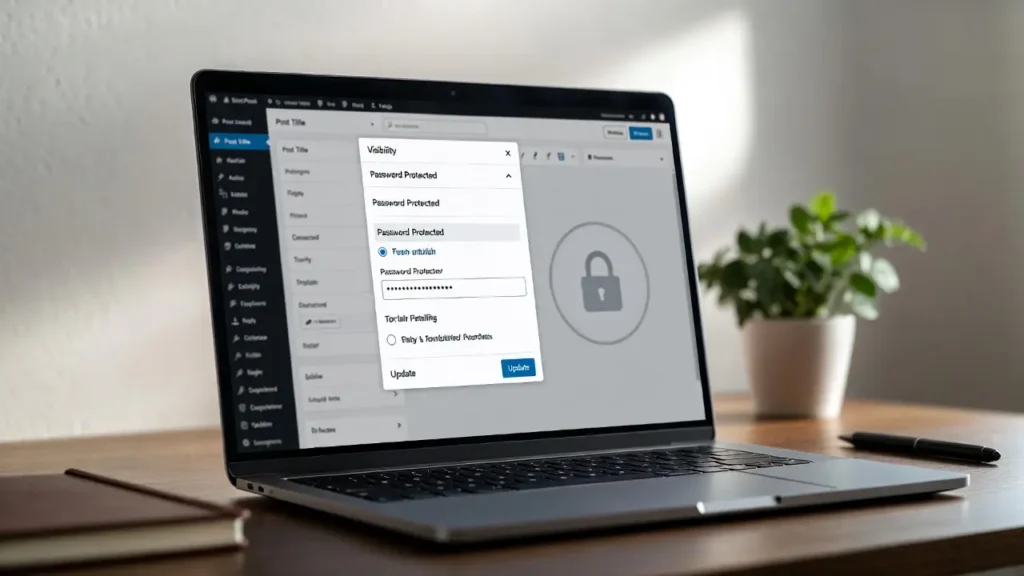
Password-protecting pages or posts in WordPress is one of the simplest ways to create private content — whether for paid members, clients-only resources, internal company documentation, beta testers, or exclusive downloads. With privacy regulations, gated content strategies, and membership sites continuing to grow, knowing how to secure individual pages/posts remains a very useful skill.
At Cope Business, we frequently set up password-protected sections for clients during our technical SEO audit services and custom WordPress projects — ensuring they’re secure, user-friendly, and SEO-safe (noindex where needed).
This beginner-friendly guide covers three easy methods to password protect pages and posts in WordPress — from the built-in feature (no plugins) to advanced plugin options.
Why Password Protect Pages or Posts in WordPress?
- Create members-only or paid content areas
- Share private resources with clients, beta testers, or team members
- Offer exclusive downloads, checklists, or early access
- Hide draft/pre-launch pages from public view
- Improve perceived value (“members-only” content feels premium)
Method 1: Using Built-in WordPress Password Protection (Easiest – No Plugin)
WordPress has a native password feature — perfect for simple use cases.
Step-by-Step
- Edit any page or post you want to protect.
- In the right sidebar → Status & Visibility (under Publish/Schedule section).
- Click Public → Change to Password protected.
- Enter a strong password (you can share it manually or via email).
- Click OK → Update or Publish.
- Done! Anyone visiting the page will see a password prompt.
How visitors see it:
- Clean, default WordPress password form: “This content is password protected. To view it please enter your password below:”
Pros:
- Built-in — zero plugins
- Works on any post type (pages, posts, custom types)
- Very fast & secure
Cons:
- Very basic look (no custom styling or message)
- One password per page/post (not per user)
- No expiration or user management
Method 2: Using a Plugin for Better Control & Styling
Plugins give you custom password forms, per-user access, expiration, and more.
Recommended Plugin: Password Protected (Free/Pro)
- Install Password Protected from Plugins > Add New.
- Activate → Go to Settings > Password Protected.
- Set global password (optional) or leave blank for per-page control.
- Edit any page/post → Scroll to Password Protected Settings meta box.
- Check Protect this content → Enter password.
- Customize:
- Custom message above form
- Redirect after correct password
- Expire after X days/hours
- Whitelist IPs (for you/team)
- Save → Page is now password-protected with your custom form.
Pro Version (~$29/year): Multiple passwords, user roles, shortcodes, custom templates.
Alternative Plugins:
- Restrict Content (free/pro) – Role-based + passwords
- Password Protect WordPress (free/pro) – Very popular
Pros: Custom styling, expiration, better UX.
Cons: Adds one plugin (very lightweight).
Method 3: Using Code for Advanced Control (No Plugin)
For maximum flexibility (e.g., different passwords per role).
- Use a child theme or WPCode (free plugin).
- Add this code to functions.php or WPCode snippet:
PHP
function cope_password_protect_specific_page() {
    if ( is_page('your-page-slug') && !is_user_logged_in() ) {  // Change 'your-page-slug'
        if ( !isset($_POST['cope_password']) || $_POST['cope_password'] !== 'your-secret-password' ) {
            wp_die('
                <h1>Protected Content</h1>
                <p>This page is password protected. Please enter the password below:</p>
                <form method="post">
                    <input type="password" name="cope_password" placeholder="Enter password">
                    <input type="submit" value="Submit">
                </form>
            ');
        }
    }
}
add_action('template_redirect', 'cope_password_protect_specific_page');
Customize:
- Change is_page(‘your-page-slug’) to target specific pages
- Update password
- Style the form with CSS
Pros: No plugin, fully customizable.
Cons: Manual for each page; less user-friendly than plugins.
Best Practices for Password-Protected Content
- Strong Passwords — Use random, long passwords (share via secure channel)
- Noindex Protected Pages — Use All in One SEO/Rank Math to noindex (prevents indexing)
- Mobile-Friendly — Test password form on phones
- SEO — Don’t password-protect public-facing content; keep valuable pages open
- Performance — Password checks are lightweight — no speed impact
- Backup Access — Whitelist your IP in plugins to always see content
Final Thoughts
Password protecting pages/posts in WordPress is simple and powerful — use the built-in feature for quick protection or a plugin like Password Protected for styling and control.
Gated content adds value and exclusivity — use it strategically.
Need help setting up password-protected areas, creating membership flows, or optimizing your site for SEO & conversions? Contact Cope Business for a free technical SEO consultation — we’ll build a secure, user-friendly solution tailored to your needs.


