
A WordPress dropdown menu is one of the most effective navigation elements you can add to your website. Whether you’re managing a small blog or a large e-commerce site, dropdown menus help organize your content and improve user experience. Creating a WordPress dropdown menu doesn’t require advanced coding skills—in fact, WordPress provides built-in features that make it simple for anyone to add dropdown menus to their site.
In this comprehensive guide, we’ll walk you through everything you need to know about creating WordPress dropdown menus. We’ll explore multiple methods, from using WordPress’s native menu system to implementing plugins and custom CSS solutions. By the end of this article, you’ll have the knowledge and confidence to build dropdown menus that enhance navigation and keep your visitors engaged on your WordPress site.
Quick Navigation – Table of Contents
- What is a WordPress Dropdown Menu?
- Why Are WordPress Dropdown Menus Important?
- Requirements Before Creating WordPress Dropdown Menus
- Method 1: Using Native WordPress Menu Features
- Method 2: Using Full Site Editing (FSE)
- Method 3: Using WordPress Dropdown Menu Plugins
- Customizing Your WordPress Dropdown Menu
- Best Practices for WordPress Dropdown Menus
- Troubleshooting Common Issues
- Conclusion
What is a WordPress Dropdown Menu?
A WordPress dropdown menu, also known as a submenu or drop-down menu, is a navigation element that reveals additional options when users interact with it. These menus are triggered either by hovering over a menu item (on desktop) or clicking on it (on mobile and touch devices). The WordPress dropdown menu concept is fundamental to modern web design, allowing websites to display complex navigation hierarchies in an organized, space-efficient manner.
When a visitor hovers over or clicks on a parent menu item, a WordPress dropdown menu appears below it, showing related submenu items. This WordPress dropdown menu approach keeps your navigation clean and prevents your header from becoming cluttered with too many links. For example, if you have a “Products” menu item, your WordPress dropdown menu might reveal subcategories like “Digital Products,” “Physical Products,” and “Services.”
The WordPress dropdown menu is essentially a submenu structure where you organize your pages, posts, categories, and custom links into parent-child relationships. Creating a WordPress dropdown menu is one of the best ways to improve website navigation and reduce bounce rates, as visitors can quickly find what they’re looking for without getting lost.
Why Are WordPress Dropdown Menus Important for Your Website?
Creating a WordPress dropdown menu is more than just a design choice—it’s a strategic decision that impacts your website’s usability and performance. Here are the key reasons why you should implement WordPress dropdown menus on your site:
Improved User Experience
A well-designed WordPress dropdown menu guides visitors through your site intuitively. When users can easily find the pages they need, they spend more time on your website and are more likely to convert. The WordPress dropdown menu structure helps visitors understand your site’s organization at a glance, reducing frustration and abandonment.
Space Efficiency
Without a WordPress dropdown menu, you’d need to display all navigation links in a single row, which becomes impractical for sites with numerous pages. A WordPress dropdown menu allows you to hide secondary and tertiary navigation items until needed, keeping your header clean and professional. This space-saving approach is especially crucial for mobile devices where screen real estate is limited.
Better SEO Performance
A well-structured WordPress dropdown menu improves your site’s internal linking structure. When you create a WordPress dropdown menu with logical hierarchies, you’re also creating natural pathways for search engines to crawl your content. This helps search engines understand your site architecture and can positively impact your SEO rankings.
Professional Appearance
A WordPress dropdown menu gives your website a polished, professional look. Visitors expect well-organized navigation on modern websites, and implementing a WordPress dropdown menu meets those expectations. This professionalism builds trust and credibility with your audience.
Reduced Bounce Rate
When visitors can’t quickly find what they’re looking for, they leave. A WordPress dropdown menu helps reduce bounce rates by making navigation clear and straightforward. Studies show that improved navigation directly correlates with longer session durations and more page views.
Requirements Before Creating WordPress Dropdown Menus
Before you start creating a WordPress dropdown menu, you should verify that your setup meets certain requirements. Let’s review what you need:
Theme Compatibility
Not all WordPress themes support dropdown menus natively. Some classic WordPress themes do support this feature, while others don’t. Check your theme’s documentation to see if it supports WordPress dropdown menu functionality. Popular themes like Astra, Neve, OceanWP, and Twenty Twenty-Three all support creating dropdown menus. If your current theme doesn’t support dropdown menus and you want to create one, you have two options: switch to a compatible theme or use a WordPress dropdown menu plugin.
WordPress Version
You should be running a relatively recent version of WordPress (version 5.0 or later) to access all the menu management features discussed in this guide. Older WordPress versions may have limited menu functionality.
Admin Access
You need admin-level access to your WordPress dashboard to create and manage dropdown menus. If you don’t have these permissions, contact your site administrator.
Navigation Block Support (for FSE)
If you’re using the Full Site Editing method to create a WordPress dropdown menu, your theme needs to support the Navigation block. FSE-compatible themes include Twenty Twenty-Three and other newer WordPress themes.
Method 1: Creating WordPress Dropdown Menus Using Native Menu Features
The most straightforward way to create a WordPress dropdown menu is using WordPress’s built-in menu management system. This method doesn’t require any plugins or coding knowledge, making it ideal for beginners. Let’s walk through the process of creating a WordPress dropdown menu step by step.
1Access Your Menu Settings
To begin creating a WordPress dropdown menu, log into your WordPress dashboard and navigate to Appearance → Menus. This is where all WordPress dropdown menu creation happens. You’ll see an option to either create a new menu or edit an existing one. If you don’t have any menus yet, you’ll need to create one first.
2Create a New Menu
If this is your first WordPress dropdown menu, click on “Create a new menu.” Enter a name for your WordPress dropdown menu in the “Menu Name” field. This name is only visible in your WordPress dashboard and won’t appear on your website. A good name might be “Main Navigation” or “Primary Menu.” After entering the name, click “Create Menu.” Now you’re ready to start building your WordPress dropdown menu structure.
3Add Menu Items
Next, you need to add items to your WordPress dropdown menu. On the left side of the menu editor, you’ll see options to add different types of items including Pages, Posts, Categories, and Custom Links. Select the items you want to include in your WordPress dropdown menu by checking the boxes next to them, then click “Add to Menu.” These items will appear on the right side in the “Menu structure” section.
Pro Tip for WordPress Dropdown Menu Creation: You can add multiple types of items to your WordPress dropdown menu. For example, you might add your main pages (like Home, About, Services) along with custom links and categories. This flexibility is what makes the native WordPress dropdown menu system so powerful.4Create Submenu Items for Your WordPress Dropdown Menu
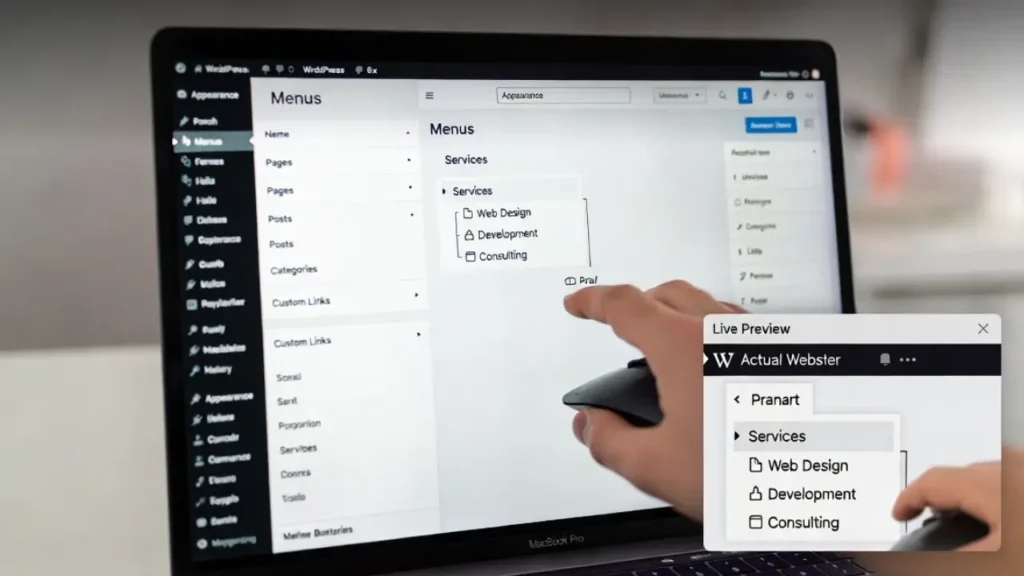
This is the crucial step that transforms your regular menu into a WordPress dropdown menu. In the “Menu structure” section on the right, you’ll see all your menu items listed. To create a WordPress dropdown menu, you need to drag a menu item slightly to the right, indenting it under another menu item. The item you drag will become a submenu item that appears in your WordPress dropdown menu when visitors hover over or click the parent item.
For example, if you have a “Services” menu item and you want to create a WordPress dropdown menu showing different service categories, you would drag items like “Consulting,” “Development,” and “Design” to the right underneath “Services.” These will now appear in a WordPress dropdown menu when visitors interact with the Services link.
5Organize Your WordPress Dropdown Menu Order
You can reorganize the order of your WordPress dropdown menu items by dragging and dropping them up and down. This allows you to control the sequence in which items appear both in the main menu and within your WordPress dropdown menu submenus. Place your most important items first, as these will be the first things visitors see when they open your WordPress dropdown menu.
6Set Menu Location
Before saving your WordPress dropdown menu, you need to assign it to a location on your website. Below the menu structure, you’ll see a “Menu Settings” section. Check the box next to “Primary Menu” (or whatever location is appropriate for your WordPress dropdown menu). This tells WordPress where to display your dropdown menu on your site. Different themes support different menu locations, so you might see options like “Primary Menu,” “Secondary Menu,” or “Footer Menu.”
7Save Your WordPress Dropdown Menu
Once you’re satisfied with your WordPress dropdown menu structure, menu items, and menu location assignment, click “Save Menu” to publish your changes. Your WordPress dropdown menu is now live on your website! Visit your site to see your newly created dropdown menu in action.
Method 2: Creating WordPress Dropdown Menus with Full Site Editing (FSE)
If your WordPress theme supports Full Site Editing (FSE), you have an additional method for creating WordPress dropdown menus. This modern approach offers more flexibility and visual control over your dropdown menu. FSE-compatible themes include Twenty Twenty-Three and other newer WordPress themes.
Steps to Create WordPress Dropdown Menu with FSE:
- Open the Site Editor: Go to Appearance → Editor in your WordPress dashboard. This opens the visual site editor where you can see your WordPress dropdown menu in real-time.
- Select Templates: Choose “Templates” from the editor’s main menu, then select a template that includes your navigation area, such as “Header” or “Front Page.”
- Edit the Navigation Block: Look for the Navigation block in your template. You may need to click on “List View” to find it if it’s nested inside other blocks. Click the pencil icon to edit the Navigation block.
- Add a Dropdown Item: To create a WordPress dropdown menu with FSE, hover over a menu item and click the three dots (⋮) that appear. Select “Add submenu” to transform that item into a dropdown menu parent.
- Configure Dropdown Behavior: In the block settings on the right side, you can choose whether your WordPress dropdown menu opens on hover or on click. This is especially important for mobile devices where hover isn’t possible.
- Save Your Changes: Once you’re happy with your WordPress dropdown menu, click “Save” to publish your changes. You’ll see your dropdown menu update in real-time in the editor.
Method 3: Using Plugins to Create Advanced WordPress Dropdown Menus
For more advanced dropdown menu functionality beyond what native WordPress offers, you can use specialized WordPress dropdown menu plugins. These plugins provide additional features like mega menus, custom styling, animations, and more control over dropdown behavior. Here are the most popular options:
Max Mega Menu
Max Mega Menu is one of the most popular WordPress dropdown menu plugins available. It transforms your basic menu into a powerful mega menu system with advanced styling options. To use Max Mega Menu for creating WordPress dropdown menus:
- Install and activate the Max Mega Menu plugin from your WordPress dashboard.
- Navigate to Max Mega Menu in your dashboard.
- In the Menu Locations section, select your primary menu and enable Max Mega Menu for that location.
- Configure how your WordPress dropdown menu triggers (on hover or click) and choose animation effects.
- Use the Menu Themes tab to customize colors, fonts, and spacing of your WordPress dropdown menu.
- Save your changes and view your newly enhanced WordPress dropdown menu on the frontend.
Other Popular WordPress Dropdown Menu Plugins
- Hero Menu: Offers extensive customization options for creating sophisticated WordPress dropdown menus with animations and advanced styling.
- UberMenu: Provides powerful mega menu functionality and complex dropdown structures for large WordPress sites.
- MetaMenu: A lightweight option for creating custom WordPress dropdown menus with minimal performance impact.
- Elementor Pro: If you’re using Elementor page builder, it includes built-in WordPress dropdown menu creation tools.
Customizing Your WordPress Dropdown Menu for Your Brand
Creating a WordPress dropdown menu is just the beginning—customizing it to match your brand makes it truly unique. Here are several ways to customize your WordPress dropdown menu:
Adding CSS Classes to Your WordPress Dropdown Menu
To add custom CSS to your WordPress dropdown menu, navigate back to Appearance → Menus, click on each menu item, and look for the option to add CSS classes. These classes allow you to apply custom styling to specific items in your WordPress dropdown menu. For example, you might add classes like “highlight” or “featured” to certain dropdown menu items.
Using Custom CSS for Your WordPress Dropdown Menu
For more advanced customization of your WordPress dropdown menu, go to Appearance → Customize and look for “Additional CSS.” Here you can write custom CSS code to style your WordPress dropdown menu. Here’s an example of CSS that changes the color of your dropdown menu items:
Styling Dropdown Menu Icons
Many themes allow you to add icons to your WordPress dropdown menu items for visual enhancement. You can add custom icons to make your WordPress dropdown menu more visually appealing and easier to scan. Use icon fonts like Font Awesome or custom images to enhance your WordPress dropdown menu appearance.
Mobile Responsiveness of Your WordPress Dropdown Menu
Ensure your WordPress dropdown menu is mobile-friendly. On mobile devices, your dropdown menu should convert to an accordion or hamburger menu that works with touch interactions. Most modern themes handle this automatically, but you should always test your WordPress dropdown menu on mobile devices to ensure it functions properly.
Best Practices for Creating Effective WordPress Dropdown Menus
Creating a WordPress dropdown menu is one thing, but creating an effective one that improves user experience requires following some best practices. Here are key principles to follow when designing your WordPress dropdown menu:
Limit Dropdown Menu Depth
Avoid creating WordPress dropdown menus that are too deeply nested. Ideally, limit your WordPress dropdown menu to two levels maximum. More than two levels becomes confusing and difficult to navigate. Your WordPress dropdown menu should help users find content quickly, not create a complex hierarchy to navigate.
Keep Dropdown Menu Items Relevant
Ensure that items appearing in your WordPress dropdown menu are logically related to the parent menu item. For example, in a Services dropdown menu, show only different services, not unrelated content. This logical organization of your WordPress dropdown menu improves usability and helps users understand your site structure.
Avoid Overcrowding Your WordPress Dropdown Menu
Don’t add too many items to your WordPress dropdown menu. A dropdown menu with 10-15 items is functional, but one with 30+ items becomes difficult to navigate. If you have that much content, consider using a mega menu or reorganizing your WordPress dropdown menu structure.
Use Clear, Descriptive Labels
Menu item labels in your WordPress dropdown menu should be clear and descriptive. Avoid vague terms like “Stuff” or “Things.” Instead, use specific labels like “WordPress Tutorials,” “Design Resources,” or “Business Services.” Clear labels make your WordPress dropdown menu immediately understandable to visitors.
Test Dropdown Menu on Multiple Devices
Always test your WordPress dropdown menu on desktop, tablet, and mobile devices. The way your dropdown menu appears and functions varies across devices. Make sure your WordPress dropdown menu is accessible and functional on all screen sizes.
Consider Dropdown Menu Trigger Method
Decide whether your WordPress dropdown menu should open on hover or on click. For desktop users, hover works well, but mobile users rely on clicks. Modern WordPress dropdown menu implementations usually handle this automatically, but verify that your specific setup works correctly.
Maintain Consistent Dropdown Menu Styling
Your WordPress dropdown menu should match the design of the rest of your website. Use the same color scheme, fonts, and spacing as your main navigation. A consistent WordPress dropdown menu helps reinforce your brand identity and creates a cohesive user experience.
Troubleshooting Common WordPress Dropdown Menu Issues
Even with a well-planned WordPress dropdown menu, you might encounter some issues. Here are common problems and their solutions:
WordPress Dropdown Menu Not Showing
If your WordPress dropdown menu isn’t appearing on your site, verify that you’ve assigned it to a menu location. Go to Appearance → Menus, and in the Menu Settings section, ensure you’ve checked the appropriate menu location. Without this assignment, your WordPress dropdown menu won’t display on your website.
Dropdown Menu Not Functioning on Mobile
If your WordPress dropdown menu isn’t working on mobile devices, the issue might be theme-related. Some themes haven’t been properly updated for mobile responsiveness. Consider using a plugin like Max Mega Menu that ensures your WordPress dropdown menu works across all devices, or switching to a more modern theme.
WordPress Dropdown Menu Styling Issues
If your WordPress dropdown menu looks broken or styling is off, it could be a CSS conflict with your theme or plugins. Try disabling other plugins to identify the culprit. If that solves the problem with your WordPress dropdown menu, you’ve found the conflicting plugin and can either update it or find an alternative.
Dropdown Items Not Properly Indented
If your WordPress dropdown menu items aren’t properly indented to show the submenu structure, ensure you’re dragging items far enough to the right in the menu editor. You need a sufficient indent to establish the parent-child relationship required for a functioning WordPress dropdown menu.
Slow Performance with WordPress Dropdown Menu
If your site performance degraded after implementing your WordPress dropdown menu, the issue might be a plugin conflict or overly complex styling. Simplify your WordPress dropdown menu code and ensure you’re using optimized plugins.
Ready to Enhance Your Website Navigation?
Creating a WordPress dropdown menu is a practical way to improve your site’s usability and user experience. Whether you choose the native WordPress method, FSE, or plugins, your dropdown menu will help visitors navigate your content more easily. A well-implemented WordPress dropdown menu can significantly reduce bounce rates and increase conversions.
If you need professional assistance in implementing or optimizing your WordPress dropdown menu, our team at Cope Business can help. We specialize in WordPress customization and website optimization.
View Our Services, Get in Touch.
Conclusion: Master Your WordPress Dropdown Menu Creation
Creating a WordPress dropdown menu is one of the most impactful improvements you can make to your website’s navigation. Whether you’re running a small business website, a blog, or an e-commerce store, a well-designed WordPress dropdown menu enhances user experience and helps visitors find what they need.
Throughout this comprehensive guide, we’ve explored three primary methods for creating WordPress dropdown menus: using native WordPress menu features, Full Site Editing, and specialized plugins. Each method has its advantages, and the best choice depends on your theme, technical comfort level, and specific needs.
Remember that creating a WordPress dropdown menu is not just about the technical implementation—it’s about improving how your visitors interact with your site. A thoughtfully organized WordPress dropdown menu reflects your site’s structure and makes navigation intuitive and pleasant. By following the best practices outlined in this guide, you’ll create a WordPress dropdown menu that looks professional and functions flawlessly across all devices.
Take action today and start implementing these WordPress dropdown menu strategies on your website. Test your dropdown menu thoroughly, gather feedback from users, and refine it over time. Your visitors will appreciate the improved navigation, and you’ll likely see improvements in engagement and conversion rates.
If you have questions about creating WordPress dropdown menus or need additional WordPress support, don’t hesitate to reach out to Cope Business for professional WordPress services.
Frequently Asked Questions
A WordPress dropdown menu, also known as a submenu, is a navigation element that displays additional links when users hover over or click on a main menu item. It helps organize complex websites, keeps the main navigation clean, and improves user experience.
Go to Appearance → Menus, create or edit a menu, add your items, then drag submenu items slightly to the right under a parent item to indent them. Assign the menu to a location (e.g., Primary Menu) and click Save Menu.
The most common reason is that the menu is not assigned to any menu location. Go to Appearance → Menus, scroll down to “Menu Settings”, check the appropriate location (like Primary Menu), and save. Also ensure submenu items are properly indented.
If your theme supports FSE, go to Appearance → Editor, edit the Header template, click on the Navigation block, hover over a menu item, click the three dots (⋮), and select “Add submenu”. You can then configure hover or click behavior.
Popular plugins include Max Mega Menu, UberMenu, and Hero Menu. These offer advanced features like mega menus, animations, custom styling, and better mobile support.
Most modern themes automatically convert dropdowns to accordions or hamburger menus on mobile. For better control, use a plugin like Max Mega Menu. Always test on real mobile devices since hover doesn’t work on touchscreens.
You can add custom CSS through Appearance → Customize → Additional CSS. You can also assign CSS classes to individual menu items in the menu editor for targeted styling.
It’s best to limit dropdown menus to **two levels maximum**. Deeper nesting (3+ levels) can confuse users. If you need more options, consider using a mega menu instead.
No. While most modern themes (like Astra, Neve, OceanWP, and Twenty Twenty-Three) support dropdown menus, some older or minimal themes may not. In such cases, use a dedicated menu plugin.
Styling issues are often caused by CSS conflicts — try disabling plugins one by one. For performance issues, avoid overly heavy plugins and keep your menu structure simple. Always keep WordPress, your theme, and plugins updated.


