
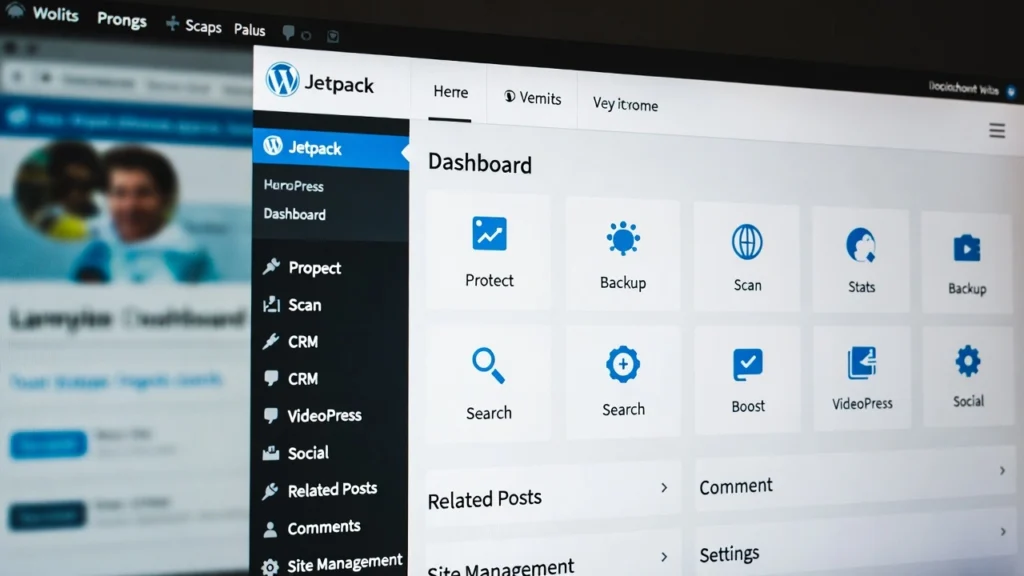
Jetpack is one of the most versatile all-in-one plugins for WordPress, offering a suite of tools to enhance security, performance, content creation, sharing, discussions, and traffic growth. Developed by Automattic (the team behind WordPress.com), it’s designed to bring WordPress.com features to self-hosted sites. With over 5 million active installations and a 4-star rating, Jetpack remains popular for its convenience. However, it’s not always the best choice for every site, especially with managed hosting alternatives. At Cope Business, we evaluate and optimize plugins like Jetpack during our technical SEO audit services, helping clients decide if it’s worth the potential bloat or if lighter alternatives suffice.
This complete guide covers what Jetpack is, its key features, pros/cons, how to use it, tips, and alternatives to help you make an informed decision.
What is Jetpack for WordPress?
Jetpack is a free (with paid upgrades) plugin that bundles over 30 features into one package, covering security, performance, marketing, analytics, and more. It connects your self-hosted WordPress site to WordPress.com servers for some functionalities, like backups and CDN. Paid plans start at $39/year and go up to $299/year, unlocking advanced tools like real-time backups and priority support.
While convenient for beginners, Jetpack can sometimes overlap with your host’s built-in features or add unnecessary load — we’ll discuss when to use it below.
Key Features of Jetpack
Jetpack’s features are organized into tabs for easy navigation:
Security
- Downtime monitoring with alerts.
- Auto-updates for plugins/themes.
- Brute force protection.
- Backups and malware scanning (paid).
Performance
- Site accelerator (CDN for images/static files).
- Video hosting (paid).
- Search optimization (paid).
Writing
- Full-screen carousel galleries.
- Markdown/LaTeX support.
- Custom content types (e.g., testimonials, portfolios).
- Infinite scroll, enhanced CSS editor, widgets.
Sharing
- Publicize to social media (Facebook, Twitter/X, LinkedIn).
- Sharing/like buttons.
Discussion
- Extended comment authentication (social logins).
- Subscriptions for comments/posts.
Traffic
- Ads via WordAds (paid).
- Related posts.
- SEO tools, Google Analytics integration (paid).
- Sitemaps, site verification.
These make Jetpack a “Swiss Army knife” for WordPress — but not all features are essential.
Pros and Cons of Jetpack
Pros
- All-in-one convenience: Many tools in one plugin.
- Free core features with easy upgrades.
- Strong for content creators (Markdown, galleries, related posts).
- Good social integration and basic security.
Cons
- Potential bloat: Can slow sites if unused features are enabled.
- Overlaps with managed hosting (e.g., backups/CDN better from hosts like Kinsta/SiteGround).
- Paid features can be expensive for what they offer.
- Dependency on WordPress.com servers for some tools (privacy concerns).
- Basic compared to dedicated plugins (e.g., Yoast for SEO, UpdraftPlus for backups).
If your host provides robust features, Jetpack may be redundant.
How to Install and Use Jetpack
- Install from Plugins > Add New → Search “Jetpack” → Activate.
- Connect to WordPress.com account (required for most features).
- Run the setup wizard: Choose plan (free or paid).
- Navigate to Jetpack > Dashboard for overview.
- Enable/disable features in Settings tabs (e.g., toggle downtime monitoring under Security).
- For specific use:
- Add galleries with carousel via editor.
- Connect social for sharing under Sharing.
- Set up related posts under Traffic.
Test thoroughly — disable unused modules to avoid bloat.
Tips for Using Jetpack Effectively
- Only enable what you need — start minimal to maintain speed.
- Use staging for testing updates (Jetpack can cause conflicts).
- For performance, pair with a caching plugin like WP Rocket.
- Monitor with MonsterInsights instead of Jetpack’s analytics (more accurate).
- If privacy-focused, avoid features relying on WordPress.com servers.
- Regularly review active features — disable redundancies with your host.
Best Jetpack Alternatives
If Jetpack feels too heavy, consider specialized plugins:
- Security: Wordfence or Sucuri (better malware scanning).
- Performance: WP Rocket (superior caching), ShortPixel (image optimization).
- Writing: Gutenberg blocks or Classic Editor for Markdown.
- Sharing: Social Snap or AddToAny (more customizable buttons).
- Traffic: All in One SEO (advanced SEO), MonsterInsights (analytics).
- Related Posts: YARPP (more options).
For managed hosting like Kinsta or SiteGround, many Jetpack features are built-in and faster.
Final Thoughts
Jetpack is a solid all-in-one plugin for WordPress, especially for beginners needing quick features. However, for optimized, bloat-free sites, specialized alternatives or managed hosting often perform better.
Evaluate your needs — if Jetpack fits, use it sparingly.
Need help deciding on Jetpack, setting up alternatives, or optimizing your WordPress site? Contact Cope Business for a free technical SEO consultation — we’ll review your setup and recommend the best tools for your goals.


