
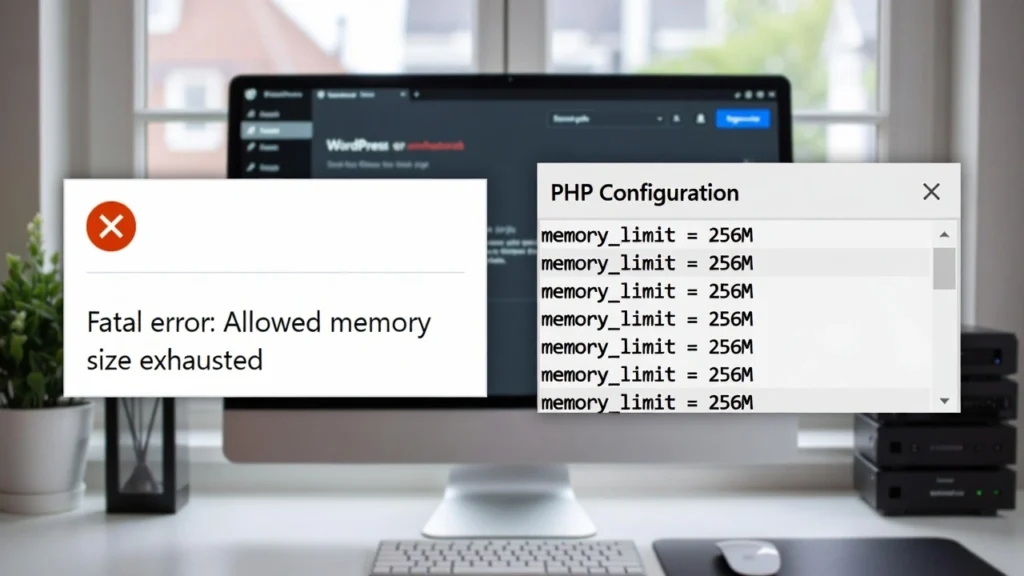
The “Fatal error: Allowed memory size of X bytes exhausted” message in WordPress is a common issue that halts your site, often during updates, plugin activations, or high-traffic periods. It occurs when your site exceeds the allocated PHP memory limit, leading to white screens, failed operations, or downtime. In 2026, with more resource-intensive plugins and themes, this error remains frequent but is usually easy to fix. At Cope Business, we resolve memory exhausted errors regularly during our technical SEO audit services and WordPress speed optimization services, helping clients maintain smooth performance and avoid SEO penalties from downtime.
On this page
ToggleThis guide explains the causes and provides step-by-step fixes to increase your PHP memory limit safely.
What Causes the Memory Exhausted Error in WordPress?
WordPress runs on PHP, which has a memory limit set by your hosting or wp-config.php. Common triggers:
- Resource-heavy plugins/themes (e.g., page builders like Elementor).
- Large uploads or imports.
- High traffic spikes.
- Outdated PHP version.
- Insufficient hosting resources (shared plans often cap at 128–256MB).
The error looks like: “Fatal error: Allowed memory size of 134217728 bytes exhausted (tried to allocate 20480 bytes) in /path/to/file.php on line X”.
Increasing the limit resolves it 90% of the time — but identify the root cause to prevent recurrence.
Step-by-Step: How to Fix the Memory Exhausted Error
Method 1: Increase PHP Memory Limit in wp-config.php (Easiest Fix)
- Access your site via FTP (FileZilla) or hosting file manager.
- Locate wp-config.php in the root folder (backup first!).
- Add this line before “/* That’s all, stop editing! */”:
textdefine('WP_MEMORY_LIMIT', '256M'); define('WP_MAX_MEMORY_LIMIT', '512M'); // For admin area- Save and upload.
- Reload your site — the error should be gone.
Note: 256M is a good starting point; increase to 512M if needed. If it doesn’t work, your host may override it — move to Method 2.
Method 2: Increase Memory Limit via Hosting Panel
Many hosts allow direct changes.
- Log into your hosting dashboard (cPanel, SiteGround panel, etc.).
- Find “PHP Settings” or “MultiPHP Manager”.
- Increase “memory_limit” to 256M or higher.
- Save and test your site.
For managed hosts like WP Engine or Kinsta, contact support — they often handle it for you.
Method 3: Deactivate Problematic Plugins/Themes
If memory increase doesn’t help, a faulty plugin/theme is likely the cause.
- Access via FTP → Rename /wp-content/plugins/ to plugins_old — this deactivates all plugins.
- Reload site — if it works, rename back and deactivate plugins one by one to find the culprit.
- For themes: Rename your active theme folder — WordPress falls back to default.
- Update or replace the problematic item.
Method 4: Upgrade Your PHP Version
Older PHP versions are less efficient.
- In hosting panel, switch to PHP 8.3+ (check compatibility first).
- Test your site — newer PHP can reduce memory usage by 20–30%.
Method 5: Contact Your Hosting Provider
If all else fails, your plan may have hard limits.
- Provide error details from logs (/wp-content/debug.log — enable debugging in wp-config.php).
- Ask to increase memory or check server errors.
Best Practices to Prevent Memory Exhausted Errors
- Use lightweight themes/plugins (e.g., Astra, GeneratePress).
- Optimize images and enable lazy loading (see our guide).
- Enable caching (WP Rocket recommended — see our caching guide).
- Monitor with tools like Query Monitor to spot memory hogs.
- Regular backups with UpdraftPlus to quickly revert if errors occur.
Preventing these errors keeps your site stable and SEO-strong.
Final Thoughts
The WordPress memory exhausted error is frustrating but fixable — start with increasing limits in wp-config.php, then troubleshoot plugins or contact your host. Proactive optimization prevents it from recurring.
A well-resourced site performs better for users and search engines.
Experiencing this error or need a full performance audit? Contact Cope Business for a free technical SEO consultation — we’ll diagnose the issue, increase your limits, and optimize your site for peak efficiency.


