
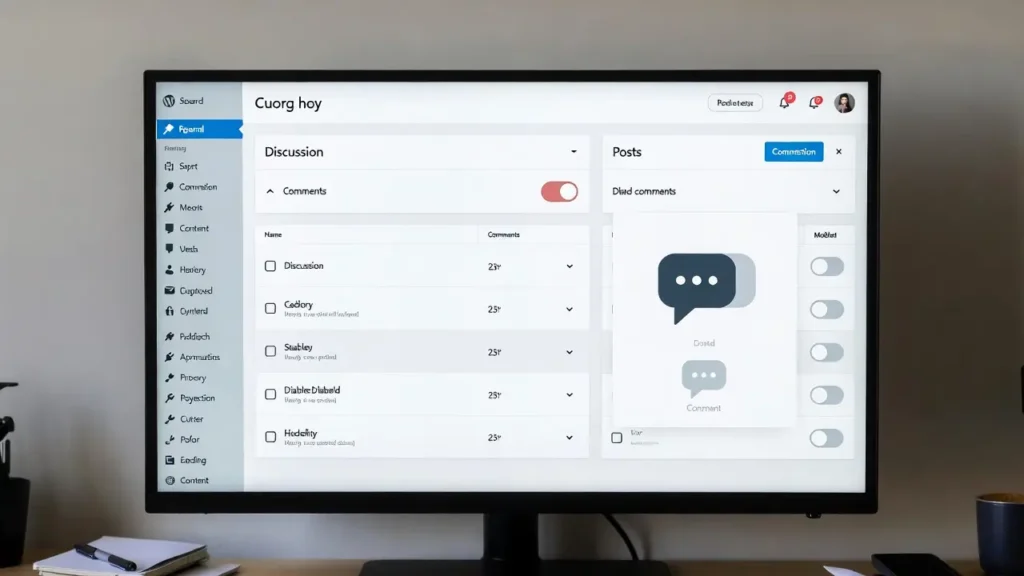
Comments are one of WordPress’s most powerful built-in features — they encourage discussion, build community, and provide social proof. However, for many sites (business pages, portfolios, landing pages, documentation, or stores), comments create more problems than benefits: spam overload, moderation time, performance hits, and security risks. With rising spam sophistication and a focus on fast, clean sites, disabling comments on the right content is a common optimization step.
At Cope Business, we disable comments strategically for clients during our technical SEO audit services and WordPress speed optimization services to reduce database load, eliminate spam, and improve Core Web Vitals.
This guide shows you four easy, safe ways to disable comments in WordPress — globally, on specific posts/pages, or selectively — no advanced coding required.
Why Disable Comments in WordPress?
- Eliminate Spam — Stop 90%+ of automated comment spam
- Improve Site Speed — Fewer database queries, smaller comment tables
- Reduce Moderation Time — No more approving/deleting junk
- Better Security — Removes a common attack vector (comment spam exploits)
- Clean Design — No comment section clutter on pages that don’t need discussion
- SEO & UX — Focused pages load faster and keep visitors on-topic
Not every site needs comments — disable them where they don’t add value.
Method 1: Disable Comments Globally (All Posts & Pages)
Best for new sites or when you never want comments.
Steps
- Go to Settings > Discussion.
- Uncheck these boxes:
- Allow people to submit comments on new posts
- Allow link notifications from other blogs (pingbacks and trackbacks)
- Allow people to post comments on new articles
- Under “Before a comment appears” — uncheck both options (or keep if you want moderation).
- Under “Other comment settings” — uncheck “Users must be registered and logged in to comment” (optional).
- Scroll down and click Save Changes.
Now new posts/pages will have comments disabled by default.
Existing Content: Use Method 2 or 3 to bulk-disable on old posts.
Method 2: Disable Comments on Specific Posts or Pages
Perfect when you want comments on blog posts but not on pages.
Steps (Per Post/Page)
- Edit any post or page.
- In the right sidebar → Discussion panel (if not visible, click the three dots → Preferences → Panels → Show Discussion).
- Uncheck Allow comments.
- Update/Publish.
Bulk Disable (for many posts):
- Go to Posts > All Posts (or Pages).
- Select all posts/pages → Bulk Actions > Edit → Apply.
- Under Comments, choose “Do not allow” → Update.
Method 3: Disable Comments Using a Plugin (Most Flexible)
Plugins give you one-click global control, bulk actions, and extra features.
Recommended Plugin: Disable Comments (Free)
- Install Disable Comments from Plugins > Add New.
- Activate → Go to Settings > Disable Comments.
- Choose mode:
- Everywhere — Disable comments site-wide (recommended for most non-blog sites)
- On certain post types → Select Pages, Attachments, etc.
- On specific posts/pages → Manual selection
- Check Hide existing comments (removes old comments from front-end).
- Save Changes — done!
Pros: Instant, reversible, bulk tools, hides old comments.
Cons: Adds one lightweight plugin.
Alternative: Comment Blacklist or No Comments (free) — similar functionality.
Method 4: Disable via Code (Lightweight – No Plugin)
For maximum control without plugins.
- Use a child theme or WPCode (free plugin).
- Add this code to functions.php or WPCode snippet (run everywhere):
PHP// Disable comments globally add_action('init', function() { // Remove comments from admin bar remove_menu_page('edit-comments.php'); remove_submenu_page('options-general.php', 'options-discussion.php'); // Disable support for comments & trackbacks $post_types = get_post_types(); foreach ($post_types as $post_type) { if (post_type_supports($post_type, 'comments')) { remove_post_type_support($post_type, 'comments'); remove_post_type_support($post_type, 'trackbacks'); } } }); // Close comments on front-end add_filter('comments_open', '__return_false', 20, 2); add_filter('pings_open', '__return_false', 20, 2); // Hide existing comments add_filter('comments_array', '__return_empty_array', 10, 2);Pros: No plugin bloat, complete control.
Cons: Requires child theme or snippet plugin; test carefully.
Best Practices After Disabling Comments
- Redirect old comment URLs — Use Redirection plugin to 301 /comments/* to homepage.
- Remove comment feeds — Add to functions.php:
PHPadd_filter('feed_links_show_comments_feed', '__return_false');- SEO — Noindex comment feeds/pages if any remain.
- Performance — Fewer database queries → faster site (pair with caching).
- Test — Check posts/pages, admin bar, and front-end for leftover comment elements.
Final Thoughts
Disabling comments in WordPress is a smart move for many sites — it cuts spam, reduces maintenance, speeds up your site, and focuses attention on your content. Use the Disable Comments plugin for instant control or code for zero bloat — both are quick and effective.
A cleaner site is often a faster, more trusted site.
Need help disabling comments, optimizing your site structure, or improving overall performance & SEO? Contact Cope Business for a free technical SEO consultation — we’ll review your setup and implement changes that make your site cleaner, faster, and more professional.


