
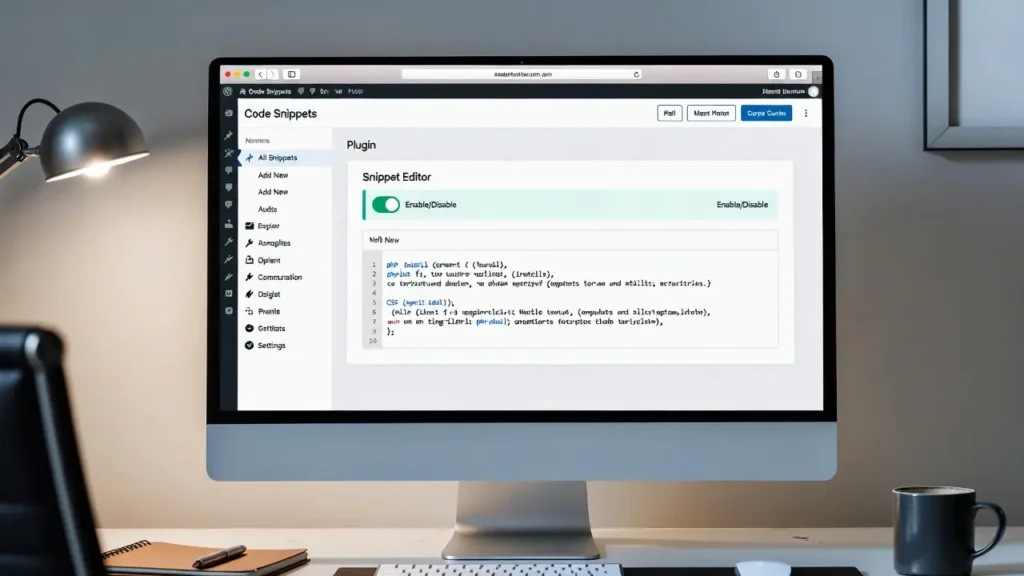
Adding custom code snippets (PHP functions, CSS styles, JavaScript, or shortcodes) is one of the most powerful ways to extend your WordPress site — whether you want to add a custom feature, tweak styling, fix a small issue, or integrate third-party code. However, pasting code directly into your theme’s functions.php or style.css is risky — any theme update will wipe your changes, and one syntax error can crash your entire site.
With block themes, full-site editing, and increased focus on site reliability, using a safe, update-proof method to add code snippets is essential. At Cope Business, we always recommend proper snippet management during our technical SEO audit services and WordPress speed optimization services to keep client sites fast, secure, and maintainable.
This guide shows you the three best, safest ways to add custom code snippets in WordPress — all without touching your theme files.
Why You Should Never Add Code Directly to Theme Files
- Theme updates overwrite your changes
- One typo can take your entire site offline (white screen of death)
- Hard to manage/track multiple snippets
- Difficult to disable quickly when troubleshooting
Use one of the methods below instead — all are reversible and update-safe.
Method 1: Using WPCode Plugin (Best & Recommended – Free)
WPCode (formerly Insert Headers and Footers) is the most popular and safest way to add snippets — over 2 million installs, excellent support, and zero performance impact.
Step-by-Step Setup
- Install WPCode – Insert Headers, Footers, and Code Snippets (free) from Plugins > Add New.
- Activate → Go to Code Snippets in the admin menu.
- Click + Add Snippet → Choose “Add Your Custom Code”.
- Give it a title (e.g., “Custom Login Redirect” or “Footer Copyright Change”).
- Paste your code in the editor:
- PHP snippets → set “Code Type” to PHP Snippet
- CSS → set to CSS Snippet (auto-loads in header/footer)
- JavaScript → set to JS Snippet
- Choose location:
- Auto Insert → Run Everywhere / Only Frontend / Only Admin
- Shortcode → Generate shortcode for use in posts/pages
- Conditional Logic (Pro) → Run on specific pages, user roles, etc.
- Set active/inactive toggle → Save Snippet.
- Test your code — changes apply instantly.
Free Version Highlights:
- Unlimited snippets
- Syntax highlighting
- Safe execution (sandboxed)
- Import/export snippets
Pro Version (~$49/year): Adds conditional logic, code revisions, pixel tracking, site-wide snippets.
Pros: Beginner-friendly, safe, reversible, no theme editing, active development.
Cons: Adds one lightweight plugin.
Method 2: Using a Child Theme (Classic Method – Still Safe)
If you prefer zero plugins or already use a child theme.
Steps
- Create a child theme (use Child Theme Configurator plugin for ease).
- In child theme folder, edit or create functions.php.
- Add your PHP code at the end (always wrap in <?php tags if needed).
- For CSS: Add to child theme’s style.css or use Appearance > Customize > Additional CSS.
- For JavaScript: Enqueue properly in functions.php:
PHPfunction cope_enqueue_custom_js() { wp_enqueue_script('cope-custom-js', get_stylesheet_directory_uri() . '/js/custom.js', array('jquery'), '1.0', true); } add_action('wp_enqueue_scripts', 'cope_enqueue_custom_js');Pros: No extra plugins, survives theme updates.
Cons: Requires child theme setup; one error can break site.
Method 3: Using Code Snippets Plugin (Alternative Free Option)
If WPCode doesn’t suit you, try Code Snippets (free, very popular).
- Install Code Snippets from Plugins > Add New.
- Go to Snippets > Add New.
- Paste code → Set title, tags, run scope (everywhere, frontend only, admin only).
- Save & Activate.
Pros: Very similar to WPCode, free, active community.
Cons: Slightly less modern interface than WPCode.
Best Practices for Adding Code Snippets
- Always backup before adding code (UpdraftPlus or hosting backup).
- Test on staging first — never on live site.
- Use proper prefixes (e.g., cope_ or yourname_) to avoid conflicts.
- Add comments explaining what the code does.
- Use if (!function_exists(‘my_function’)) { … } for safe overrides.
- Monitor performance — bad code can slow your site.
- Keep snippets organized — use titles/tags in WPCode/Code Snippets.
Final Thoughts
Adding custom code snippets safely is a must-have skill for any serious WordPress user. Use WPCode for the easiest, safest experience — it’s free, powerful, and update-proof. Avoid editing theme files directly — one update can erase your work or crash your site.
Custom code lets you make WordPress truly yours — do it right.
Need help adding specific snippets, optimizing your site, or troubleshooting code issues? Contact Cope Business for a free technical SEO consultation — we’ll review your setup and add custom functionality safely and efficiently.


