
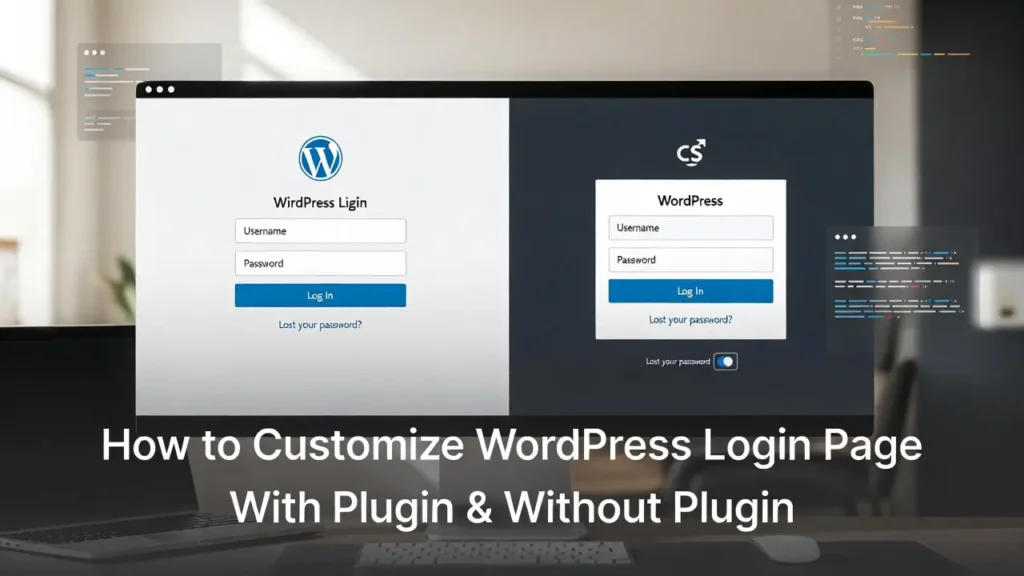
The default WordPress login page (/wp-login.php or /wp-admin) is functional but very plain and shows the WordPress logo — not your brand. Customizing it allows you to add your logo, change colors, background images, remove unnecessary links (like “Lost your password?” or “Powered by WordPress”), add a custom message, or even redirect after login. In 2026, a branded login page improves professionalism, builds trust, and gives a consistent user experience — especially important for client sites, membership areas, or agency-managed sites.
On this page
ToggleAt Cope Business, we regularly customize login pages for clients during our technical SEO audit services to match branding, reduce confusion, and add subtle security touches. This beginner-friendly guide shows you how to customize the WordPress login form without advanced coding — using plugins and simple CSS.
Why Customize the WordPress Login Page?
- Brand Consistency — Replace WordPress logo with your own
- Professional Appearance — Makes the login screen feel like part of your site
- User Experience — Add welcome messages, instructions, or links
- Security — Remove “Lost your password?” link to reduce brute-force attempts
- Trust & Credibility — Clients/employees see your branding instead of WordPress
Method 1: Using a Plugin (Easiest – Recommended for Most Users)
Plugins give you full control with a visual interface — no file editing needed.
Recommended Plugin: Login Designer (Free/Pro) or Theme My Login
Login Designer is the most popular and user-friendly option.
Steps
- Install Login Designer (free) from Plugins > Add New.
- Go to Appearance > Login Designer.
- Customize everything visually:
- Logo — Upload your logo (recommended size: 320×84px or square)
- Background — Upload image, set color, or use gradient
- Form Styling — Change background, border, button color, input fields
- Typography — Font family, size, color for labels & button
- Links — Hide “Lost your password?”, “Register”, “Back to site”
- Custom CSS — Add extra styles if needed
- Preview — See changes live in the preview pane
- Save — Click Publish
Pro Version (~$29/year): Adds animations, custom templates, Google Fonts, more layouts.
Alternative Plugin: Custom Login Page Customizer (free) or Theme My Login (free) — both very good.
Pros: No code, live preview, mobile-responsive, easy to undo.
Cons: Adds one more plugin (very lightweight).
Method 2: Using Custom CSS in the Customizer (No Plugin – Lightweight)
If you want minimal changes without installing anything extra.
Steps
- Go to Appearance > Customize > Additional CSS.
- Paste your CSS code (examples below).
- Preview live → Publish.
Common Customizations (copy-paste ready):
CSS
/* Change Login Logo */
.login h1 a {
    background-image: url('https://www.copebusiness.com/wp-content/uploads/your-logo.png') !important;
    width: 320px !important;
    height: 84px !important;
    background-size: contain !important;
}

/* Change Background */
body.login {
    background: #f0f4f8 url('https://www.copebusiness.com/wp-content/uploads/login-bg.jpg') no-repeat center center fixed !important;
    background-size: cover !important;
}

/* Change Login Form Background & Border */
.login form {
    background: #ffffff !important;
    border-radius: 12px !important;
    box-shadow: 0 8px 32px rgba(0,0,0,0.15) !important;
}

/* Change Button Color */
.wp-core-ui .button-primary {
    background: #0073aa !important;
    border-color: #006799 !important;
}

/* Hide Lost Password & Back to Site Links */
.login #nav, .login #backtoblog {
    display: none !important;
}
How to Find Selectors: Right-click on login page → Inspect → Copy selector/class.
Pros: Zero plugins, instant, theme-independent.
Cons: Requires basic CSS knowledge; updates may override.
Method 3: Using a Child Theme + functions.php (Advanced Control)
For complete control (e.g., custom login redirect, custom messages).
- Create/use a child theme.
- Add code to child theme’s functions.php (or via WPCode plugin):
PHP// Change Login Logo function cope_custom_login_logo() { ?> <style type="text/css"> #login h1 a { background-image: url('<?php echo get_stylesheet_directory_uri(); ?>/images/your-logo.png') !important; } </style> <?php } add_action('login_enqueue_scripts', 'cope_custom_login_logo'); // Custom Login Message function cope_login_message() { return '<p style="text-align:center;">Welcome! Please login to access your account.</p>'; } add_filter('login_message', 'cope_login_message'); // Redirect after login function cope_login_redirect($redirect_to, $request, $user) { return home_url('/dashboard/'); // Change to your page } add_filter('login_redirect', 'cope_login_redirect', 10, 3);Pros: Full control, no plugin bloat.
Cons: Requires child theme & code knowledge.
Best Practices for Custom Login Pages
- Logo Size: 320×84px or square — keep file under 100KB.
- Background: Use subtle gradients or images (compress with ShortPixel).
- Mobile Check — Test login on phones (very important).
- Security — Hide links, add 2FA, limit login attempts (see our guide).
- Performance — Custom CSS is tiny — no speed impact.
- Branding — Match login colors to your site for consistency.
A branded login page instantly makes your site feel more professional.
Final Thoughts
Customizing the WordPress login form is quick and adds instant polish to your site. Use Login Designer plugin for visual ease, or custom CSS for lightweight changes — either way, it takes minutes and makes a big difference.
Your login page is the first impression for logged-in users — make it yours.
Need help customizing your login page, adding 2FA, or optimizing your entire site? Contact Cope Business for a free technical SEO consultation — we’ll review your setup and create a branded, secure login experience tailored to your needs.


