
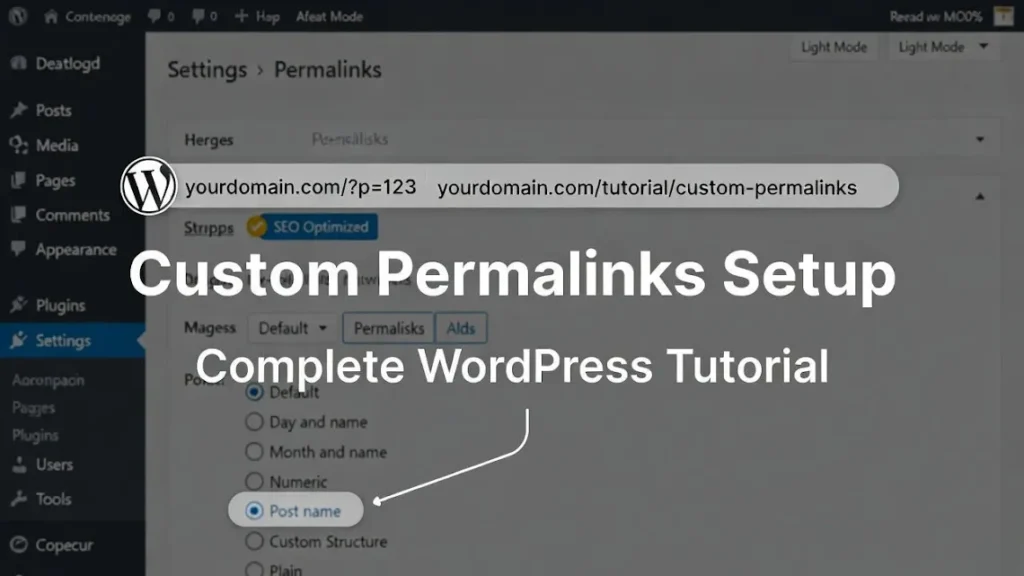
Permalinks form the backbone of your WordPress site’s navigation and search engine appeal, but sticking with defaults can limit your SEO potential and create confusing URLs. Customizing them allows for more descriptive, keyword-rich links that benefit both users and crawlers. At Cope Business, we’ve refined permalink setups for many clients as part of our technical SEO audit services, uncovering opportunities to boost rankings and fix structural issues. In this tutorial, we’ll guide you through tailoring permalinks, from basic structures to advanced overrides, ensuring your site remains optimized and error-free.
Whether you’re revamping an existing site or starting fresh, these steps can lead to better discoverability. If permalink changes reveal deeper SEO problems like indexing errors, our Google Search Console fixing services can help sort them out.
Understanding Custom Permalinks in WordPress
Permalinks are the fixed URLs assigned to your posts, pages, categories, and other content types. By default, WordPress uses numeric IDs (e.g., https://example.com/?p=123), which offer no SEO value or clarity. Custom versions let you incorporate elements like post titles, dates, or categories for more meaningful links.
Why Customize?
- SEO Boost: Include keywords to match search queries.
- User-Friendly: Readable URLs encourage clicks and shares.
- Site Organization: Structured links reflect your content hierarchy.
For instance, switch from https://example.com/?p=456 to https://example.com/guides/wordpress-customization-tips/. This not only looks better but signals relevance to search engines. Poor permalink setups can contribute to toxic backlink issues—our toxic backlink analysis can identify and resolve them.
Changing the Overall Permalink Structure
WordPress offers built-in options to define how URLs are generated site-wide.
Steps to Adjust
- Log into your dashboard and go to Settings > Permalinks.
- Select from presets like “Post name” for simple slugs or “Month and name” for dated links.
- For more control, choose “Custom Structure” and use tags like %postname% (post title), %category% (category name), %year% (publish year).
- Click Save Changes—WordPress updates your .htaccess file automatically.
Example Structures
- Basic: /%postname%/ → https://example.com/wordpress-tips/
- Categorized: /%category%/%postname%/ → https://example.com/seo/wordpress-tips/
- Dated: /%year%/%monthnum%/%postname%/ → https://example.com/2026/01/wordpress-tips/
On live sites, changes can disrupt traffic; set up redirects to mitigate. If rankings drop, our traffic recovery services specialize in quick recoveries.
Modifying Category and Tag URL Prefixes
Defaults use /category/ and /tag/, but you can personalize these for branding or brevity.
How to Edit Prefixes
- In Settings > Permalinks, scroll to “Optional” and enter new bases (e.g., /sections/ for categories, /labels/ for tags).
- Save to apply—existing links update accordingly.
This keeps URLs consistent with your site’s theme. For eCommerce, it enhances product category navigation. If site speed suffers from structural tweaks, explore our WordPress speed optimization services.
Editing Individual Post or Page URLs
For specific content, tweak the slug—the editable part after the base.
Process for Customization
- Open the post or page in the editor.
- Under the Document tab (or Summary in classic editor), find the “Permalink” section.
- Edit the slug field (e.g., change “hello-world” to “welcome-guide”).
- Update or publish to save.
This applies to custom post types too, like portfolios or products. Ensure slugs are unique to avoid conflicts.
Updating Category or Tag URLs
Adjust these for better taxonomy organization.
Quick Edits
- Navigate to Posts > Categories or Posts > Tags.
- Hover over an item and select “Quick Edit.”
- Modify the slug and save.
Changes propagate to all related content. Test for broken links post-edit.
Customizing Author Page URLs
Author archives default to /author/username/, but you can refine them.
Using a Plugin for Flexibility
- Install “Edit Author Slug” (free).
- Go to Users > Your Profile and edit your author slug.
- Or, in Settings > Edit Author Slug, set global bases or role-based rules.
This protects privacy or aligns with branding, like using full names instead of usernames.
Implementing Fully Custom Permalinks
For ultimate control, override defaults on a per-item basis.
Plugin-Assisted Approach
- Use “Permalink Manager Lite” (free version available).
- In the post editor, find the permalink field and input a custom URL (e.g., /premium/guides/advanced-seo/).
- Save to apply—great for redirecting legacy links or creating vanity URLs.
Be cautious with overrides; they can complicate migrations. Our SEO tools audit errors fixing can scan for any resulting issues.
Configuring Redirects to Prevent 404 Errors
Altering permalinks risks breaking external links and harming SEO.
Best Redirect Practices
- Install “Redirection” or use All in One SEO’s redirect manager.
- Set 301 redirects from old URLs to new ones (e.g., old: /p=123 to new: /new-post/).
- Monitor 404 logs in the plugin and create rules as needed.
This preserves link juice and user experience. For complex setups, professional help ensures no oversights.
Common Questions on Custom Permalinks
Back up first and use redirects; revert via database if needed.
Yes, when keyword-focused and consistent.
Avoid them—WordPress sanitizes to hyphens and lowercase letters.
Minimal impact, but bloated structures can slow crawling on large sites.
Wrapping Up: Optimize Your WordPress Permalinks Today
Custom permalinks are a simple yet powerful way to refine your site’s architecture. Start with basics and scale to advanced tweaks for maximum impact. For tailored guidance or a full audit, contact Cope Business for a complimentary technical SEO review.


