
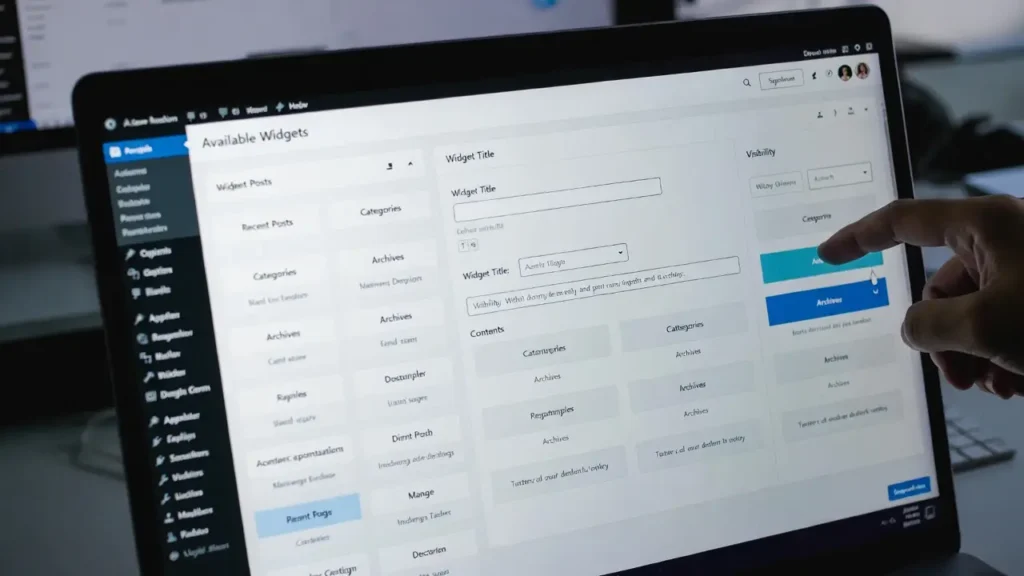
WordPress widgets are small blocks of content you can drag and drop into sidebars, footers, or custom widget areas — perfect for displaying recent posts, contact info, social links, ads, or custom messages. While WordPress includes many default widgets, creating your own custom widget lets you add unique features tailored to your site or client needs (e.g., a custom “Latest Updates” box, personalized greeting, or dynamic content). In 2026, with full-site editing and block themes becoming standard, custom widgets remain a powerful way to extend sidebars and legacy widget areas.
At Cope Business, we build custom widgets for clients during our technical SEO audit services to improve user experience, add branded elements, and enhance engagement without relying on heavy third-party plugins.
This step-by-step guide shows you how to create a simple custom WordPress widget from scratch — no plugins required. We’ll build one that displays a custom message with an optional title and link. You can expand it later for more advanced features.
On this page
ToggleWhy Create a Custom WordPress Widget?
- Unique Functionality — Add exactly what you need (no bloat from third-party plugins)
- Full Control — Style and behave exactly how you want
- Lightweight — No extra plugin overhead → faster site
- Reusable — Use it across multiple sites or client projects
- Learning Opportunity — Great way to understand WordPress development
Prerequisites
- A local/staging WordPress site (test safely!)
- Basic PHP knowledge (we’ll explain every line)
- A child theme (recommended) or a custom plugin folder
- Access to wp-content (via FTP or hosting file manager)
Step-by-Step: Creating Your First Custom Widget
Step 1: Create a Custom Plugin (Safest & Portable)
It’s better to create a small plugin than add code to functions.php (survives theme changes).
- In /wp-content/plugins/, create a new folder: cope-custom-widget
- Inside, create a file: cope-custom-widget.php
- Add this header:
PHP
<?php
/**
 * Plugin Name: Cope Custom Widget
 * Plugin URI:  https://www.copebusiness.com
 * Description: Adds a simple custom widget to WordPress
 * Version:     1.0
 * Author:      Cope Business
 * Author URI:  https://www.copebusiness.com
 * License:     GPL2
 */
Step 2: Register the Widget Class
Add this code below the header:
PHP
class Cope_Custom_Widget extends WP_Widget {

    // Constructor
    public function __construct() {
        parent::__construct(
            'cope_custom_widget',                // Base ID
            'Cope Custom Message Widget',        // Name shown in widget area
            array( 'description' => 'Displays a custom message with optional link.' )
        );
    }

    // Front-end display of widget
    public function widget( $args, $instance ) {
        echo $args['before_widget'];

        if ( ! empty( $instance['title'] ) ) {
            echo $args['before_title'] . apply_filters( 'widget_title', $instance['title'] ) . $args['after_title'];
        }

        echo '<div class="cope-custom-message">';
        echo ! empty( $instance['message'] ) ? esc_html( $instance['message'] ) : 'Add your custom message here.';

        if ( ! empty( $instance['link_url'] ) && ! empty( $instance['link_text'] ) ) {
            echo ' <a href="' . esc_url( $instance['link_url'] ) . '">' . esc_html( $instance['link_text'] ) . '</a>';
        }
        echo '</div>';

        echo $args['after_widget'];
    }

    // Back-end widget form
    public function form( $instance ) {
        $title     = ! empty( $instance['title'] ) ? $instance['title'] : 'Custom Message';
        $message   = ! empty( $instance['message'] ) ? $instance['message'] : '';
        $link_url  = ! empty( $instance['link_url'] ) ? $instance['link_url'] : '';
        $link_text = ! empty( $instance['link_text'] ) ? $instance['link_text'] : 'Learn More';
        ?>
        <p>
            <label for="<?php echo esc_attr( $this->get_field_id( 'title' ) ); ?>">Title:</label>
            <input class="widefat" id="<?php echo esc_attr( $this->get_field_id( 'title' ) ); ?>" name="<?php echo esc_attr( $this->get_field_name( 'title' ) ); ?>" type="text" value="<?php echo esc_attr( $title ); ?>">
        </p>
        <p>
            <label for="<?php echo esc_attr( $this->get_field_id( 'message' ) ); ?>">Message:</label>
            <textarea class="widefat" id="<?php echo esc_attr( $this->get_field_id( 'message' ) ); ?>" name="<?php echo esc_attr( $this->get_field_name( 'message' ) ); ?>" rows="5"><?php echo esc_textarea( $message ); ?></textarea>
        </p>
        <p>
            <label for="<?php echo esc_attr( $this->get_field_id( 'link_url' ) ); ?>">Link URL:</label>
            <input class="widefat" id="<?php echo esc_attr( $this->get_field_id( 'link_url' ) ); ?>" name="<?php echo esc_attr( $this->get_field_name( 'link_url' ) ); ?>" type="url" value="<?php echo esc_url( $link_url ); ?>">
        </p>
        <p>
            <label for="<?php echo esc_attr( $this->get_field_id( 'link_text' ) ); ?>">Link Text:</label>
            <input class="widefat" id="<?php echo esc_attr( $this->get_field_id( 'link_text' ) ); ?>" name="<?php echo esc_attr( $this->get_field_name( 'link_text' ) ); ?>" type="text" value="<?php echo esc_attr( $link_text ); ?>">
        </p>
        <?php
    }

    // Update widget values
    public function update( $new_instance, $old_instance ) {
        $instance = array();
        $instance['title']     = ( ! empty( $new_instance['title'] ) ) ? sanitize_text_field( $new_instance['title'] ) : '';
        $instance['message']   = ( ! empty( $new_instance['message'] ) ) ? sanitize_textarea_field( $new_instance['message'] ) : '';
        $instance['link_url']  = ( ! empty( $new_instance['link_url'] ) ) ? esc_url_raw( $new_instance['link_url'] ) : '';
        $instance['link_text'] = ( ! empty( $new_instance['link_text'] ) ) ? sanitize_text_field( $new_instance['link_text'] ) : '';
        return $instance;
    }
}
Step 3: Register the Widget
Add this at the bottom:
PHP
function cope_register_custom_widget() {
    register_widget( 'Cope_Custom_Widget' );
}
add_action( 'widgets_init', 'cope_register_custom_widget' );
Step 4: Activate & Test
- Save the file.
- Go to Plugins → Activate “Cope Custom Widget”.
- Go to Appearance > Widgets → Drag “Cope Custom Message Widget” to a sidebar.
- Fill in title, message, and optional link → Save.
- Visit your site — the custom widget appears!
Pros: Full control, no extra plugins, reusable.
Cons: Requires basic PHP; test on staging first.
Method 2: Using a Plugin (Faster for Non-Coders)
If coding feels overwhelming, use a plugin.
Recommended Plugin: Widget Options (Free/Pro) or SiteOrigin Widgets Bundle
- Install Widget Options (free).
- Go to Appearance > Widgets.
- Add any widget (Text, Custom HTML, etc.).
- Use Widget Options to style, align, or add custom classes.
- For advanced widgets: Install SiteOrigin Widgets Bundle (free) → use pre-built widgets or create custom ones.
Pros: No code, visual controls, easy.
Cons: Less flexible than custom code.
Best Practices for Custom Widgets
- Always use a child theme or custom plugin — never edit theme files directly.
- Sanitize all inputs (done in the example code).
- Test on mobile — ensure widget looks good in sidebars.
- Keep it lightweight — avoid heavy queries inside widgets.
- Add CSS for styling (Appearance > Customize > Additional CSS).
Final Thoughts
Creating a custom WordPress widget is a great way to add unique functionality without relying on heavy third-party plugins. Start with the code example above — it’s simple, safe, and expandable.
Custom widgets give you full control and keep your site lean.
Need help building custom widgets, optimizing your sidebar, or improving site performance? Contact Cope Business for a free technical SEO consultation — we’ll create tailored solutions to enhance your WordPress site exactly the way you want.


