
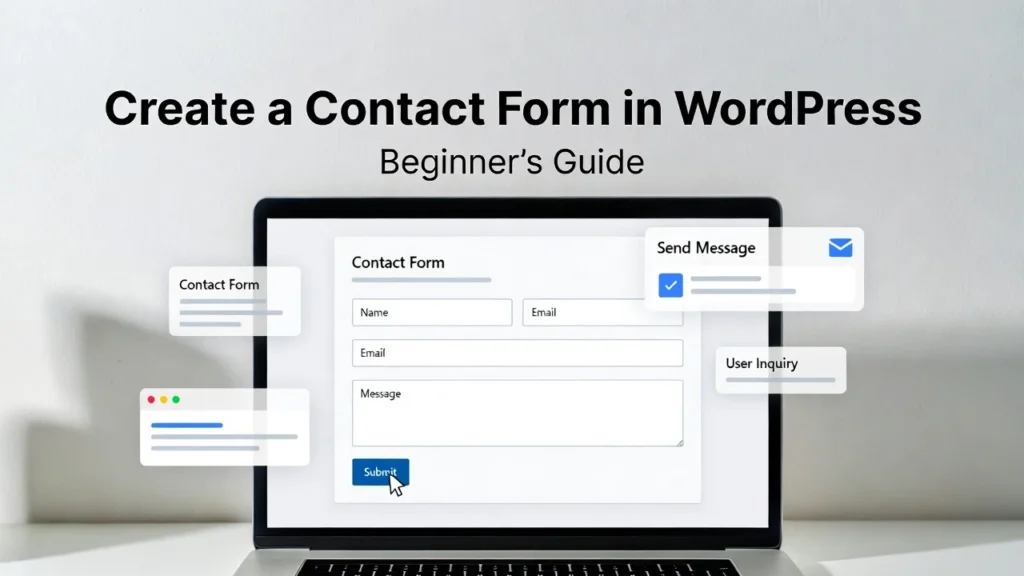
A contact form is essential for any WordPress site — it allows visitors to reach you easily without exposing your email address to spam, while providing structured inquiries that are simple to manage. with privacy regulations like GDPR and increased focus on user experience, a well-optimized contact form also supports better engagement and SEO signals. At Cope Business, we help clients set up secure, high-converting forms during our technical SEO audit services, ensuring they capture leads effectively while maintaining site performance. This beginner’s guide shows you how to create a professional contact form in WordPress using plugins — no coding required.
On this page
ToggleWhether you’re building a blog, business site, or portfolio, a contact form turns visitors into connections.
Why Add a Contact Form to Your WordPress Site?
- Spam Protection: Hides your email from bots while using CAPTCHA.
- Better User Experience: Structured fields make inquiries easier.
- Lead Capture: Collect names, emails, and details for follow-ups.
- SEO Benefits: More engagement reduces bounce rates.
- Customization: Add fields for specific info (e.g., phone, subject).
Without a form, you risk spam overload or missed opportunities.
Method 1: Using WPForms (Recommended – Easy & Powerful)
WPForms is the #1 drag-and-drop form builder for WordPress, with over 5 million installs. It’s beginner-friendly and includes spam protection.
Step-by-Step Setup
- Install WPForms Lite (free) from Plugins > Add New.
- Go to WPForms > Add New → Choose “Simple Contact Form” template.
- Customize the form:
- Fields: Name, Email, Message (drag to reorder).
- Add extras: Subject dropdown, phone field, file upload.
- In Settings > General:
- Set form name and submit button text (“Send Message”).
- Enable honeypot anti-spam.
- In Settings > Notifications:
- Set recipient email (yours).
- Customize subject and message (include sender details).
- In Settings > Confirmations: Set thank you message or redirect.
- Embed the form: Use the WPForms block or shortcode in any post/page/sidebar.
- Test: Submit a form and check your inbox.
Pro Version (~$199/year): Adds payments, surveys, conditional logic, and more integrations.
Pros: Mobile-responsive, spam-proof, easy integrations (Mailchimp, Google Sheets).
Cons: Free version limits advanced features.
Alternative: Contact Form 7 (free, but less user-friendly).
Method 2: Using the Block Editor (No Plugin – Built-in)
For simple forms without extras.
Steps
- Edit a page/post → Add Contact Form block (from Jetpack or core if available).
- Customize fields in the block settings.
- Set recipient email and submit button.
- Publish and test.
Pros: Zero plugins, lightweight.
Cons: Basic — no advanced spam protection or integrations.
For better results, use Method 1.
Best Practices for Your Contact Form
- Spam Protection: Add reCAPTCHA v3 (in WPForms settings).
- Mobile Optimization: Test on phones — ensure fields are tappable.
- SEO: Place on contact page; add schema markup with All in One SEO.
- Performance: Forms are lightweight — pair with caching (see our guide).
- Lead Nurturing: Integrate with email tools for auto-replies.
- Accessibility: Use labels and ARIA for screen readers.
- Tracking: Use MonsterInsights to track form submissions as goals.
A good contact form can increase inquiries by 20–40%.
Final Thoughts
Creating a contact form in WordPress is quick and essential for connecting with your audience. WPForms is our top recommendation for its ease and power — start with the free version and upgrade as needed.
Forms bridge visitors and your business — make them work for you.
Need help setting up advanced forms, integrating with CRM, or optimizing for conversions? Contact Cope Business for a free technical SEO consultation — we’ll create a custom solution to capture more leads effectively.


