
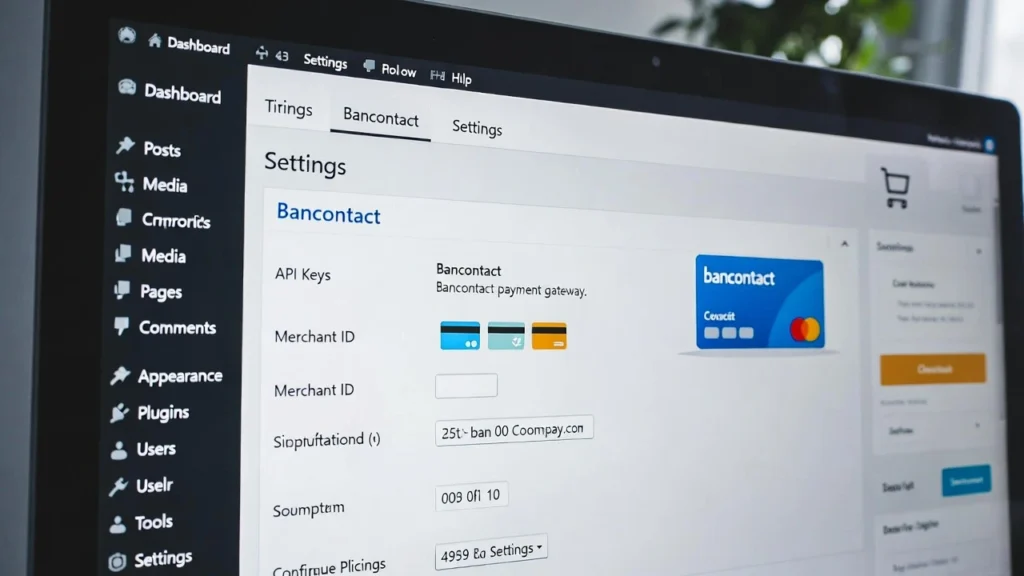
Bancontact is Belgium’s most popular payment method, used by over 15 million people for secure, fast transactions. Adding Bancontact Payments in WordPress site or WooCommerce store can significantly improve conversion rates for Belgian customers by offering a familiar, trusted option — reducing cart abandonment and increasing sales. with eCommerce growth in Europe and a focus on localized payments, integrating Bancontact via Stripe is a smart move for global sellers. At Cope Business, we help businesses optimize payment gateways during our technical SEO audit services, ensuring seamless integrations that boost revenue and user experience.
On this page
ToggleThis step-by-step guide covers two effective methods to add Bancontact payments: using a simple form for non-eCommerce sites and integrating with WooCommerce for full stores. Both rely on Stripe, Bancontact’s primary gateway.
Why Add Bancontact Payments to Your WordPress Site?
- Higher Conversions: Belgian users prefer local methods — adding Bancontact can reduce abandoned carts by 20–30%.
- Secure & Fast: Supports two-factor authentication, contactless payments, and lower fees than credit cards.
- Better User Experience: Familiar payment options build trust and speed up checkout.
- SEO & Global Reach: Attract more international traffic without losing conversions to payment friction.
- Compliance: Stripe handles PCI DSS, making it easy to meet GDPR requirements.
If your audience includes Belgium or Europe, Bancontact is a must-have alongside cards and PayPal.
Prerequisites
- A WordPress site (with WooCommerce for Method 2).
- A Stripe account (free to set up — connect your bank).
- Basic plugins like WP Simple Pay or Stripe for WooCommerce.
Note: Bancontact requires Euro (EUR) currency — set this in your site settings.
Method 1: Add a Bancontact Payment Form in WordPress (For Simple Sites)
For non-eCommerce sites (e.g., services, donations), use a standalone form.
Recommended Plugin: WP Simple Pay (Free/Pro)
WP Simple Pay integrates Stripe seamlessly with pre-made templates.
Steps
- Install WP Simple Pay (free lite; pro ~$99/year for advanced features).
- Activate and connect to Stripe: Go to WP Simple Pay > Settings > Stripe → Follow the wizard to link your account and enable email notifications.
- Create the form: WP Simple Pay > Add New → Select “Bancontact Payment Form” template.
- Set form type to “On-site” with spam protection enabled.
- Configure pricing: Set amount, currency to EUR, and label (e.g., “Pay with Bancontact”).
- Add Bancontact: In Payment Methods, select “All” — Bancontact is pre-included.
- Customize fields: Add name, address (for deliveries), or custom notes.
- Publish: Enable a dedicated page, set permalink, colors, logo, and footer text.
- Embed: Add to any page using the WP Simple Pay block.
- Test: Submit a test payment in Stripe test mode.
Pros: Simple setup, no full store needed, mobile-friendly.
Cons: Pro required for some templates; limited to Stripe.
Method 2: Add Bancontact as a Payment Option in WooCommerce
For full eCommerce stores, integrate Bancontact directly into checkout.
Recommended Plugin: Stripe Payment Gateway for WooCommerce (Free)
This official plugin adds Bancontact with ease.
Steps
- Install Stripe Payment Gateway for WooCommerce from Plugins > Add New.
- Go to WooCommerce > Settings > Payments.
- Enable “Stripe Gateway” → Check “Enable Stripe Gateway” → Add title/description → Save.
- Connect to Stripe: Click “Connect with Stripe” → Log in or create account.
- Enable Bancontact: Click “Bancontact” link → Check “Enable Stripe Bancontact Gateway” → Add title, description, company name → Set selling locations (e.g., Belgium) → Save.
- Test: Add a product to cart, checkout with Bancontact (use test mode).
Pros: Seamless WooCommerce integration, supports multiple currencies/methods.
Cons: Requires WooCommerce setup; test thoroughly.
Best Practices for Bancontact Payments
- Currency: Must use EUR — set in WooCommerce or form settings.
- Spam Protection: Enable CAPTCHA in forms to prevent fraud.
- Mobile Optimization: Test checkout on phones — Bancontact supports contactless.
- SEO Boost: Optimize payment pages with keywords like “Bancontact payments” for local search.
- Performance: Enable caching but exclude checkout (see our caching guide).
- Compliance: Add GDPR consent and privacy links on forms.
- Tracking: Use MonsterInsights to track Bancontact conversions in GA4.
Adding Bancontact can increase European sales by 15–25% through localized trust.
Final Thoughts
Integrating Bancontact payments in WordPress opens your site to Belgian customers with a secure, familiar option. Use WP Simple Pay for simple forms or Stripe for WooCommerce stores — both are quick to set up and effective.
Localized payments drive global growth.
Need help adding Bancontact, optimizing your checkout, or improving eCommerce SEO? Contact Cope Business for a free technical SEO consultation — we’ll set up your payments and boost your store’s performance.


