
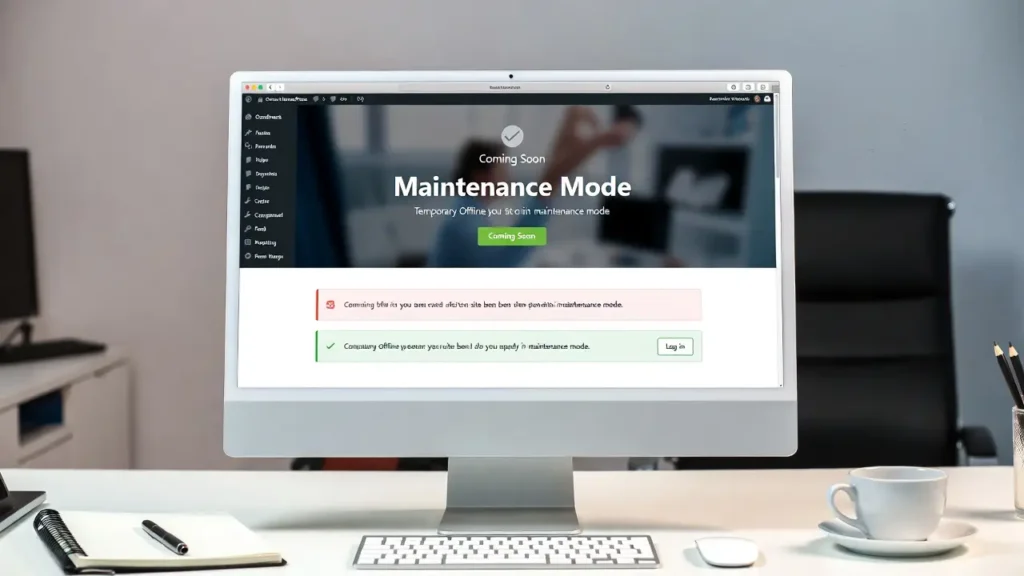
Maintenance mode (also called coming soon or under construction mode) lets you temporarily hide your live WordPress site from public view while you update content, redesign, install plugins, fix issues, or prepare a launch. Visitors see a clean, branded page instead of a broken or unfinished site — protecting your SEO, user experience, and professional image. In 2026, with frequent theme/plugin updates and full-site editing, putting your site in maintenance mode is still one of the smartest things you can do during changes.
At Cope Business, we enable maintenance mode for clients before major updates or redesigns as part of our technical SEO audit services and WordPress speed optimization services, ensuring no indexing issues or lost traffic occur.
This beginner-friendly guide shows you three easy methods to add maintenance mode in WordPress — using plugins (easiest), code (lightweight), and hosting tools.
Why Put Your WordPress Site in Maintenance Mode?
- Prevents visitors from seeing unfinished or broken pages
- Protects SEO — search engines won’t index temporary changes or errors
- Builds anticipation for launches or redesigns
- Allows safe testing of updates, themes, plugins, or new content
- Improves professionalism — shows “We’re working to make things better”
Without maintenance mode, updates can cause errors, lost rankings, or frustrated visitors.
Method 1: Using a Plugin (Easiest & Most Popular)
Plugins give you beautiful, customizable pages with lead capture, countdowns, and more — no code needed.
Recommended Plugin: SeedProd (Free/Pro – Our Top Pick)
SeedProd is the #1 maintenance/coming soon plugin in 2026 — fast, beautiful, and conversion-focused.
Steps
- Install SeedProd (free lite version works; Pro ~$39.50/year for advanced features) from Plugins > Add New.
- After activation, go to SeedProd > Coming Soon Page (or Maintenance Mode).
- Click Set Up Coming Soon Page (or Maintenance Mode).
- Choose a template:
- Browse 100+ professional designs (many with countdown timers, email capture, social links)
- Or start from blank
- Customize with drag-and-drop:
- Add your logo, headline (“We’ll Be Back Soon!”)
- Include countdown timer (set launch date)
- Add email signup form (connect to Mailchimp/ConvertKit)
- Change colors, background image/video, typography
- Add social icons, contact info, or progress bar
- In Page Settings:
- Enable Maintenance Mode or Coming Soon
- Choose who sees it: Everyone except logged-in admins (recommended)
- Set access control (IP whitelist for you/team)
- Click Save & Publish — your site is now in maintenance mode!
Pros: Stunning templates, lead capture, countdowns, mobile-responsive, fast loading.
Cons: Pro version needed for premium templates and integrations.
Alternative Plugins:
- Coming Soon Page & Maintenance Mode by SeedProd (free lite version)
- Under Construction (free)
- WP Maintenance Mode (free)
Method 2: Using .htaccess or Code (Lightweight – No Plugin)
For minimal setup or if you prefer no extra plugins.
Option A: Simple Maintenance Page via .htaccess (Apache Servers)
- Access .htaccess in root folder via FTP or hosting file manager.
- Add this code:
textRewriteEngine On RewriteCond %{REMOTE_ADDR} !^YOUR_IP_ADDRESS$ RewriteCond %{REQUEST_URI} !^/maintenance\.html$ RewriteRule ^(.*)$ /maintenance.html [R=302,L]Replace YOUR_IP_ADDRESS with your IP (find at whatismyip.com) so you can still access the site.
- Create maintenance.html in root folder with your message.
Pros: Very fast, no plugins.
Cons: Basic page, manual IP management.
Option B: Simple PHP Maintenance File
- Create maintenance.php in root folder:
PHP<?php $maintenance = true; if ($maintenance && !in_array($_SERVER['REMOTE_ADDR'], array('YOUR_IP_ADDRESS'))) { header('HTTP/1.1 503 Service Temporarily Unavailable'); header('Status: 503 Service Temporarily Unavailable'); header('Retry-After: 3600'); include('maintenance.html'); exit; }- Create maintenance.html with your content.
Pros: Lightweight, customizable.
Cons: Requires FTP; manual IP updates.
Method 3: Using Hosting Control Panel (If Supported)
Many hosts offer built-in maintenance mode.
- SiteGround: Site Tools > WordPress > Staging or Maintenance Mode
- Bluehost: Advanced > Maintenance Mode
- Hostinger: Website > Maintenance Mode
- Cloudways: One-click maintenance mode toggle
Pros: No plugins/code, very fast.
Cons: Not all hosts have it; limited customization.
Best Practices for Maintenance Mode
- Brand It — Use your logo, colors, message (“We’re upgrading – back soon!”)
- Capture Leads — Add email signup (“Get notified when we launch”)
- Countdown Timer — Build anticipation for relaunch
- SEO Protection — Return 503 status (not 200) so Google knows it’s temporary
- IP Whitelist — Allow yourself/team to see live site
- Test Thoroughly — Check mobile, incognito, different IPs
- Notify Users — Email subscribers or post on social
Final Thoughts
Adding maintenance mode in WordPress is a quick, essential step before updates, redesigns, or launches. Use SeedProd for beautiful, conversion-focused pages — or code/.htaccess for lightweight control.
Protect your site and build excitement — do it right.
Need help setting up maintenance mode, creating a branded coming-soon page, or optimizing your site for relaunch? Contact Cope Business for a free technical SEO consultation — we’ll make sure your site stays secure, fast, and professional during any update.


