
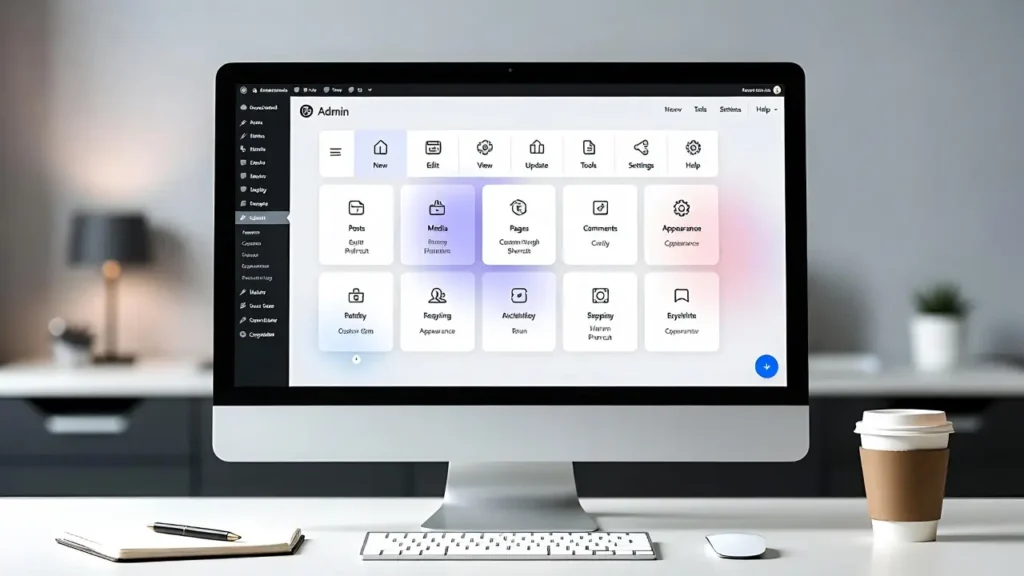
The WordPress admin toolbar (the black bar at the top when logged in) is a powerful navigation tool — but it only shows default links. Adding your own custom shortcut links lets you access frequently used pages, settings, external tools, or client dashboards with one click — saving time and improving workflow efficiency. With full-site editing and block themes, customizing the toolbar remains a favorite productivity hack for developers, agencies, bloggers, and site owners.
At Cope Business, we regularly customize admin toolbars for clients during our technical SEO audit services to streamline workflows, reduce clicks, and make site management faster and more professional.
This beginner-to-advanced guide shows you two easy ways to add custom shortcut links to the WordPress admin toolbar — using a plugin (no code) and using code (full control).
Why Customize the WordPress Admin Toolbar?
- Save Time — One-click access to your most-used pages or tools
- Improve Workflow — Add links to Google Analytics, SEO tools, staging sites, etc.
- Client Management — Add client dashboards, billing, or support links
- Agency Efficiency — Add shortcuts to multiple sites or admin areas
- Professional Touch — Makes your dashboard feel custom and branded
Method 1: Using a Plugin (Easiest – No Code Required)
Plugins make toolbar customization visual and reversible.
Recommended Plugin: Admin Menu Editor (Free/Pro)
Admin Menu Editor is the most popular and flexible option.
Steps
- Install Admin Menu Editor (free version works great) from Plugins > Add New.
- Go to Settings > Menu Editor.
- Click the Toolbar tab (top menu).
- Click + Add new item (or drag existing items).
- Customize your shortcut:
- Title: “Google Analytics” or “Site Speed Test”
- URL: Paste the link (internal: /wp-admin/post-new.php or external: https://analytics.google.com)
- Parent: Choose “Top level” or nest under existing menu
- Icon: Select Dashicon or upload custom
- Capability: Set who sees it (e.g., administrator only)
- Open in: New tab (recommended for external links)
- Drag to reorder or nest under other items.
- Click Save Changes — refresh your admin dashboard to see the new shortcut.
Pro Version (~$39/year): Adds role-based visibility, custom icons, export/import.
Alternative Plugin: Custom Admin Toolbar or WP Custom Admin Interface — both free and simple.
Pros: Visual drag-and-drop, role control, reversible.
Cons: Adds one more plugin (lightweight).
Method 2: Using Custom Code in functions.php (Lightweight & Full Control)
For precise control without plugins.
Steps
- Use a child theme (or WPCode plugin for safety).
- Add this code to your child theme’s functions.php (or WPCode snippet):
PHPfunction cope_add_toolbar_shortcuts($wp_admin_bar) { // Example 1: Link to Google Analytics $wp_admin_bar->add_node(array( 'id' => 'cope-ga', 'title' => 'Google Analytics', 'href' => 'https://analytics.google.com', 'meta' => array( 'target' => '_blank', // Open in new tab 'class' => 'cope-toolbar-link' ) )); // Example 2: Link to new post $wp_admin_bar->add_node(array( 'id' => 'cope-new-post', 'title' => 'New Blog Post', 'href' => admin_url('post-new.php'), 'parent' => 'new-content', // Nest under +New 'meta' => array('class' => 'cope-toolbar-link') )); // Example 3: Custom internal page $wp_admin_bar->add_node(array( 'id' => 'cope-support', 'title' => 'Support Dashboard', 'href' => admin_url('admin.php?page=support-dashboard'), )); } add_action('admin_bar_menu', 'cope_add_toolbar_shortcuts', 999);- Customize:
- Change IDs, titles, URLs
- Add icons with Dashicons: ‘meta’ => array(‘class’ => ‘ab-icon dashicons-analytics’)
- Nest under existing menus: ‘parent’ => ‘wp-logo’ or ‘parent’ => ‘site-name’
- Save → Refresh admin dashboard — new shortcuts appear!
Pros: No extra plugins, full control, lightweight.
Cons: Requires child theme or snippet plugin.
Best Practices for Custom Toolbar Links
- Use meaningful IDs — Prefix with your brand (e.g., cope-) to avoid conflicts.
- Open external links in new tab — Add ‘target’ => ‘_blank’.
- Role-based visibility — Wrap in if (current_user_can(‘manage_options’)) { … }.
- Icons — Use Dashicons (built-in) or Font Awesome.
- Performance — Toolbar code has no impact — keep it clean.
- Mobile — Test on small screens — toolbar collapses automatically.
Final Thoughts
Customizing the WordPress admin toolbar with shortcut links is a quick productivity win. Use Admin Menu Editor for visual ease or simple code for lightweight control — either way, you’ll save clicks every day.
A customized toolbar makes managing your site feel faster and more professional.
Need help adding custom shortcuts, optimizing your admin experience, or improving overall site performance? Contact Cope Business for a free technical SEO consultation — we’ll review your setup and create a streamlined admin workflow tailored to your needs.


