
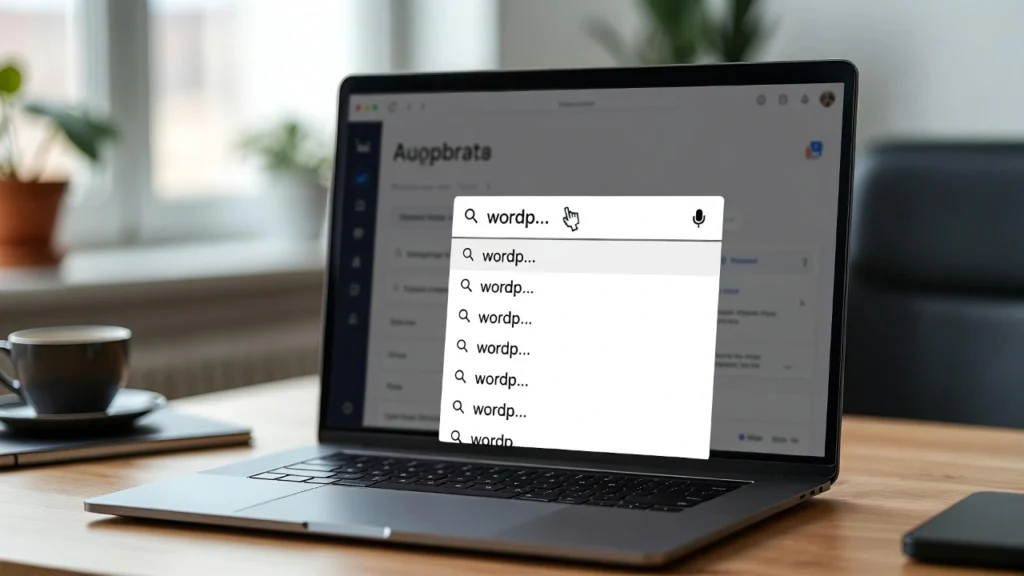
A live autocomplete search feature enhances your WordPress site’s usability by providing instant suggestions as users type, helping them find content faster and reducing bounce rates. This not only improves user experience but also boosts internal linking and SEO by guiding visitors to relevant pages. In 2026, with search intent at the forefront of Google’s algorithms, a smart internal search can keep users on your site longer. At Cope Business, we implement advanced search features during our technical SEO audit services to optimize client sites for better engagement and rankings. This guide covers what live autocomplete is, why it’s beneficial, and two simple methods to add it to your WordPress site.
Whether you’re running a blog, eCommerce store, or business site, autocomplete can transform your search bar into a powerful navigation tool.
What is Live Autocomplete Search in WordPress?
Live autocomplete (also called “instant search” or “suggest”) displays dynamic suggestions below the search bar as users type. For example, typing “SEO” might suggest “SEO Tips for Beginners” or “Technical SEO Audit”. WordPress’s default search lacks this, but plugins and code can add it easily.
Benefits of Adding Live Autocomplete
- Better User Experience: Faster content discovery reduces frustration.
- Increased Engagement: Users explore more pages, lowering bounce rates.
- SEO Advantages: More internal links clicked improve site structure signals.
- Mobile-Friendly: Essential for touch keyboards where typing is slower.
- Conversion Boost: Guides users to high-value pages like services or products.
Method 1: Using a Plugin (Recommended for Beginners)
Plugins make setup quick with no coding.
Recommended Plugin: Ajax Search Lite (Free)
This lightweight plugin adds autocomplete with live results.
Steps
- Install and activate Ajax Search Lite from Plugins > Add New.
- Go to Ajax Search Lite in your dashboard.
- Create a new search instance or edit the default.
- In General Options, enable “Autocomplete” and set sources (posts, pages, products).
- Customize appearance: Dropdown style, number of suggestions, image thumbnails.
- Add the search bar: Use the shortcode [asl_search] in a widget, page, or header (via theme customizer).
- Test by typing—suggestions appear instantly.
Pro Version (~$49/year): Adds more sources, filters, and analytics.
Alternative: SearchWP (premium) for advanced indexing and fuzzy matching.
Tips: If using WooCommerce, enable product search for better eCommerce UX.
Method 2: Using Custom Code (For Advanced Users or Lightweight Setup)
Add autocomplete manually with code for more control.
Steps
- Install WPCode (free) for safe snippet addition.
- Go to Code Snippets > Add Snippet and create a new one.
- Add this JavaScript code (enqueue properly):
PHPfunction wpb_enqueue_autocomplete_script() { wp_enqueue_script( 'jquery-ui-autocomplete' ); wp_enqueue_script( 'custom-autocomplete', get_template_directory_uri() . '/js/autocomplete.js', array('jquery-ui-autocomplete'), '', true ); } add_action( 'wp_enqueue_scripts', 'wpb_enqueue_autocomplete_script' );- Create /js/autocomplete.js in your child theme with jQuery code for suggestions (use WordPress AJAX for fetching posts).
- Add a search form in your theme’s searchform.php or widget.
- Customize the AJAX endpoint to query titles and return suggestions.
Note: This requires basic JS knowledge—use Method 1 if not comfortable.
For full customization, integrate with plugins like All in One SEO for keyword-based suggestions.
Best Practices for Live Autocomplete Search
- Mobile Optimization: Ensure suggestions are touch-friendly and don’t overlap keyboards.
- Performance: Limit suggestions to 5–10 to avoid slowing searches.
- SEO Integration: Include keywords in titles for better matching.
- Testing: Check on different devices and browsers.
- Accessibility: Ensure keyboard navigation and screen reader compatibility.
- Combine with Speed Optims: Enable caching to handle increased AJAX requests (see our caching plugins guide).
A well-implemented autocomplete can increase search usage by 20–30%, leading to more pageviews.
Final Thoughts
Adding live autocomplete search to WordPress transforms a basic feature into a user-friendly tool that boosts engagement and retention. Start with a plugin like Ajax Search Lite for quick results, or go custom for tailored functionality.
Enhanced search contributes to better overall site performance and SEO.
Need help setting up advanced search or optimizing your WordPress site? Contact Cope Business for a free technical SEO consultation—we’ll enhance your search experience and drive more traffic.


