
File permissions in WordPress determine who can read, write, or execute files and folders on your server — a critical factor for both security and functionality. Incorrect permissions are one of the most common causes of issues like:
- “Unable to create directory” errors during updates
- White screen of death
- Plugin/theme installation failures
- Hacked sites (777 permissions are a huge red flag)
With increasing automated attacks and stricter hosting security rules, setting correct file permissions is a foundational security step. At Cope Business, we audit and fix permissions during every technical SEO audit service and WordPress hardening project — it’s one of the quickest ways to make your site more secure and reliable.
This complete guide explains what permissions mean, the recommended secure settings for WordPress, and how to change them safely using multiple methods.
Understanding File Permissions in WordPress (Beginner Level)
Permissions are represented by three numbers (e.g., 644 or 755):
- First digit: Owner permissions
- Second digit: Group permissions
- Third digit: Everyone (public) permissions
Each digit is a sum:
- 4 = Read
- 2 = Write
- 1 = Execute
- 0 = No access
Common permission combinations:
- 644 → Owner: read/write, Group & Public: read only
- 755 → Owner: read/write/execute, Group & Public: read/execute
- 777 → Everyone: read/write/execute (very dangerous — never use!)
WordPress Recommended Settings (Secure & Standard)
| File/Folder Type | Recommended Permission | Meaning |
|---|---|---|
| Folders / Directories | 755 | Owner full access, others can read & navigate |
| Files (php, css, js, txt) | 644 | Owner can read/write, others read only |
| wp-config.php | 600 or 640 | Owner only read/write (extra secure) |
| .htaccess | 644 | Owner read/write, others read |
| wp-content/uploads | 755 | Needed for uploads & media |
Never use 777 — it allows anyone on the server to write to your files (huge security risk).
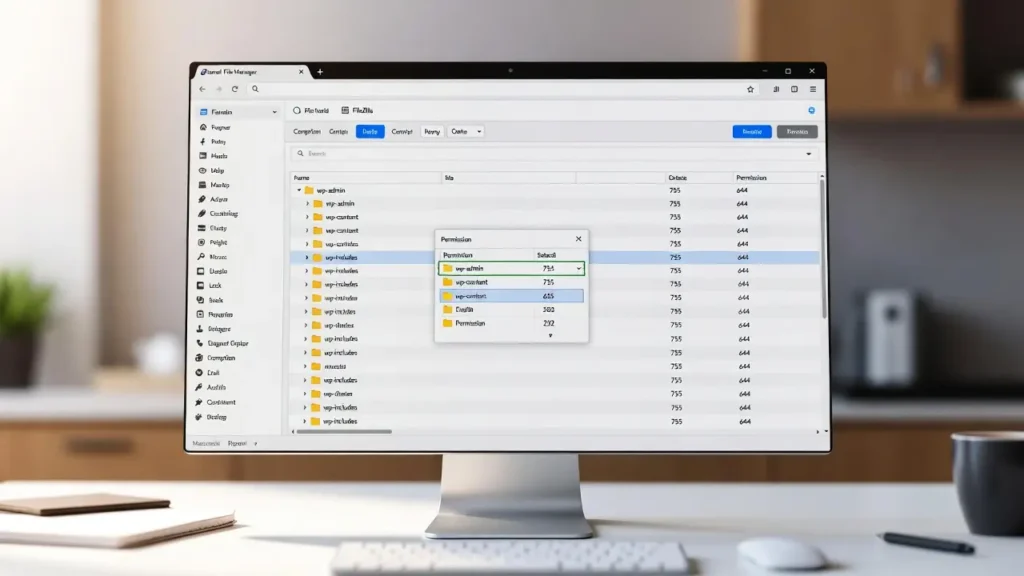
Method 1: Change Permissions Using File Manager (cPanel / Hosting Panel – Easiest)
Most hosts provide a visual file manager.
Steps
- Log in to your hosting control panel (cPanel, Plesk, DirectAdmin, etc.).
- Find File Manager → Navigate to your WordPress root folder.
- Right-click on a file or folder → Change Permissions / File Permissions.
- Set permissions using checkboxes or numeric input:
- Folders: 755
- Files: 644
- wp-config.php: 600 or 640
- Click Change Permissions / Save.
- Repeat for main folders: wp-admin, wp-includes, wp-content (755), and files inside.
Tip: Select multiple files/folders → change permissions in bulk.
Method 2: Using FTP / SFTP (FileZilla – Most Common)
- Download and install FileZilla (free).
- Connect to your site:
- Host: your domain or IP
- Username/Password: from hosting account
- Port: 21 (FTP) or 22 (SFTP – preferred for security)
- Navigate to your WordPress root.
- Right-click a file/folder → File permissions.
- Enter numeric value:
- 755 for folders
- 644 for files
- 600 for wp-config.php
- Check “Apply to subdirectories” for folders → OK.
Tip: Always use SFTP (port 22) instead of FTP for encrypted transfer.
Method 3: Using SSH / Terminal (Advanced – Fast for Bulk)
If you have SSH access:
Bash
# Set all directories to 755
find /home/username/public_html -type d -exec chmod 755 {} \;

# Set all files to 644
find /home/username/public_html -type f -exec chmod 644 {} \;

# Special files
chmod 600 /home/username/public_html/wp-config.php
chmod 644 /home/username/public_html/.htaccess
Replace /home/username/public_html with your actual path.
Pros: Fast for large sites.
Cons: Requires SSH access and comfort with terminal.
Best Practices & Security Tips
- Always backup first — use UpdraftPlus or hosting backup before changes
- Never use 777 — it’s the most common reason sites get hacked
- wp-config.php → 600 (owner only) if possible
- Uploads folder → 755 is safe; 777 is dangerous
- Test after changes — check site loads, media uploads, updates
- Monitor — Use Wordfence or Sucuri to alert on permission changes
- Hosting — Choose secure hosts that block 777 by default (SiteGround, Kinsta, etc.)
Final Thoughts
Setting correct file permissions in WordPress is one of the easiest and most important security steps. Use 755 for folders and 644 for files — and make wp-config.php 600 for extra protection. Use your hosting File Manager or FileZilla for most changes — it’s fast and visual.
Proper permissions = fewer hacks + better peace of mind.
Locked out, hacked, or need a full security audit? Contact Cope Business for a free technical SEO consultation — we’ll secure your WordPress site, fix permissions, and optimize it for performance and long-term safety.


