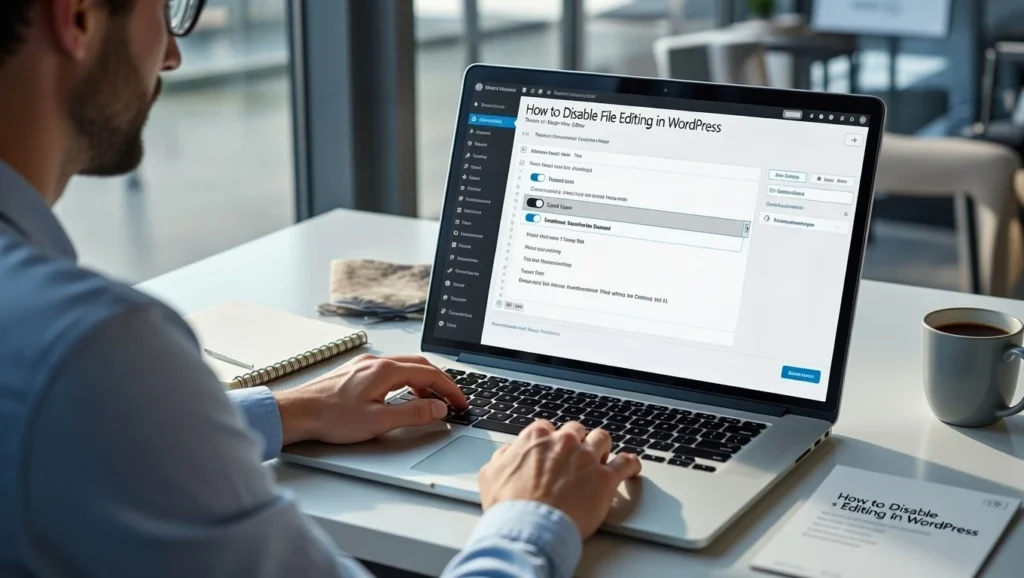
The built-in file editor in WordPress allows admins to modify theme and plugin files directly from the dashboard—a convenient feature for developers but a major security risk if your site gets hacked. Disabling it prevents attackers from injecting malicious code even if they gain admin access. In 2026, with cyber threats more sophisticated, this simple tweak is essential for protecting your site’s integrity and maintaining SEO rankings. At Cope Business, we recommend disabling file editing as a standard practice during our technical SEO audit services to harden client sites against vulnerabilities.
This guide covers two easy methods to disable file editing—using code for precision or plugins for simplicity—so you can implement it quickly.
On this page
ToggleWhy Disable File Editing in WordPress?
- Security Enhancement: Hackers can’t alter core files if the editor is disabled.
- Prevents Accidental Changes: Avoids breaking your site with unintended edits.
- Compliance Benefits: Reduces risks in regulated environments (e.g., GDPR/CCPA).
- Best Practice: Recommended by security experts like Sucuri and Wordfence.
Without disabling it, a compromised admin account could lead to malware injection, backdoors, or complete site takeover.
Method 1: Disable File Editing Using Code (Recommended for Most Users)
This is the simplest and most direct way—add a single line to your wp-config.php file.
Steps
- Access your site via FTP (use FileZilla) or your hosting file manager (e.g., cPanel > File Manager).
- Navigate to the root directory (where wp-config.php is located).
- Download a backup of wp-config.php first.
- Edit the file and add this line above the “/* That’s all, stop editing! */” comment:
textdefine('DISALLOW_FILE_EDIT', true);- Save and upload the file.
- Test by going to Appearance > Theme Editor or Plugins > Plugin Editor—the editors should be gone, showing a “File editing is not enabled” message.
Tips: If your host uses a custom editor, this may not affect it—check with support. Always edit wp-config.php with a plain text editor (Notepad++, VS Code) to avoid formatting issues.
Method 2: Disable File Editing Using a Plugin
For those preferring a plugin interface or additional features.
Recommended Plugin: WP Hardening (Free)
This all-in-one security plugin includes a one-click toggle for file editing.
Steps
- Install and activate WP Hardening from Plugins > Add New.
- Go to WP Hardening > Security Tweaks.
- Enable the “Disable File Editor” option.
- Save changes—the editors are now disabled.
Alternative: Sucuri Security (free) offers similar hardening options in its settings.
Benefits: Plugins often include extras like malware scans or firewall rules. Easy to toggle on/off without file edits.
Best Practices After Disabling File Editing
- Edit Files Safely: Use FTP or your hosting file manager for changes.
- Child Themes: Always use a child theme for customizations to avoid losing edits on updates.
- Regular Backups: Use UpdraftPlus to backup before any modifications.
- Additional Security: Combine with 2FA, login limits (see our limit login attempts guide), and firewalls.
- Performance Check: Disabling the editor has no impact on speed, but pair with optimizations for a secure, fast site (see our speed guide).
Test your site after changes to ensure no unexpected issues.
Final Thoughts
Disabling file editing in WordPress is a quick security win that protects against common exploits. Method 1 with code is lightweight and permanent, while plugins offer flexibility and extras.
A secure site supports better performance and trust—essential for long-term success.
Need help securing your WordPress site or a full audit? Contact Cope Business for a free technical SEO consultation—we’ll review your setup and implement tailored protections.