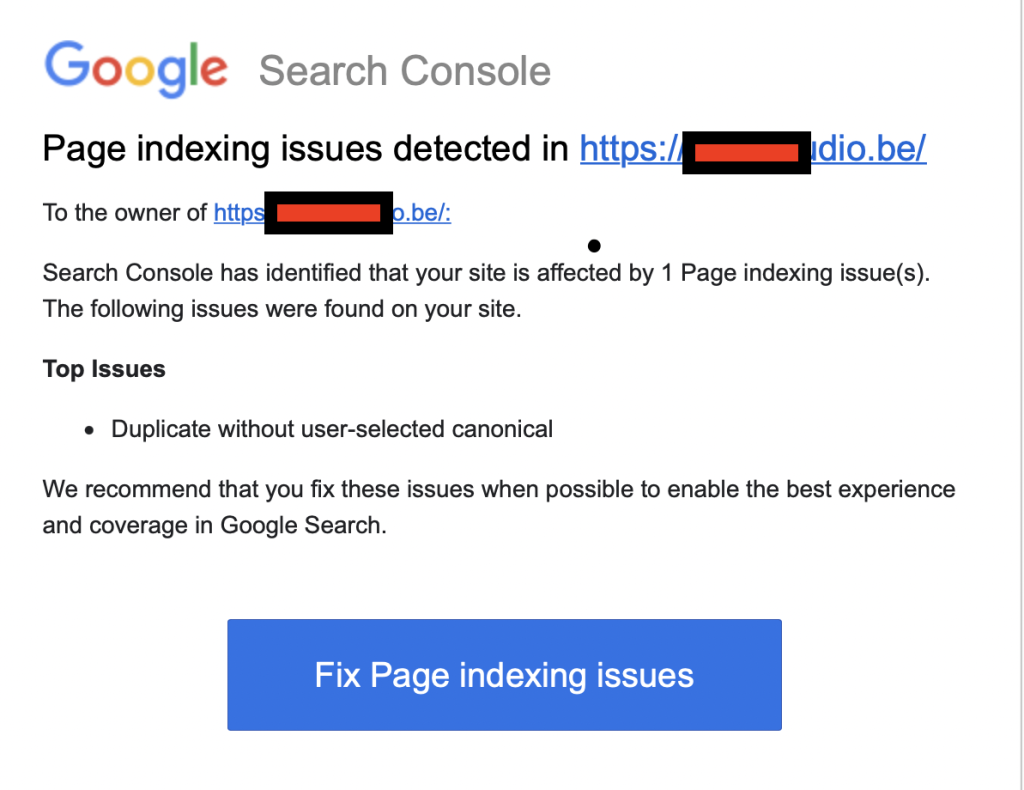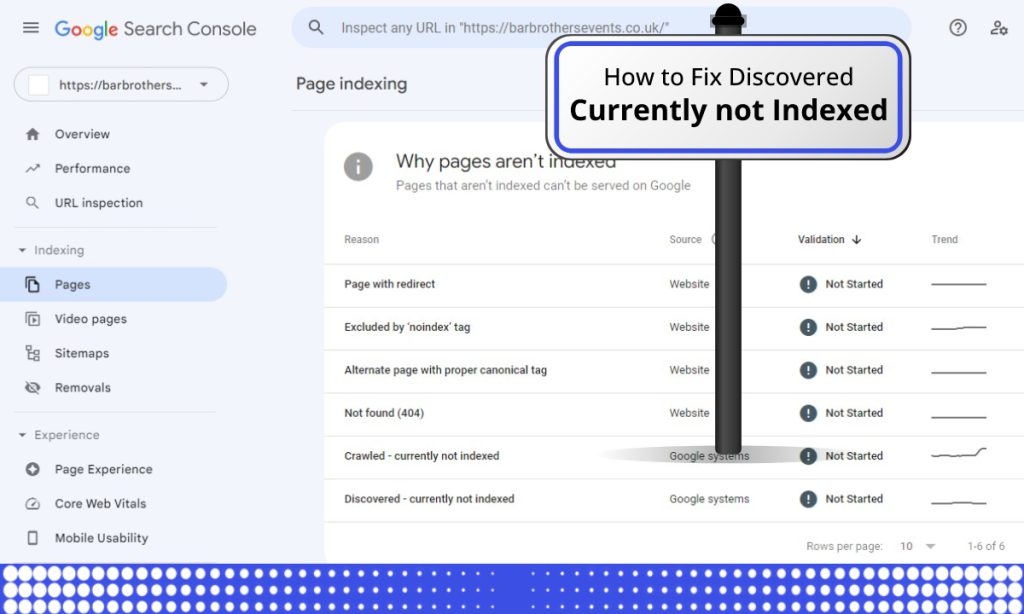
You open Google Search Console, click into Page indexing, and there it is: Server error (5xx). Google tried to crawl your pages, your server answered with an error, and until that changes, those URLs cannot be indexed or served in search results.
We fix this error for clients every week. This guide walks through the same process we use: confirm the error is real, find which of the seven common causes is behind it, and fix it — with realistic timelines for how fast Google notices.
What “Server error (5xx)” actually means
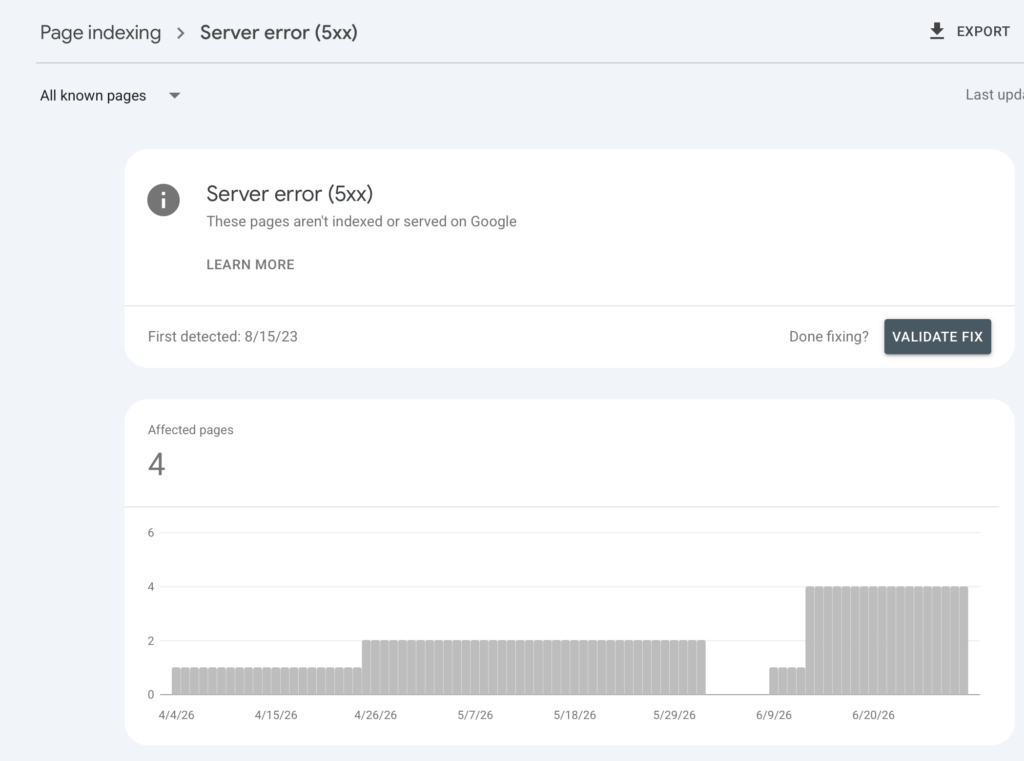
A 5xx status code means your server received Googlebot’s request but failed to fulfil it. Unlike a 404 (page missing) or 403 (access denied), a 5xx is your server saying, “something broke on my side.” The most common variants:
- 500 Internal Server Error — a generic failure, usually PHP errors or plugin conflicts on WordPress sites
- 502 Bad Gateway — a proxy or CDN (often Cloudflare) couldn’t get a valid response from your origin server
- 503 Service Unavailable — the server is overloaded or in maintenance mode
- 504 Gateway Timeout — the server took too long to respond
Google treats persistent 5xx errors as a signal of an unreliable site: it slows crawling, drops the affected URLs from the index over time, and can hold back sitewide crawl demand.
Step 1: Confirm the error is still happening
GSC data lags. The report you’re looking at may describe a problem that was fixed days ago — or one that only happens under load.
- In GSC, open the Server error (5xx) report and note the last crawled dates on the example URLs.
- Run one affected URL through URL Inspection → Test Live URL. If the live test passes, the issue may be intermittent, which usually points to resource limits or rate limiting (causes 1 and 5 below).
- Check your server the way Googlebot sees it. Browsers can be served cached pages by your CDN while Googlebot hits the origin. Fetch the URL with a Googlebot user-agent from a terminal:
curl -A "Mozilla/5.0 (compatible; Googlebot/2.1; +http://www.google.com/bot.html)" -I https://example.com/affected-page/ - Pull your server error logs for the timestamps GSC reports. On most hosts, this is
error_login cPanel, or Site Health → Info on WordPress.
Step 2: Work through the seven common causes
1. Hosting resource limits (the most common cause we see)
Shared hosting plans cap CPU seconds, memory, and concurrent processes. Googlebot can crawl in bursts of dozens of requests per minute — enough to push a cheap plan over its limits, so your server returns 500/503 only during crawls. That’s why the site looks fine when you check it manually.
Fix: check your hosting control panel’s resource usage graphs against the crawl timestamps. If they line up, upgrade the plan, enable page caching so crawls hit cached HTML instead of PHP, or move to a host with higher process limits.
2. Firewall or bot protection blocking Googlebot
Cloudflare rules, WAFs, and security plugins (Wordfence, iThemes, etc.) sometimes rate-limit or challenge Googlebot as if it were a scraper. A challenge page served with a 503 is a classic version of this.
Fix: in Cloudflare, check Security → Events for blocked requests from Googlebot IPs and add an allow rule for verified bots. In security plugins, whitelist Googlebot’s verified IP ranges — never by user-agent alone, since scrapers fake it. Google publishes its official IP list.
3. Plugin or theme conflicts (WordPress)
A single plugin throwing a fatal PHP error can cause 500 errors on every page that loads it. This usually starts right after a plugin, theme, or PHP version update.
Fix: Check the date the errors started in GSC against your update history. Enable WP_DEBUG_LOG, reproduce the error, and read the fatal error trace — it names the plugin. Deactivate plugins in halves until the error stops if you can’t reproduce it directly.
4. PHP memory and execution timeouts
Heavy pages — large WooCommerce category pages, page builders, uncached archive pages — can exceed memory_limit or max_execution_time and die with a 500 or 504.
Fix: raise memory_limit (256M is a sane WordPress floor) and profile the slow templates. If only deep archive pages fail, that’s a template efficiency problem, not a hosting problem.
5. Rate limiting at the server level
Some hosts and reverse proxies throttle any client above N requests per minute. Googlebot exceeds that routinely on larger sites.
Fix: exempt verified search engine bots from rate-limiting rules (nginx limit_req zones, LiteSpeed reCAPTCHA protections, host-level bot throttling). If you can’t exempt them, lower Googlebot’s crawl rate pressure by fixing crawl waste — parameter URLs, endless archives — rather than blocking the bot.
6. CDN or DNS misconfiguration after a migration
502/504 clusters that start right after a site move, SSL change, or CDN switch usually mean the CDN can’t reach the origin: wrong origin IP, expired origin certificate, or HTTP/HTTPS mismatch between CDN and origin.
Fix: test the origin server directly (bypass the CDN via hosts-file override). If the origin responds fine, the problem is the CDN’s origin configuration, not your server.
7. Genuine outages
If your host had downtime, GSC will report 5xx for anything crawled during the window. A one-off spike that doesn’t recur needs no fix — validate and move on.
Step 3: Validate the fix in Search Console
- Confirm affected URLs return 200 with a Googlebot user-agent test (Step 1.3).
- In the GSC 5xx report, click Validate Fix. Google recrawls a sample first, then the rest — expect the validation to take from a few days up to two weeks or more on larger sites.
- Watch Settings → Crawl stats. When 5xx responses drop to near zero and average response time stabilises, crawl demand recovers.
Don’t request indexing URL-by-URL for hundreds of pages — fixing the server condition and validating once is what scales.
How long until rankings recover?
If the errors ran for days, expect index counts to recover within a couple of weeks of validation. If they ran for months, Google has learned to crawl you cautiously — recovery is slower, and pairing the fix with a clean sitemap ping and internal-link refresh helps re-establish crawl demand.
When to bring in help
If the error logs point at something you can’t change — host-level limits, a WAF you don’t control, a page builder fatal that resists debugging — that’s exactly the kind of problem we handle. Our Google Search Console error-fixing service starts with a free diagnosis: we find the cause, tell you what it is, and quote the fix. You can also get a broader technical SEO audit if 5xx is one of several issues in your Page indexing report.
FAQ
Do 5xx errors hurt rankings directly?
Persistently, yes: pages that keep failing get dropped from the index, and the sitewide crawl rate is reduced. A brief outage has no lasting effect.
Why does GSC show 5xx, but the page loads fine for me?
You’re seeing a cached or geographically different response, or the error only occurs under crawl load. Test with a Googlebot user-agent against the origin.
Should I return 503 during maintenance?
Yes — 503 with the Retry-After header is the correct signal for planned downtime. Never serve maintenance pages with a 200.