
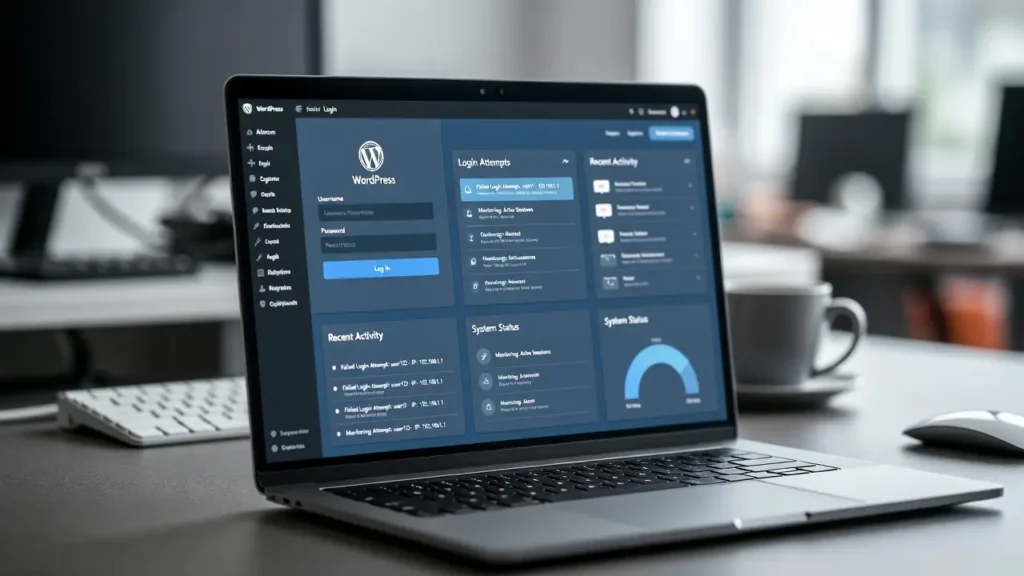
Monitoring suspicious login activity in WordPress is one of the most effective ways to detect potential security threats like brute-force attacks, failed logins from unknown IPs, or unauthorized access attempts. With automated bots and AI-driven hacks on the rise, real-time login monitoring can alert you to issues before they become full breaches, saving time, data, and your site’s reputation. Without monitoring, you might miss early warning signs until it’s too late.
At Cope Business, we implement advanced login monitoring for clients during our technical SEO audit services and security hardening processes, combining it with tools like 2FA and firewalls for layered protection. This guide covers why monitoring matters, and three practical methods to set it up in WordPress — using plugins (easiest), code (lightweight), and hosting logs (advanced).
Whether you’re running a blog, eCommerce store, or business site, proactive monitoring is key to staying secure.
Why Monitor Suspicious Login Activity in WordPress?
- Early Threat Detection — Spot brute-force attacks (repeated failed logins), unusual IPs, or login spikes
- Prevent Hacks — Get alerts to lock out bad actors before they succeed
- User Accountability — Track team logins for internal security
- Compliance & Auditing — Log activity for GDPR/CCPA requirements
- SEO Protection — Hacks lead to blacklisting & ranking drops; monitoring prevents that
WordPress logs basic activity by default, but advanced monitoring requires tools or code.
Method 1: Using a Security Plugin (Easiest & Recommended)
Security plugins provide real-time alerts, logs, and automatic blocking.
Recommended Plugin: Wordfence (Free/Pro)
Wordfence is the most popular security plugin with excellent login monitoring.
Steps
- Install Wordfence Security (free) from Plugins > Add New.
- Activate → Run the setup wizard (connect to Wordfence servers for premium features if Pro).
- Go to Wordfence > Login Security.
- Enable options:
- 2FA for all users (built-in)
- Brute Force Protection — Lock out after X failed attempts
- XML-RPC Protection — Disable if not needed (see our guide)
- Go to Wordfence > All Options > Email Alert Preferences → Enable alerts for failed logins, lockouts.
- View logs: Wordfence > Live Traffic → Filter by “Logins and Logouts” to see real-time activity.
- For advanced: Pro version (~$99/year) adds country blocking, detailed reports, and premium support.
Alternative Plugins:
- Sucuri Security (free) — Excellent activity logs & alerts
- Activity Log (free) — Dedicated logging without full security suite
Pros: Automatic alerts, blocking, detailed IP info, easy setup.
Cons: Free version has basic monitoring (Pro unlocks more).
Method 2: Using Custom Code for Login Logging (Lightweight – No Plugin)
For full control or minimal bloat, log logins with code.
Steps
- Install WPCode (free) from Plugins > Add New — safest way to add code.
- Go to Code Snippets > Add Snippet → Create new snippet titled “Login Activity Logger”.
- Paste this code (logs successful & failed logins to a file):
PHPfunction cope_log_login_activity($user_login, $user) { $log = date('Y-m-d H:i:s') . ' - Successful login: ' . $user_login . ' (ID: ' . $user->ID . ') from IP: ' . $_SERVER['REMOTE_ADDR'] . "n"; file_put_contents(ABSPATH . 'login-log.txt', $log, FILE_APPEND); } add_action('wp_login', 'cope_log_login_activity', 10, 2); function cope_log_failed_login($username) { $log = date('Y-m-d H:i:s') . ' - Failed login attempt for: ' . $username . ' from IP: ' . $_SERVER['REMOTE_ADDR'] . "n"; file_put_contents(ABSPATH . 'login-log.txt', $log, FILE_APPEND); } add_action('wp_login_failed', 'cope_log_failed_login'); // Optional: Email alert on multiple failed attempts (add logic here)- Save & Activate → Logins are now logged to login-log.txt in your root folder.
- Download/view the log via FTP to monitor.
Pros: No extra plugins, fully customizable, lightweight.
Cons: Manual review (add email alerts for automation).
Method 3: Using Hosting Logs or Advanced Tools (For Detailed Analysis)
Many hosts provide built-in login logs.
- SiteGround/Bluehost (cPanel): Logs > Error Log or Raw Access Logs — search for wp-login.php entries
- Cloudways/Kinsta: Server logs in dashboard — filter by /wp-login.php
- Advanced: Use Activity Log plugin (free) for searchable dashboard logs
Pros: No WordPress changes, very detailed.
Cons: May require tech knowledge to interpret.
Best Practices for Monitoring Login Activity
- Enable Email Alerts — Get notified instantly of suspicious activity
- Block Bad IPs — Use Wordfence auto-block or .htaccess
- Use 2FA — Mandatory for admins (WP 2FA plugin)
- Limit Attempts — See our guide
- Hide wp-login.php — Use WPS Hide Login plugin
- Regular Reviews — Check logs weekly; archive old ones
- SEO Tip — Secure sites rank better; monitoring prevents hack-related blacklisting
Proactive monitoring stops 70–90% of attacks early.
Final Thoughts
Monitoring suspicious login activity in WordPress is essential for early threat detection and peace of mind. Use Wordfence for comprehensive protection and alerts — or custom code for lightweight logging.
Security is proactive — start monitoring today.
Experiencing suspicious activity or need a full security audit? Contact Cope Business for a free technical SEO consultation — we’ll set up monitoring, secure your site, and optimize it for performance and safety.


