

Unused CSS and JavaScript (JS) files are a major cause of slow WordPress sites — they load unnecessary code on every page, increasing file sizes, delaying rendering, and hurting Core Web Vitals like Largest Contentful Paint (LCP). With Google’s algorithms penalizing bloated sites and emphasizing mobile speed, removing unused CSS/JS is essential for competitive SEO rankings and low bounce rates. This can cut page size by 20–50% and improve load times significantly.
At Cope Business, we remove unused CSS/JS as a core part of our technical SEO audit services and WordPress speed optimization services, helping clients achieve sub-2-second loads and better search visibility.
This step-by-step guide explains why unused CSS/JS matters, and three effective methods to remove them in WordPress — using plugins (recommended), code (lightweight), and manual tweaks (precise). Always test on staging first!
What is Unused CSS & JS and Why Remove It?
Unused CSS/JS refers to styles/scripts loaded on a page but not actually used (e.g., a plugin’s full CSS loads on every page, even if only needed on one). This creates render-blocking resources, delaying when users see content.
Why remove it?
- Faster Loading: Reduces HTTP requests & file sizes
- Better SEO: Improves LCP/CLS (Core Web Vitals) — direct ranking factor
- Lower Bounce Rates: Users stay if content loads instantly
- Mobile Optimization: Critical for slow connections
- Resource Savings: Less bandwidth/CPU on your server
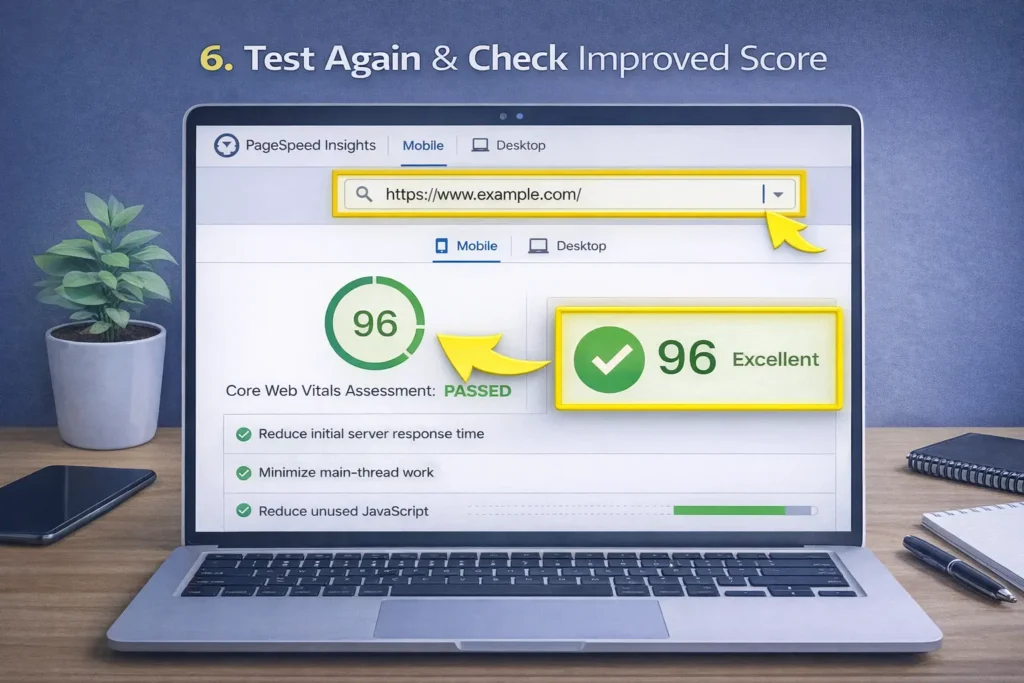
Tools like GTmetrix/PageSpeed Insights flag “Remove unused CSS/JS” — fixing it boosts scores from 70 to 90+.
Step-by-Step: How to Remove Unused CSS & JS in WordPress

Method 1: Using a Performance Plugin (Easiest & Recommended)
Plugins automate detection and removal of unused code per page.
Recommended Plugin: WP Rocket (Premium – Our Top Pick)
WP Rocket is the best for automatic unused CSS/JS removal.
Steps
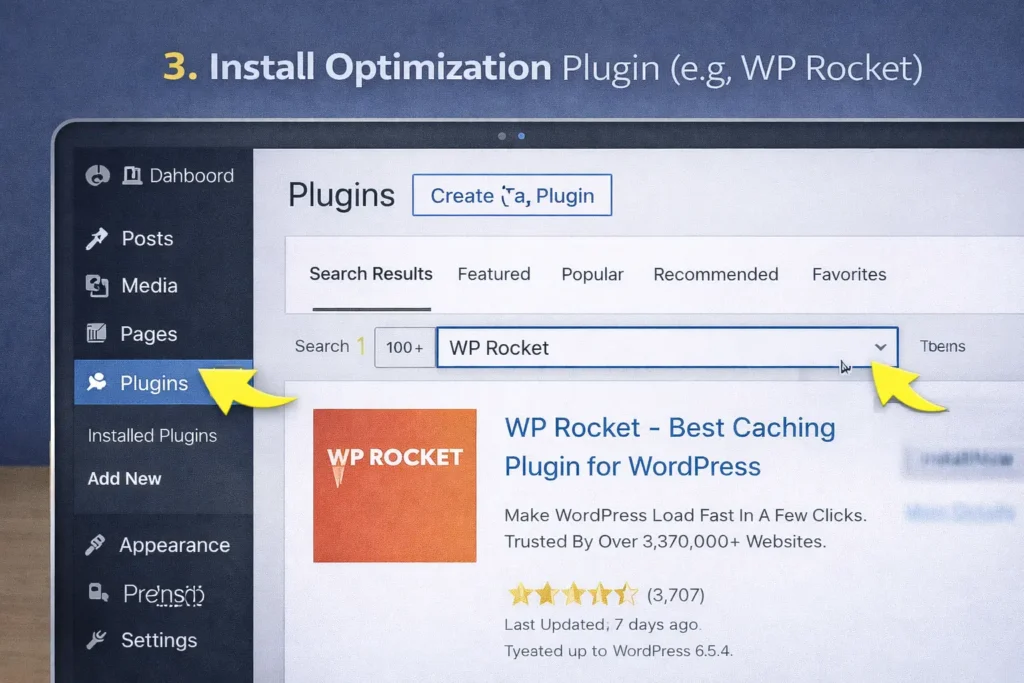
- Install WP Rocket (~$59/year) — upload via Plugins > Add New (not in repository).
- Activate → Go to WP Rocket > Settings > File Optimization.
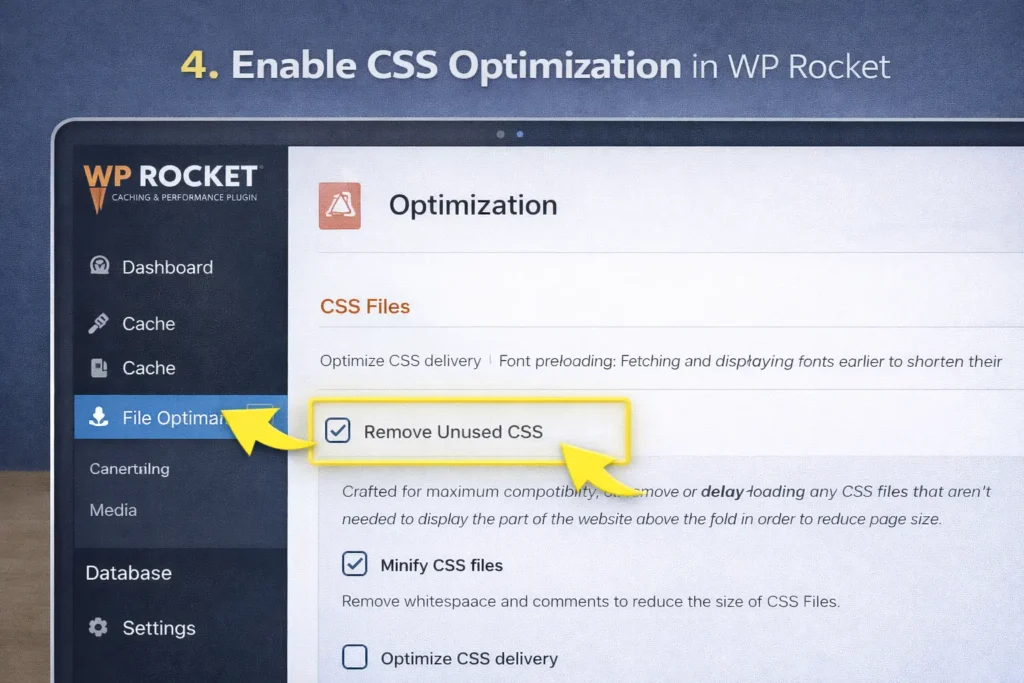
- Enable Remove Unused CSS — WP Rocket scans pages, generates used CSS, and removes the rest.
- For JS: Enable Delay JavaScript execution (defers non-critical JS).
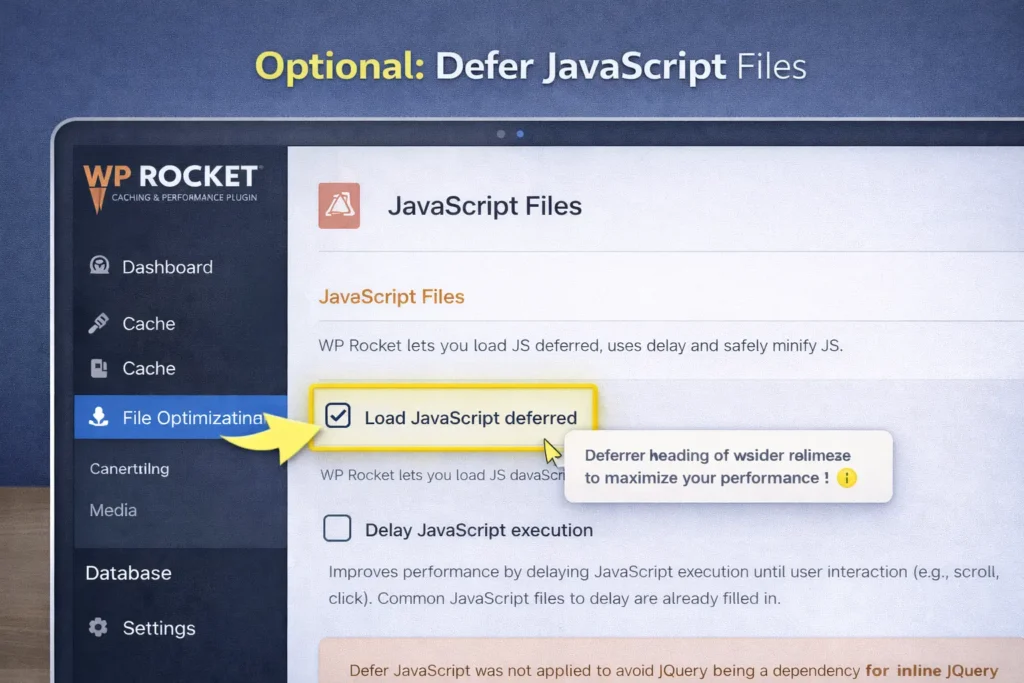
- Save → Clear cache → Test with GTmetrix (look for reduced CSS/JS size & better LCP).
- Advanced: Exclude specific files if issues (e.g., critical plugin JS).
Alternative Free: Autoptimize (free) + Critical CSS add-on — Enable “Inline and Defer CSS” + “Aggregate JS files”.
Pros: Automatic, per-page optimization, no manual work.
Cons: Premium (but worth it for serious sites).
Method 2: Using Code Snippets (Lightweight – Manual Control)
For targeted removal without plugins.
Steps
- Install WPCode (free) from Plugins > Add New — safest for code.
- Go to Code Snippets > Add Snippet → Create new titled “Remove Unused CSS/JS”.
- Paste this code for CSS removal (uses PurgeCSS logic — install PurgeCSS via Composer or manually if advanced):
PHP// Defer non-critical CSS function cope_defer_non_critical_css() { ?> <script> function deferCss() { var links = document.querySelectorAll('link[rel="stylesheet"]'); links.forEach(link => { if (link.getAttribute('data-defer') === 'defer') { link.rel = 'preload'; link.as = 'style'; link.onload = function() { this.rel = 'stylesheet'; }; } }); } window.addEventListener('load', deferCss); </script> <?php } add_action('wp_head', 'cope_defer_non_critical_css', 999); // Add data-defer to non-critical stylesheets (manual – identify via GTmetrix) function cope_add_defer_to_css() { // Example: Defer specific CSS file wp_dequeue_style('non-critical-style-handle'); // Replace handle wp_enqueue_style('non-critical-style-handle', get_stylesheet_directory_uri() . '/non-critical.css', array(), '1.0', 'all'); // Re-enqueue with media='print' or defer } add_action('wp_enqueue_scripts', 'cope_add_defer_to_css', 999);- For JS: Use async or defer attributes in enqueue functions.
- Save & Activate → Test with GTmetrix.
Pros: Free, precise, no extra plugins.
Cons: Manual identification; requires testing.
Method 3: Manual Removal with Tools (Advanced – Precise)
For one-off or deep optimization.
Steps
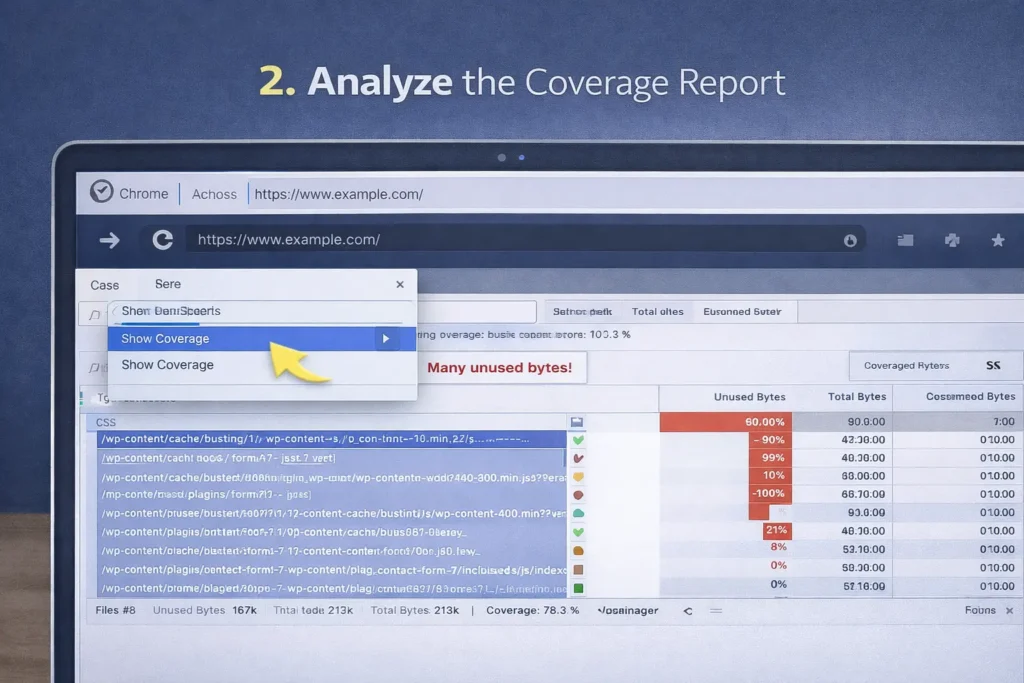
- Use GTmetrix or Chrome DevTools (F12 → Coverage) to identify unused CSS/JS.
- Extract used code with tools like UnusedCSS.com or PurifyCSS.
- Inline critical CSS (above-fold) in <head> via WPCode:
PHPfunction cope_inline_critical_css() { echo '<style> /* Paste critical CSS here */ </style>'; } add_action('wp_head', 'cope_inline_critical_css', 1);- Defer non-critical: Add async or defer to script tags via code.
- Test & iterate.
Pros: Maximum optimization.
Cons: Time-consuming; not dynamic.
Best Practices for Removing Unused CSS/JS
- Test LCP/CLS: Use PageSpeed Insights before/after — aim for <2.5s LCP.
- Mobile-First: Optimize for mobile views (most traffic).
- Avoid Over-Removal: Exclude critical plugins (e.g., WooCommerce checkout JS).
- Combine with Other Optims: Minify, preload (see our guide), CDN.
- SEO: Faster site = better rankings; monitor with Search Console.
- Troubleshooting: If breakage, exclude files in plugin settings.
Removing unused code can shrink page size by 30–70% — massive for speed.
Final Thoughts
Removing unused CSS & JS in WordPress is a high-ROI optimization that directly improves speed and SEO. Use WP Rocket for automatic results or code for control — start with a site audit to identify bloat.
Speed wins — optimize or lose rankings.
High page size or slow loads? Need a full optimization audit? Contact Cope Business for a free technical SEO consultation — we’ll scan your site, remove bloat, and deliver optimizations for peak performance.


