

Quick Answer
When Google Search Console shows “Duplicate, Google chose different canonical than user,” it means
Google has selected a different URL as the canonical version than the one you specified. This occurs when
Google’s algorithm determines your canonical tag is incorrect or when duplicate content exists across
multiple URLs.
On this page
ToggleQuick Fix Checklist
- Verify your canonical tags are correct
- Make duplicate content unique
- Implement 301 redirects for unnecessary duplicates
- Fix URL parameter issues
- Request re-indexing after fixes
Understanding the "Google Chose Different Canonical Than User" Issue
What is a Canonical URL?
A canonical URL is the preferred version of a webpage when multiple URLs contain similar or identical
content. Think of it as telling search engines: “This is the master copy – index this one, not the duplicates.”
Canonical tags look like this in your HTML:
<link rel=”canonical” href=”https://www.example.com/page/” />
What This Error Means
When you see this warning in Google Search Console’s Page Indexing report, it indicates a canonical conflict:
- User-Declared Canonical: The URL YOU specified via canonical tag
- Google-Selected Canonical: The URL GOOGLE chose to index instead
This happens because Google’s algorithm has determined that a different URL is more appropriate as the canonical version, essentially overriding your preference.
Why This Issue Matters for SEO
This warning can impact your site’s performance in several ways:
- Diluted Link Equity – Backlinks may be split across duplicate URLs instead of consolidating to your preferred page
- Wrong Page Rankings – Google might rank a less optimized duplicate instead of your target page
- Crawl Budget Waste – Google spends time crawling duplicates instead of new content
- Analytics Confusion – Traffic data gets split across multiple URLs
- Indexing Issues – Your preferred pages may not appear in search results
If you’re experiencing multiple Google Search Console errors, canonical conflicts are often just one symptom of larger technical SEO issues.
Why Does Google Override Your Canonical Tag?
Top 10 Reasons for Canonical Overrides
1. Conflicting Canonical Tags
The most common cause – different pages pointing to different canonical URLs: Problem Example:- Page A canonical → Page B
- Page B canonical → Page A
2. HTTP vs HTTPS Conflicts
Your site serves content on both HTTP and HTTPS: Example:- You set canonical to: https://example.com/page/
- But content also accessible at: http://example.com/page/
- Google may index the HTTP version if it has stronger signals
3. WWW vs Non-WWW Issues
Similar to HTTPS conflicts:
- https://www.example.com/page/
- https://example.com/page/
Both versions accessible creates duplicate content.
Fix: Choose one version (www or non-www) and redirect the other. Set your preferred domain in GSC.
4. Trailing Slash Inconsistencies
URLs with and without trailing slashes treated as different pages:
- example.com/page/
- example.com/page
Fix: Pick one format and 301 redirect the other. Be consistent across your site.
5. URL Parameters Creating Duplicates
Session IDs, tracking parameters, or filters create duplicate URLs:
- example.com/product/
- example.com/product/?ref=email
- example.com/product/?sessionid=12345
Fix: Use canonical tags or configure URL parameters in Google Search Console.
6. Mobile vs Desktop Versions
Separate URLs for mobile/desktop with improper configuration:
- example.com/page/ (desktop)
- m.example.com/page/ (mobile)
Fix: Use responsive design OR properly implement separate mobile URLs with appropriate alternate tags.
7. Pagination Issues
Paginated content without proper canonical setup:
- example.com/blog/page/1/
- example.com/blog/page/2/
- All pointing to page 1 as canonical
Fix: Self-referencing canonicals on paginated pages OR use rel=”next” and rel=”prev” tags.
8. AMP Page Conflicts
AMP and non-AMP versions with incorrect canonical implementation.
Fix: Ensure proper bidirectional linking between AMP and canonical versions.
9. Stronger SEO Signals on Duplicate
Google may override your canonical if the duplicate page has:
- More high-quality backlinks
- Better user engagement metrics
- Longer publishing history
- More internal links
Fix: Consolidate signals to your preferred page using 301 redirects and updating internal links.
10. Hreflang Conflicts
International sites with hreflang and canonical tags conflicting.
Fix: Ensure hreflang tags and canonical tags work together properly – canonical should point to the page’s own URL unless it’s a true duplicate.
How to Check and Identify the Issue
Method 1: Google Search Console Page Indexing Report
Step 1: Log into Google Search Console
Step 2: Navigate to: Indexing → Pages
Step 3: Scroll to “Why pages aren’t indexed” section
Step 4: Click on “Duplicate, Google chose different canonical than user”
Step 5: Review the list of affected URLs
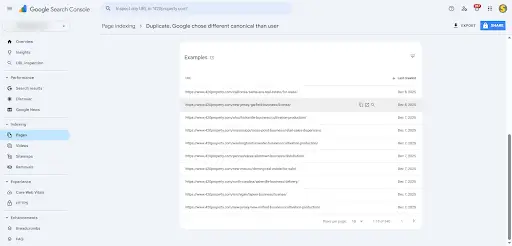
Method 2: URL Inspection Tool (Detailed Analysis)
For each affected URL, use the URL Inspection tool:
Step 1: Click the magnifying glass icon at top of GSC
Step 2: Enter the reported URL
Step 3: Click “View crawled page” → “More info”
Step 4: Compare:
- User-declared canonical: What you specified
- Google-selected canonical: What Google chose
Step 5: Note the discrepancy and reason
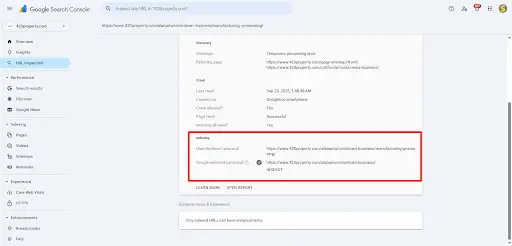
For each affected URL, use the URL Inspection tool:
Step 1: Click the magnifying glass icon at top of GSC
Step 2: Enter the reported URL
Step 3: Click “View crawled page” → “More info”
Step 4: Compare:
- User-declared canonical: What you specified
- Google-selected canonical: What Google chose
Step 5: Note the discrepancy and reason
Method 3: Manual Page Source Check
Step 1: Visit both URLs in your browser
Step 2: Right-click → “View Page Source”
Step 3: Search for “canonical” (Ctrl+F or Cmd+F)
Step 4: Verify the canonical tag in the HTML <head> section
Step 5: Document what you find
Method 4: Using Screaming Frog SEO Spider
For large-scale audits:
Step 1: Download Screaming Frog SEO Spider (free up to 500 URLs)
Step 2: Crawl your website
Step 3: Navigate to Canonicals tab
Step 4: Filter for “Canonical to Non-Canonical”
Step 5: Export the report for analysis
This helps identify patterns across your site. For comprehensive technical SEO audits, professional tools can uncover deeper issues.
Complete Step-by-Step Fix Guide
Fix #1: Make Content Truly Unique
How to Do It:
- Audit Content Similarity
- Use tools like Copyscape or Siteliner
- Compare word count and topic overlap
- Identify what makes pages “duplicates” in Google’s eyes
- Add Unique Value to Each Page
- Expand content to 500+ unique words
- Add unique sections, images, or data
- Target different keyword variations
- Include unique expert insights or examples
- Differentiate Purpose
- Make each page serve a distinct user intent
- Create unique meta titles and descriptions
- Use different heading structures
- /blue-widgets/ (product category)
- /best-blue-widgets/ (buying guide)
Ensure the buying guide has unique reviews, comparisons, buying criteria, and expert recommendations – not just a rehash of the category page.
Fix #2: Remove Unnecessary Duplicate Pages
How to Do It:
- Identify True Duplicates
- Pages serving no unique purpose
- Accidentally created duplicates
- Old versions that shouldn’t exist
- Delete or Unpublish
- Remove the page from your CMS
- Delete the physical file if static HTML
Implement 301 Redirect
- # .htaccess example
- Redirect 301 /old-page/ https://www.example.com/new-page/
-
Update Internal Links
- Find all internal links pointing to old URL
- Update to point to canonical URL
- Remove from sitemaps
-
Request Removal in GSC
- Navigate to Removals tool
- Request temporary removal of old URL
- Speeds up the de-indexing process
Fix #3: Ensure Proper Canonical Tags
When to Use: For legitimate duplicate scenarios where you need to specify the preferred version.
How to Implement Correctly:
For Self-Referencing Canonicals (Recommended)
Every unique page should have a canonical pointing to itself:
<!-- On https://example.com/page/ -->
<link rel="canonical" href="https://example.com/page/" />
For True Duplicates
Point all duplicates to the master version:
<!-- On https://example.com/page/?ref=email -->
<link rel="canonical" href="https://example.com/page/" />
WordPress Implementation
Using Yoast SEO:
- Edit the page
- Scroll to Yoast SEO meta box
- Click “Advanced” tab
- Enter canonical URL in “Canonical URL” field
Using Rank Math:
- Edit the page
- Open Rank Math meta box
- Enter canonical URL in designated field
Manual Code (add to theme’s functions.php):
function custom_canonical_tag() {
    if (is_singular()) {
        echo '<link rel="canonical" href="' . get_permalink() . '" />';
    }
}
add_action('wp_head', 'custom_canonical_tag', 1);
Shopify Implementation
<!-- In theme.liquid -->
{% if canonical_url %}
  <link rel="canonical" href="{{ canonical_url }}">
{% endif %}
For Shopify SEO services, ensure your theme properly implements canonical tags across products, collections, and content pages.
HTML Implementation (Static Sites)
Place in the <head> section of every page:
<!DOCTYPE html>
<html>
<head>
    <link rel="canonical" href="https://www.example.com/current-page/" />
    <!-- Other head elements -->
</head>
Critical Rules:
- Use absolute URLs (include https://)
- Include trailing slash consistently
- Match your preferred domain (www vs non-www)
- Only one canonical tag per page
- Place in <head> section
- Never use relative URLs
- Don’t chain canonical tags
- Don’t canonicalize to 404/301/302 pages
Fix #4: Implement 301 Redirects
When to Use: When permanently moving content from one URL to another.
How to Implement:
Apache (.htaccess)
# Redirect single page
Redirect 301 /old-page/ https://www.example.com/new-page/

# Redirect entire directory
RedirectMatch 301 ^/old-directory/(.*)$ https://www.example.com/new-directory/$1

# HTTP to HTTPS
RewriteEngine On
RewriteCond %{HTTPS} off
RewriteRule ^(.*)$ https://%{HTTP_HOST}%{REQUEST_URI} [L,R=301]

# Non-WWW to WWW
RewriteEngine On
RewriteCond %{HTTP_HOST} ^example\.com [NC]
RewriteRule ^(.*)$ https://www.example.com/$1 [L,R=301]
Nginx
# Redirect single page
location = /old-page/ {
    return 301 https://www.example.com/new-page/;
}

# HTTP to HTTPS
server {
    listen 80;
    server_name example.com www.example.com;
    return 301 https://www.example.com$request_uri;
}
WordPress (Plugin)
- Use “Redirection” plugin:
- Install and activate plugin
- Navigate to Tools → Redirection
- Add source URL and target URL
- Save
Shopify
- Navigate to Online Store → Navigation
- Click “View URL Redirects”
- Click “Create URL redirect”
- Enter old and new paths
- Save
Need help with complex redirect implementations? Our technical SEO services can handle site-wide redirect strategies.
Fix #5: Handle URL Parameters Correctly
When to Use: When query parameters create duplicate content.
Method 1: Configure in Google Search Console
Step 1: In GSC, navigate to Settings → Crawling → URL parameters
Step 2: Add your parameter (e.g., “sessionid”, “ref”, “utm_source”)
Step 3: Select appropriate option:
- Let Googlebot decide (default)
- No: Doesn’t affect page content
- Yes: Changes, reorders, or narrows page content
Step 4: If “Yes,” specify how it affects content
Method 2: Use Canonical Tags
Ensure parameterized URLs canonicalize to the clean version:
<!-- On https://example.com/product/?color=blue&ref=email -->
<link rel="canonical" href="https://example.com/product/" />
Method 3: Robots.txt (Not Recommended)
Blocking in robots.txt prevents crawling but doesn’t consolidate signals:
User-agent: *
Disallow: /*?sessionid=
Disallow: /*?ref=
Better approach: Use canonical tags instead.
Fix #6: Resolve Mobile/Desktop Duplicate Issues
Best Solution: Responsive Design
Use CSS media queries so one URL serves all devices:
- Same HTML
- Same URL
- Different CSS for different screen sizes
If Using Separate Mobile URLs:
Implement proper alternate/canonical tags:
On desktop page (example.com/page/):
<link rel="alternate" media="only screen and (max-width: 640px)"
      href="https://m.example.com/page/" />
On mobile page (m.example.com/page/):
<link rel="canonical" href="https://example.com/page/" />
Fix #7: Correct Pagination Canonicalization
Wrong Approach (Causes Issues):
<!-- On page 2 -->
<link rel="canonical" href="https://example.com/blog/" />
<!-- Don't do this! -->
Correct Approach #1: Self-Referencing
<!-- On page 2 -->
<link rel="canonical" href="https://example.com/blog/page/2/" />
Correct Approach #2: Use rel=”next” and rel=”prev”
<!-- On page 2 -->
<link rel="canonical" href="https://example.com/blog/page/2/" />
<link rel="prev" href="https://example.com/blog/" />
<link rel="next" href="https://example.com/blog/page/3/" />
Note: Google no longer uses rel=”next/prev” for indexing, but they can still help with crawling.
Fix #8: Address HTTPS/HTTP Mixed Content
Complete HTTPS Migration Steps:
Install SSL Certificate
- Contact hosting provider
- Use Let’s Encrypt (free)
- Verify installation
Update Internal Links
- Change all http:// to https://
- Update hardcoded links in database
- Fix mixed content warnings
Implement 301 Redirects
RewriteEngine On
RewriteCond %{HTTPS} off
RewriteRule ^(.*)$ https://%{HTTP_HOST}%{REQUEST_URI} [L,R=301]
Update Google Search Console
- Add HTTPS property
- Submit HTTPS sitemap
- Monitor both versions during transition
Update External References
- Change social media links
- Update directory listings
- Contact sites with backlinks
For comprehensive site migrations, consider professional WordPress speed optimization services that include HTTPS implementation.
Advanced Troubleshooting
Issue: Google Still Chooses Wrong Canonical After Fixes
Possible Causes:
Not Enough Time
- Google needs time to recrawl
- Wait 2-4 weeks after fixes
Cached Version
- Google’s cache hasn’t updated
- Request fresh crawl via URL Inspection tool
Stronger Signals on Duplicate
- More backlinks to “wrong” page
- Higher domain authority
- Better user metrics
Solutions:
- Build more backlinks to preferred URL
- Update all internal links to point to canonical
- 301 redirect the duplicate to consolidate signals
- Improve content quality on preferred page
Issue: Conflicting Signals from Different Sources
Check for:
- Canonical tag in HTML – What your code says
- HTTP header canonical – Server-level canonical
- Sitemap – Which URLs are in XML sitemap
- Hreflang tags – Language/region signals
- Internal links – Where do you link internally
Fix: Ensure ALL signals point to the same URL.
Issue: CMS Adding Unwanted Canonicals
Some CMS platforms auto-generate canonicals:
WordPress:
- Check plugin settings (Yoast, Rank Math, etc.)
- May need to override in theme
Shopify:
- Built-in canonical tags
- May require theme customization
Custom CMS:
- Check template files
- Review CMS configuration
Issue: Dynamic URL Rewriting
Problem: Server rewrites URLs differently than expected
Diagnosis:
curl -I https://example.com/page/ | grep -i canonical
Solution: Configure server rules to ensure consistent URL structure.
Prevention Strategies
1. Establish URL Structure Standards
Create documentation specifying:
- Canonical domain (www vs non-www)
- Protocol (HTTPS only)
- Trailing slash usage
- Parameter handling
- Subdomain usage
2. Implement Site-Wide Canonical Tag Template
Set up automatic canonical generation:
WordPress Example:
// Add to functions.php
function auto_canonical_tags() {
    if (!is_singular()) return;

    $canonical_url = wp_get_canonical_url();
    echo '<link rel="canonical" href="' . esc_url($canonical_url) . '" />';
}
add_action('wp_head', 'auto_canonical_tags', 1);
3. Regular Technical SEO Audits
Schedule quarterly audits to check:
- Canonical tag implementation
- Duplicate content issues
- URL parameter handling
- Redirect chains
- Orphaned pages
Our SEO tools audit and error fixing service can identify and resolve these issues systematically.
4. Monitor Google Search Console Weekly
Set up weekly checks for:
- New canonical conflicts
- Coverage issues
- Crawl errors
- Index status changes
5. Use Consistent Internal Linking
- Always link to the canonical version
- Update links when URLs change
- Avoid mixing www/non-www
- Use absolute URLs in templates
6. Proper Content Management Workflow
Before publishing:
- Check for existing similar content
- Verify canonical tag
- Ensure unique title/meta
- Add to sitemap
- Set up proper redirects if replacing old content
Common Mistakes to Avoid
Mistake #1: Canonicalizing Paginated Pages to Page 1
Problem: Removes pages 2, 3, 4 from index entirely
Correct: Self-referencing canonicals on all pages
Mistake #2: Using Relative URLs in Canonical Tags
Wrong:
<link rel="canonical" href="/page/" />
Correct:
<link rel="canonical" href="https://www.example.com/page/" />
Mistake #3: Canonical Tag in Body Instead of Head
Wrong:
<body>
    <link rel="canonical" href="..." />
    <!-- Won't work here -->
</body>
Correct: Always in <head> section
Mistake #4: Multiple Canonical Tags on Same Page
Google only reads the first one – additional tags are ignored.
Fix: Ensure only ONE canonical tag per page
Mistake #5: Canonicalizing to 404 or Redirected URLs
Check your canonical targets:
- Must be 200 status code
- Should not redirect
- Must be indexable
Mistake #6: Ignoring Hreflang Implications
For international sites:
- Canonical should point to itself
- Hreflang signals language variants
- Don’t mix the two purposes
Mistake #7: Over-Canonicalization
Don’t canonical every page to homepage:
- Each unique page should have self-referencing canonical
- Only true duplicates canonical to master version
Real-World Case Studies
Case Study #1: E-commerce Product Variants
Problem:
- Online store with color/size variations
- Each variant had separate URL
- Google indexing wrong versions
Solution:
- Made all variants accessible from single product page
- Set canonical from variant URLs to main product page
- Used JavaScript to update content based on selection
- Result: Consolidated link equity, rankings improved
Case Study #2: Blog with HTTP/HTTPS Duplicates
Problem:
- Site migrated to HTTPS but HTTP still accessible
- Google indexing both versions
- Rankings split between versions
Solution:
- Implemented site-wide HTTPS redirects
- Updated internal links to HTTPS
- Submitted HTTPS sitemap to GSC
- Requested recrawl of affected pages
- Result: Duplicates resolved in 3 weeks
Case Study #3: Pagination Confusion
Problem:
- Blog category pages with pagination
- All pages canonical to page 1
- Pages 2+ not indexing
Solution:
- Changed to self-referencing canonicals
- Added unique meta descriptions per page
- Ensured unique content snippets on each page
- Result: All pages indexed properly
Real-World Case Studies
Free Tools
- Google Search Console – Primary diagnostic tool
- Screaming Frog SEO Spider (Free for 500 URLs)
- Chrome DevTools – View page source and network requests
- Canonical Tag Checker – Various free online tools
Free Tools
- Ahrefs Site Audit – Comprehensive canonical analysis
- SEMrush Site Audit – Duplicate content detection
- Screaming Frog (Paid version) – Unlimited crawling
- DeepCrawl – Enterprise-level technical SEO auditing
For sites with persistent issues across multiple SEO audit tools, professional assistance can save time and prevent costly mistakes.
How Cope Business Can Help
Dealing with canonical issues can be complex, especially for large websites or e-commerce platforms. At Cope Business, we specialize in resolving technical SEO challenges:
Our Google Search Console Fixing Service
We help resolve all types of GSC errors, including:
- Duplicate content issues
- Canonical conflicts
- Soft 404 errors
- Crawled but not indexed
- URL removal requests
- And more
Complete Technical SEO Audits
Our comprehensive audits identify:
- All canonical issues site-wide
- Duplicate content sources
- URL structure problems
- Internal linking issues
- Indexation barriers
Platform-Specific Solutions
We offer specialized SEO services for:
Each platform has unique canonical considerations, and we handle them all.
Frequently Asked Questions
Typically 2-4 weeks after Google recrawls the affected pages. You can expedite this by requesting indexing through the URL Inspection tool.
While canonical tags signal your preference, 301 redirects are more definitive for permanently consolidating duplicate pages. Canonical tags are hints, not directives.
- Canonical tags: Suggestion to Google; user can still access duplicate; link equity partially consolidates
- 301 redirects: Permanent redirect; user automatically sent to new URL; full link equity transfer
Yes, every indexable page should have a self-referencing canonical tag. This prevents issues if query parameters are added or if duplicate versions emerge.
Yes. Incorrect canonical tags can:
- Remove important pages from Google's index
- Waste crawl budget
- Consolidate equity to wrong pages
- Confuse Google's understanding of your site
Yes, canonical tags consolidate most ranking signals, including link equity (PageRank). However, 301 redirects are stronger.
Technically yes, but strongly discouraged. HTTPS is a ranking signal. Always canonical from HTTP to HTTPS, not the reverse.
- Export affected URLs from GSC
- Identify patterns (parameters, subdomain issues, etc.)
- Implement template-level fixes when possible
- Use bulk redirect tools for large-scale changes
- Consider professional help for sites with thousands of errors
Sometimes Google's algorithm makes the right call. Evaluate:
- Does the Google-selected canonical have better content?
- Does it have more backlinks?
- Is it more relevant to user searches?
If yes, consider making it your official canonical and redirecting duplicates to it.
No direct penalty, but canonical conflicts can:
- Dilute ranking potential
- Cause confusion in search results
- Waste crawl budget
- Result in wrong pages ranking
Fix them to maximize SEO performance.
Related Articles
Looking to fix other Google Search Console issues?
- How to Fix Soft 404 Issue
- How to Fix Duplicate Without User-Selected Canonical
- Crawled Currently Not Indexed: Complete Fix Guide
- How to Fix Blocked Due to Other 4xx Issues
- Discover Currently Not Indexed Fix Guide
For technical SEO errors beyond GSC:
Conclusion
The “Duplicate, Google chose different canonical than user” issue is common but solvable. By understanding why Google overrides your canonical preferences and implementing the fixes outlined in this guide, you can:
- Consolidate ranking signals to your preferred pages
- Improve crawl efficiency
- Eliminate duplicate content confusion
- Maximize your SEO performance
Remember the key steps:
- Identify affected URLs in Google Search Console
- Determine the root cause (duplicates, parameters, redirects, etc.)
- Implement appropriate fixes (canonical tags, redirects, content changes)
- Request re-indexing
- Monitor for resolution over 2-4 weeks
Prevention is better than cure:
- Implement proper canonical tags from the start
- Maintain consistent URL structure
- Regular technical SEO audits
- Monitor Google Search Console weekly
Dealing with canonical issues or a large site? Cope Business can help.
About Cope Business
Cope Business is a technical SEO agency specializing in resolving complex search engine optimization challenges. We help businesses fix Google Search Console errors, improve site performance, and maximize organic search visibility.


