

In the world of SEO, getting your pages indexed by Google is crucial for visibility and traffic. But what happens when Google discovers your page, yet it doesn’t get indexed? This is where the “Discovered – Currently Not Indexed” status in Google Search Console (GSC) comes into play. Understanding and resolving this issue is essential for ensuring your content reaches its intended audience.
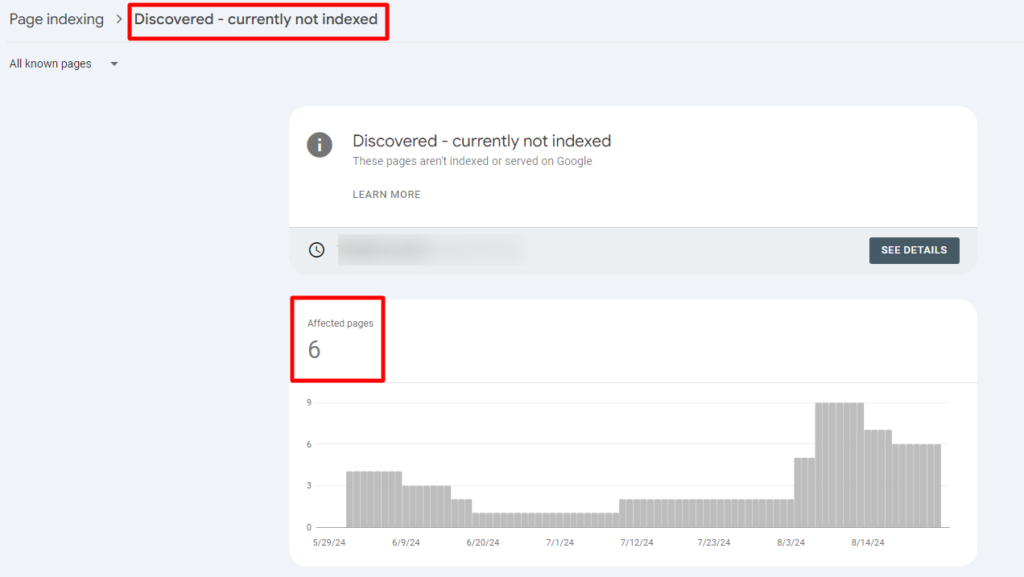
Understanding the “Discovered – Currently Not Indexed” Issue
When you see the “Discovered – Currently Not Indexed” status in GSC, it means that Google has found the URL but hasn’t crawled and indexed it yet. Essentially, Google knows your page exists, but for some reason, it’s decided not to crawl it at this time. This can be frustrating, especially if you’re eager for your content to appear in search results.
Why Does This Issue Occur?
Several factors can cause your page to be discovered but not indexed. Here are some common reasons:
- Site Overload Concerns: If Google detects that crawling your site could overload your server, it may postpone crawling your pages.
- Low-Quality Content: Pages with thin content or poor quality may be deprioritized for crawling and indexing.
- Crawl Budget Limitations: Each site has a crawl budget, and if your site has too many URLs or resources, Google may not be able to crawl all of them within a given timeframe.
- Technical Issues on the Website: Issues like broken links, server errors, or slow loading times can prevent Google from crawling your page.
How to Identify Pages Affected by This Issue?
To find out which of your pages are affected, you can use the Coverage report in Google Search Console. Here’s how:
1.Access the Coverage Report: Log in to your GSC account, navigate to the “Coverage” section, and look for the “Discovered – Currently Not Indexed” status.
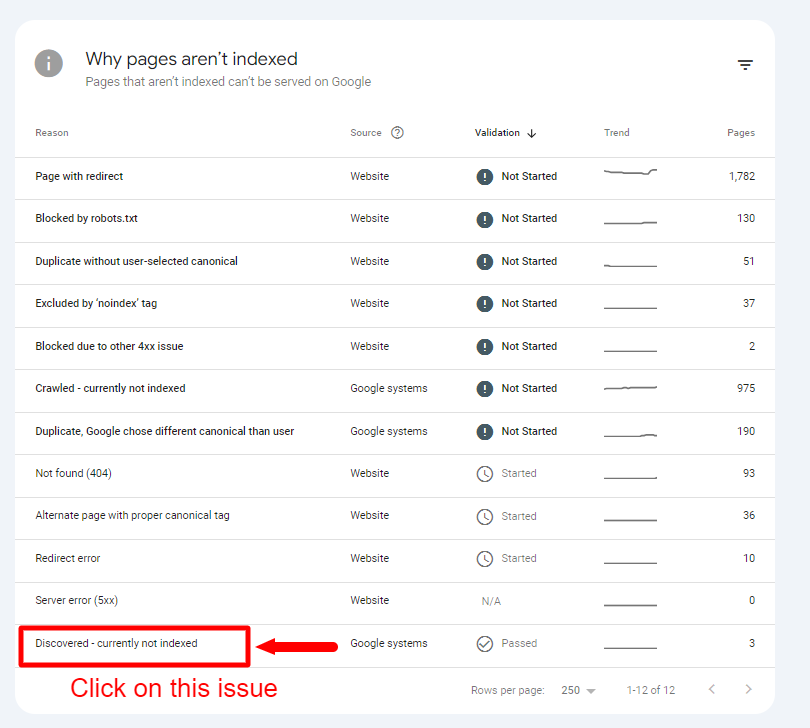
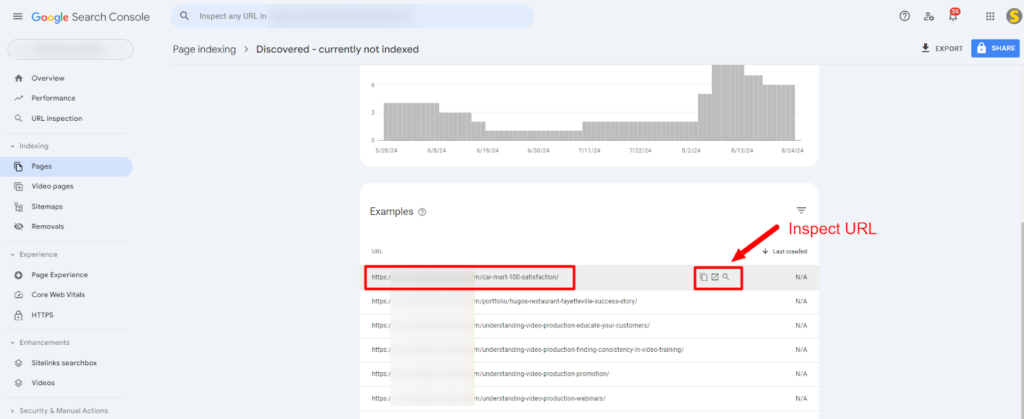
2.Analyze the Affected Pages: Review the list of URLs under this status and assess their content and technical aspects.
Solution 1: Mark URLs with ‘noindex’ if They Should Not Be Indexed
If the URLs in question are not meant to be indexed by search engines (e.g., duplicate content, low-value pages, or private content), you should use the no-index directive to prevent them from appearing in search results. Here’s how you can do it:
- Identify URLs for Noindex: Review your content and determine which URLs are not intended for indexing. This might include pages like login screens, internal search results, or other content not useful for search engines.
- Add the no-index Meta Tag: Open the HTML of the page you want to mark as no-index. Insert the following meta tag within the section of your HTML: <meta name=”robots” content=”noindex”>
- Update Your Robots.txt File (Optional): While not a substitute for the no-index tag, you can also disallow crawling of certain URLs by adding rules to your robots.txt file. User-agent: * Disallow: /private-page/
- Submit the URL for Removal (if needed): Use Google Search Console’s URL Removal Tool to request immediate removal of the URL from Google’s index if it’s already been indexed.
Solution 2: Ensure URLs That Should Be Indexed Are Properly Configured
For URLs that should be indexed, follow these steps to ensure they are set up correctly:
- Check for Indexing Issues: Verify that there are no technical barriers preventing Google from indexing the page:
- Crawl Accessibility: Ensure the URL is not blocked by robots.txt or meta tags.
- Server Response: Make sure the server responds with a 200 status code (OK) and not with a 4xx or 5xx error.
- Ensure Proper Internal Linking: Make sure the URL is linked from other pages within your site. Googlebot relies on internal links to discover and index new content.
- Submit a Sitemap: Include the URL in your XML sitemap and submit it via Google Search Console to help Google discover and crawl the page.
- Request Indexing:
- Go to Google Search Console and navigate to the “URL Inspection” tool.
- Enter the URL and click “Request Indexing” to prompt Google to re-crawl and re-evaluate the page.
- Monitor Indexing Status: Check the status of the URL in Google Search Console after taking these steps. It may take a few days to see updates.
Preventing Future “Discovered – Currently Not Indexed” Issues
To avoid running into this problem repeatedly, it’s essential to practice regular site maintenance and follow these best practices:
- Keep Your Content Fresh and Relevant: Regularly update your content to ensure it remains useful and valuable.
- Monitor Your Site’s Performance: Use tools like Google Analytics and GSC to keep an eye on your site’s health and resolve issues as they arise.
- Optimize Your Website’s Structure: Ensure that your site’s architecture is logical and user-friendly, making it easier for Google to crawl and index your pages.
Conclusion
The “Discovered – Currently Not Indexed” issue can be a hindrance to your SEO efforts, but with the right approach, you can resolve it effectively. By understanding the root causes and implementing the fixes outlined above, you can ensure that your pages are crawled and indexed by Google, ultimately improving your site’s visibility and search rankings.
FAQs
What is the “Discovered – Currently Not Indexed” issue?
This status means that Google has found your URL but hasn’t crawled or indexed it yet, usually due to concerns about overloading the site or other issues.
How long does it take for Google to index a page?
The indexing process can take anywhere from a few hours to several weeks, depending on various factors like site authority, content quality, and technical issues.
Can I speed up the indexing process?
Yes, you can speed up the process by improving page quality, fixing technical issues, and using the “Request Indexing” feature in GSC.
Why is my high-quality content not being indexed?
Even high-quality content can face indexing delays due to factors like crawl budget limitations, site structure, or technical errors.
Does internal linking really help with indexing?
Yes, internal linking helps Google discover and crawl your pages more efficiently, which can lead to faster indexing.


