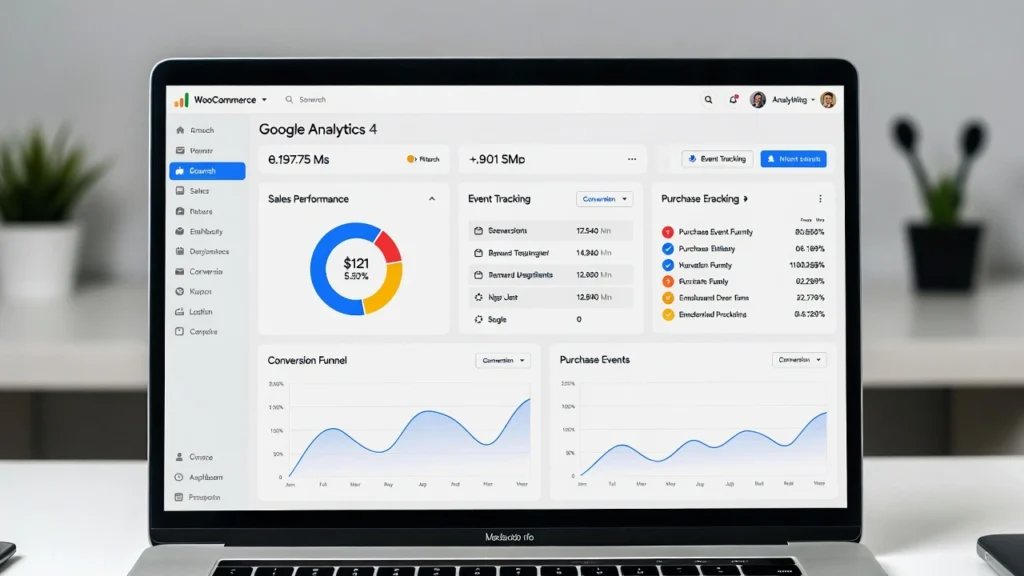
WooCommerce conversion Tracking is essential for understanding what drives sales, measuring ROI on marketing campaigns, and optimizing your store for maximum revenue. Without proper conversion tracking, you’re flying blind — missing key insights into which traffic sources, ads, or pages actually result in purchases. with privacy regulations and cookieless tracking evolving, accurate eCommerce tracking has become both more challenging and more important. At Cope Business, we specialize in setting up compliant, high-accuracy conversion tracking for WooCommerce stores as part of our technical SEO audit services, helping clients make data-driven decisions that increase revenue.
This guide covers the most reliable ways to track WooCommerce conversions in Google Analytics 4 (GA4), Facebook Pixel, and other platforms — with step-by-step instructions.
On this page
ToggleWhy Conversion Tracking Matters for WooCommerce
- Know which marketing channels (Google Ads, Facebook, email, organic) actually generate revenue
- Measure ROI accurately
- Optimize checkout flow by identifying drop-offs
- Improve product pages, pricing, and upsells based on real data
- Comply with privacy laws while still getting usable insights
Without tracking, you’re guessing — with it, you’re optimizing.
Method 1: Track WooCommerce Conversions with Google Analytics 4 (Recommended)
Step-by-Step Setup Using MonsterInsights (Easiest)
- Install and activate MonsterInsights (free lite version works; Pro recommended for eCommerce).
- Connect your GA4 property during the setup wizard.
- Go to Insights > Settings > Conversions.
- Enable Enhanced eCommerce Tracking (tracks add-to-cart, checkout, purchases automatically).
- Under eCommerce, make sure “Track eCommerce” is enabled.
- Save changes.
- Test: Make a test purchase (use test mode in your payment gateway) and check GA4 > Reports > Monetization > Ecommerce Purchases.
Advanced (Without MonsterInsights): Use WooCommerce Google Analytics Integration plugin (free) or manually add GA4 event tracking code.
Benefits: Full funnel tracking, automatic revenue reporting, no coding required.
Method 2: Track Conversions with Facebook Pixel / Meta Conversions API
Step-by-Step Setup
- Create a Facebook Pixel in Meta Events Manager.
- Install PixelYourSite (free/pro) or Official Facebook for WooCommerce plugin.
- Connect your Pixel ID in the plugin settings.
- Enable WooCommerce Integration — it automatically tracks:
- ViewContent
- AddToCart
- InitiateCheckout
- Purchase
- Set up Conversions API (server-side) for better accuracy (especially with iOS privacy changes) — PixelYourSite Pro makes this easy.
- Test with Facebook Pixel Helper Chrome extension.
Pro Tip: Use Meta’s Aggregated Event Measurement and Conversions API for cookieless tracking.
Method 3: Track with Other Platforms
- TikTok Pixel: Use TikTok for WooCommerce plugin — auto-tracks events.
- Pinterest Tag: Use Pinterest for WooCommerce — simple setup.
- Microsoft Clarity: Free heatmaps + session recordings (pair with GA4 for deeper insights).
- Hotjar: Add surveys/heatmaps to understand why conversions fail.
Best Practices for WooCommerce Conversion Tracking
- Use server-side tracking (Conversions API) for better accuracy with privacy restrictions.
- Set up enhanced eCommerce in GA4 for full funnel data.
- Test purchases in test mode regularly.
- Exclude internal traffic (IP filters in GA4).
- Enable cross-domain tracking if using subdomains.
- Monitor data discrepancies between platforms — use UTM parameters consistently.
- Comply with privacy laws — use consent management (see our privacy guide).
Accurate tracking turns data into actionable insights for growth.
Final Thoughts
Setting up conversion tracking in WooCommerce gives you clear visibility into what’s actually driving sales — essential for scaling profitably. Start with MonsterInsights for GA4 (easiest) and add Facebook Pixel/CAPI for paid traffic.
The right tracking setup can increase ROI by 20–50% through better optimization.
Need help configuring conversion tracking, setting up UTM parameters, or analyzing your eCommerce data? Contact Cope Business for a free technical SEO consultation — we’ll get your tracking accurate and your insights powerful.