
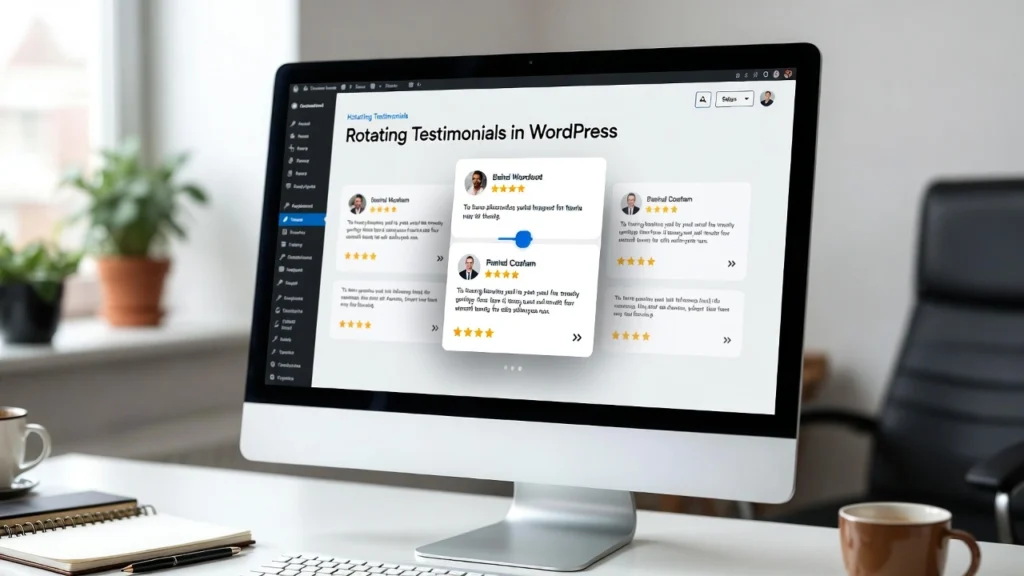
Testimonials in wordpress are one of the most powerful trust-building elements for any business website. Displaying them in a rotating slider or carousel makes your page more dynamic, keeps visitors engaged longer, and increases credibility — all of which help reduce bounce rates and improve conversions. with user experience and social proof playing a bigger role in SEO and trust signals, rotating testimonials remain a high-ROI feature. At Cope Business, we frequently add and optimize testimonial sections for clients during our technical SEO audit services to enhance social proof and overall site performance.
On this page
ToggleThis guide shows you two simple, effective ways to add professional rotating testimonials in WordPress — using plugins for ease or custom code for full control.
Why Use Rotating Testimonials on Your Site?
- Builds Instant Trust — Real customer feedback influences buying decisions.
- Increases Conversions — Testimonials can lift conversion rates by 10–30%.
- Improves Engagement — Auto-rotating content keeps visitors on-page longer.
- SEO Benefits — Longer dwell time + better user signals help rankings.
- Professional Look — Makes your site feel established and credible.
Ideal placements: Homepage, services page, about page, or product pages.
Method 1: Using a Plugin (Recommended for Beginners)
Plugins offer drag-and-drop setup, responsive designs, and easy customization.
Recommended Plugin: Strong Testimonials (Free & Pro)
Strong Testimonials is lightweight, highly rated, and perfect for rotating sliders.
Step-by-Step Setup
- Install and activate Strong Testimonials from Plugins > Add New.
- Go to Testimonials > Add New to create your first testimonial:
- Add client name, photo, company, website, star rating
- Write the quote in the content area
- Publish
- Repeat for 4–10+ testimonials (more = better rotation).
- Go to Testimonials > Views > Add New.
- Choose Slider layout.
- Customize:
- Transition style (fade, slide)
- Auto-play speed (e.g., 5 seconds)
- Show navigation arrows/dots
- Responsive settings (mobile, tablet)
- Number of testimonials visible (1–3)
- Save the view → copy the shortcode (e.g. [testimonial_view id=”123″]).
- Embed anywhere: Add to homepage, page, or widget using the shortcode or block.
Pro Version (~$89/year): Adds advanced layouts, multiple sliders, random order, filters, and more.
Alternative Plugins:
- Testimonial Rotator (free) – Simple & lightweight
- WP Testimonials with Rotator Widget (free/pro) – Great for carousels
- Slider Revolution (premium) – If you want very advanced animations
Pros: Responsive, easy to manage, works great on mobile. Cons: Free version has basic styling (customize with CSS).
Method 2: Using Custom Code with Testimonials Block (Advanced)
For full control without extra plugins (works with Gutenberg).
Steps
- Create testimonials as custom posts (use Custom Post Type UI plugin → create “Testimonials” type).
- Add testimonials with title (client name), featured image (photo), and content (quote).
- In any post/page, use the Group or Columns block.
- Add Quote blocks inside.
- Use Carousel block (from Kadence Blocks or similar) or add this CSS + JS for rotation (via WPCode):
- CSS (Additional CSS):
CSS.testimonial-slider { position: relative; overflow: hidden; } .testimonial-slide { display: none; } .testimonial-slide.active { display: block; }- JavaScript (WPCode – Header):
HTML<script> document.addEventListener('DOMContentLoaded', function() { const slides = document.querySelectorAll('.testimonial-slide'); let current = 0; function showNext() { slides[current].classList.remove('active'); current = (current + 1) % slides.length; slides[current].classList.add('active'); } setInterval(showNext, 5000); // Change every 5 seconds }); </script>Pros: No extra plugins, full customization. Cons: Requires more setup and maintenance.
Best Practices for Rotating Testimonials
- Keep Quotes Short — 1–2 sentences max for quick reading.
- Add Photos & Names — Real faces build more trust.
- Include Company/Website — Adds credibility.
- Limit Rotation Speed — 5–8 seconds per slide.
- Mobile-Friendly — Disable auto-rotate on mobile or make it swipeable.
- Accessibility — Add ARIA labels and pause on hover/focus.
- Performance — Use lazy loading for images (see our lazy load guide).
A good testimonial slider can increase trust and conversions by 20–40%.
Final Thoughts
Adding rotating testimonials in WordPress is a quick, high-impact way to build credibility and keep visitors engaged. Start with Strong Testimonials for simplicity — it’s free, responsive, and easy to manage.
Social proof is one of the strongest conversion tools — use it!
Need help adding testimonials, optimizing your site for conversions, or improving overall performance? Contact Cope Business for a free technical SEO consultation — we’ll help you create trust-building elements that drive results.


