
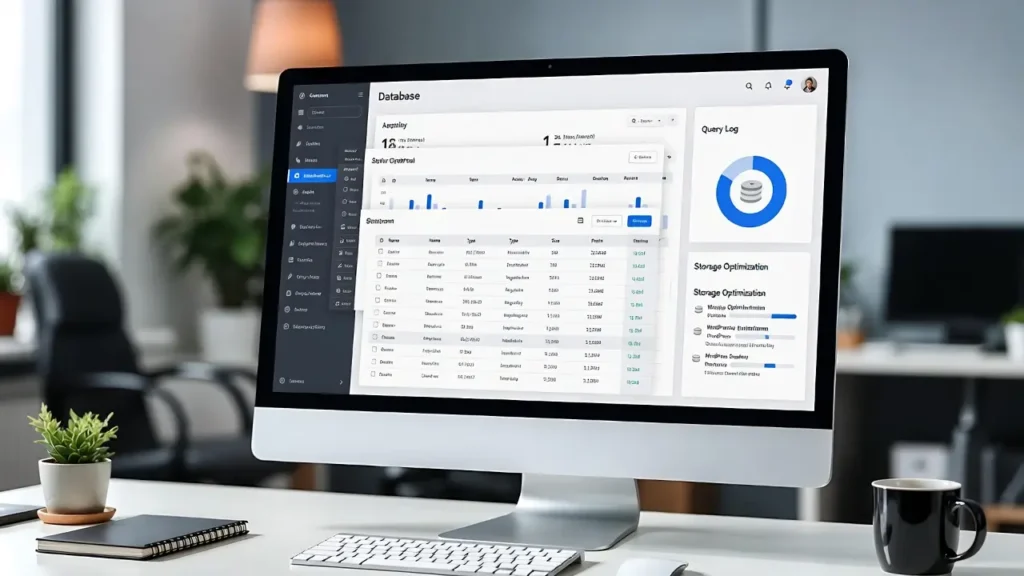
Your WordPress database stores everything from posts and pages to comments, user data, and plugin settings — but over time, it can become bloated with overhead, transients, revisions, and unused tables, leading to slower queries, higher TTFB (Time to First Byte), and poor performance. Optimizing wordpress database tables cleans up this mess, reduces size, and speeds up your site by 20–50% in many cases. In 2026, with Core Web Vitals and mobile speed critical for SEO, regular database optimization is a must to avoid ranking penalties and high bounce rates.
At Cope Business, we perform database optimizations for clients as part of our technical SEO audit services and WordPress speed optimization services, often cutting load times significantly without losing data.
This step-by-step guide explains why optimization matters, when to do it, and three easy methods to optimize your WordPress database tables — using plugins (recommended), phpMyAdmin (manual), and code (advanced). Always back up your database first!
Why Optimize WordPress Database Tables?
Database tables use storage engines like InnoDB or MyISAM — over time, they accumulate “overhead” (wasted space from deletions/updates). Optimization reorganizes tables, removes overhead, and improves query efficiency.
Benefits:
- Faster Site Speed: Quicker database queries = lower TTFB & LCP
- Better SEO: Google favors fast sites; optimized DB helps Core Web Vitals
- Reduced Server Load: Less CPU/memory usage — especially on shared hosting
- Smaller Backups: Cleaner DB = smaller file sizes
- Prevent Issues: Fixes errors like “Table is marked as crashed” or slow admin
Optimize monthly (or after major updates) for high-traffic sites; quarterly for smaller ones.
Prerequisites
- Full site backup (use UpdraftPlus — free)
- Access to hosting panel (cPanel, phpMyAdmin)
- Test on staging first if possible
Method 1: Using a Plugin (Easiest & Recommended)
Plugins automate optimization with one-click — safe for beginners.
Recommended Plugin: WP-Optimize (Free/Pro)
WP-Optimize is the most popular and reliable DB optimizer.
Steps
- Install WP-Optimize from Plugins > Add New.
- Activate → Go to WP-Optimize > Database.
- In Optimizations tab:
- Check options: Remove revisions, drafts, trashed posts, spam comments, transients
- Enable Optimize database tables (main feature)
- Click Run all selected optimizations → Confirm.
- Schedule automatic runs: Settings > Scheduler → Set weekly/monthly.
Pro Version (~$49/year): Adds image compression, cache, multisite support.
Alternative Plugin: Advanced Database Cleaner (free/pro) — Similar features, good for large DBs.
Pros: Automatic, safe, multi-feature (cleans + optimizes).
Cons: Adds one plugin (very lightweight).
Method 2: Using phpMyAdmin (Manual – Direct Control)
For hands-on optimization without plugins.
Steps
- Log in to hosting panel (cPanel) → Databases > phpMyAdmin.
- Select your WordPress database (left sidebar).
- Check all tables (or select specific like wp_posts, wp_options).
- From “With selected” dropdown → Optimize table.
- Click Go — phpMyAdmin runs OPTIMIZE TABLE on selected tables.
- Check results: “OK” for each table.
Tip: For large DBs, do in batches to avoid timeouts.
Pros: No plugins, precise.
Cons: Manual; risk if you select wrong DB.
Method 3: Using Custom Code (Advanced – Automation)
For developers or script-based optimization.
Steps
- Install WPCode (free) → Add Snippet.
- Paste this code (runs optimization on shutdown):
PHPfunction cope_optimize_db_tables() { global $wpdb; $tables = $wpdb->get_results("SHOW TABLES LIKE '{$wpdb->prefix}%'"); foreach ($tables as $table) { $tablename = array_values((array)$table)[0]; $wpdb->query("OPTIMIZE TABLE $tablename"); } } add_action('shutdown', 'cope_optimize_db_tables'); // Run on every page load (or schedule with cron)- For scheduled: Use WP Cron — add to functions.php:
PHPif (!wp_next_scheduled('cope_daily_db_optimize')) { wp_schedule_event(time(), 'daily', 'cope_daily_db_optimize'); } add_action('cope_daily_db_optimize', 'cope_optimize_db_tables');- Save & Activate → Tables optimize automatically.
Pros: Customizable, no plugin.
Cons: Can add load if not scheduled; test carefully.
Best Practices for Database Optimization
- Backup First: Always — use UpdraftPlus or hosting backups
- Schedule Regularly: Weekly/monthly based on traffic
- Clean Before Optimize: Remove revisions, transients first (WP-Optimize does this)
- Monitor Performance: Use Query Monitor to spot slow queries
- SEO Tip: Optimized DB = faster site = better rankings
- Avoid Over-Optimization: Daily on large sites can cause lock issues
Regular optimization keeps your DB lean and your site fast.
Final Thoughts
Optimizing WordPress database tables is a quick, high-impact speed upgrade. Use WP-Optimize for automatic one-click cleaning or phpMyAdmin for manual control — both will reduce bloat and improve TTFB.
A clean database is a fast database — optimize yours today.
Need help optimizing your database, reducing TTFB, or conducting a full speed audit? Contact Cope Business for a free technical SEO consultation — we’ll clean, optimize, and supercharge your WordPress site for peak performance.


