Google Request Indexing: Taking Control of Your Content's Visibility
As a developer, you know the importance of having your hard work seen by the world. But with Google’s ever-evolving algorithm, simply publishing your content isn’t enough to guarantee it appears in search results. This is where Google Request Indexing comes in – a powerful tool for pro-actively guiding Googlebot to your latest pages and updates.
Imagine dedicating hours to crafting a crucial new blog post, only to find it buried deep in the search results because Google hasn’t crawled it yet. Frustrating, right? Request Indexing can alleviate this stress by:
Accelerating discovery: Instead of waiting for Googlebot’s natural crawl schedule, you can nudge it towards your new content, potentially leading to faster indexing and visibility.
Ensuring completeness: If you’ve made significant updates to existing pages, you can notify Google to recrawl them and capture the changes, keeping your information fresh and relevant.
Prioritizing important content: For time-sensitive pages like news articles or event listings, a quick indexing request can get them in front of users when they matter most.
How to utilize Google Request Indexing effectively:
While Request Indexing is a valuable tool, using it strategically is key. Here are some tips:
Target specific URLs: Don’t waste your quota on generic sitemaps. Prioritize individual pages you want indexed quickly, like newly published pieces or updated sections explained Below.
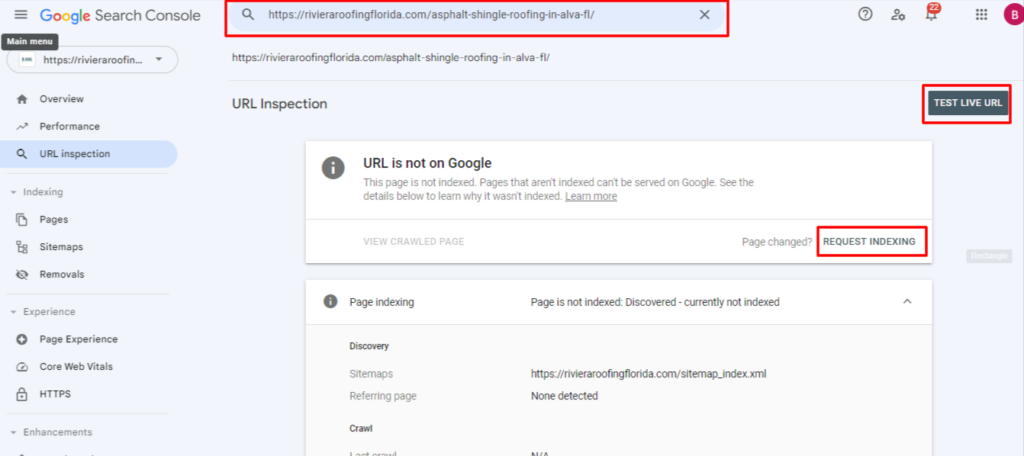
Step into your Search Console HQ: First, navigate to your Google Search Console account. It’s your mission control for all things search visibility.
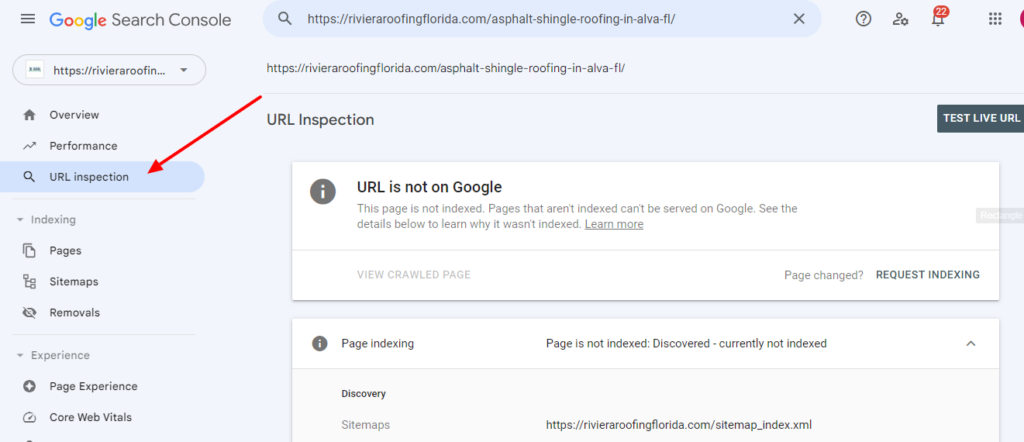
Locate the URL inspection tool: Think of it as your magnifying glass for in-depth page analysis. Find it within the menu or search bar.
Enter the URL you want to inspect: It’s time to focus on that specific page—type or paste its address into the designated field.
Press “Enter” and let the magic begin: Sit back and watch as Search Console unveils a treasure trove of insights, including:
Indexing status: Is your page visible in search results?
Enhanced details: Dive into rich snippets, mobile usability, and more.
Live testing: See how Googlebot actually renders your page.
Request indexing: Want to give your page a visibility boost? Click the “Request Indexing” button to nudge Googlebot toward your content.
Pro tip: Use this tool regularly to monitor page performance and identify any potential issues that might be holding back your search rankings.
API Request Indexing
Access Website Dashboard: Open your website’s administration area to begin.
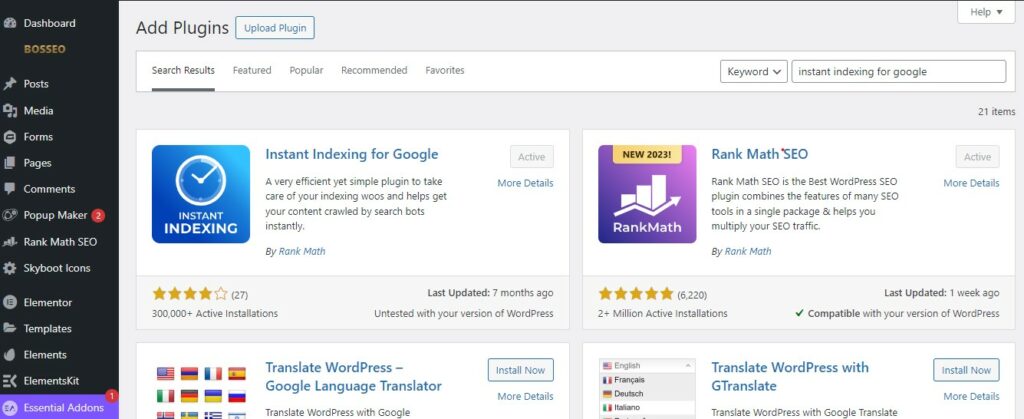
Navigate to Plugins: Locate the “Plugins” section within the dashboard menu.
Add New Plugin: Click the “Add New” button to initiate plugin installation.
Search for Plugin:
Utilize the top-right search bar to directly locate the desired plugin.
Enter “Instant Indexing for Google” and initiate the search.
Install and Activate:
Click the “Install Now” button to begin installation.
After successful installation, click the “Activate” button to enable its functionality.
Access Instant Indexing:
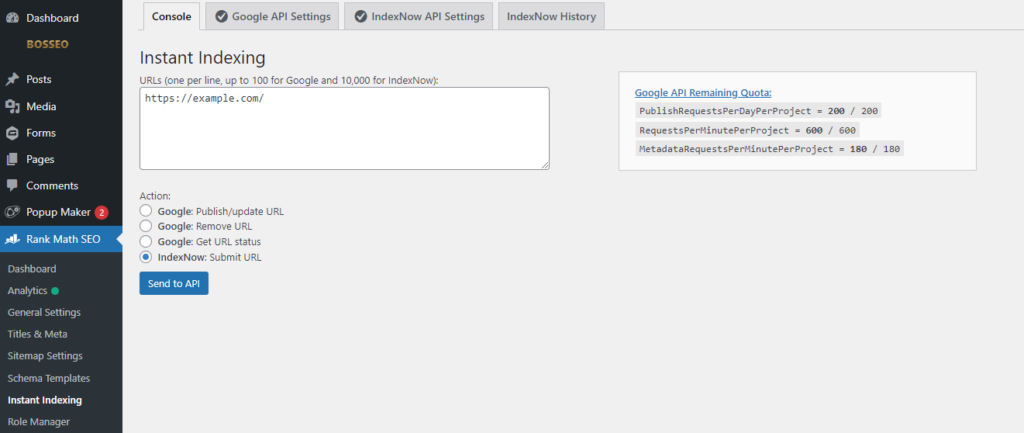
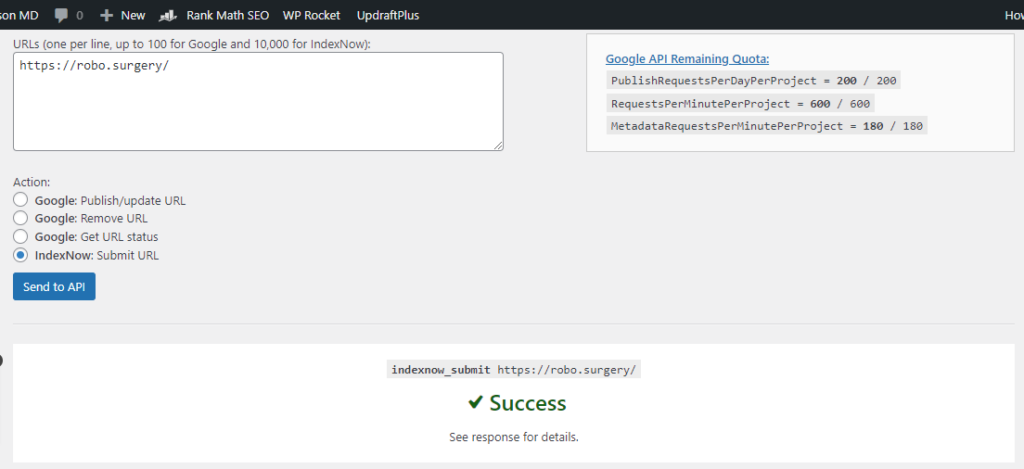
Navigate to the “Instant Indexing” section within the Rank Math SEO plugin settings.
Enter URL:
Paste the exact URL you want to be indexed into the designated box.
Enable Instant Indexing:
Tick the “Index Now” checkbox to initiate immediate crawling and indexing.
Submit to API:
Click the “Send to API” button to dispatch your request to Google.
Confirmation:
Success Message: A clear message will confirm that your URL has been successfully submitted to Google for potential indexing.