
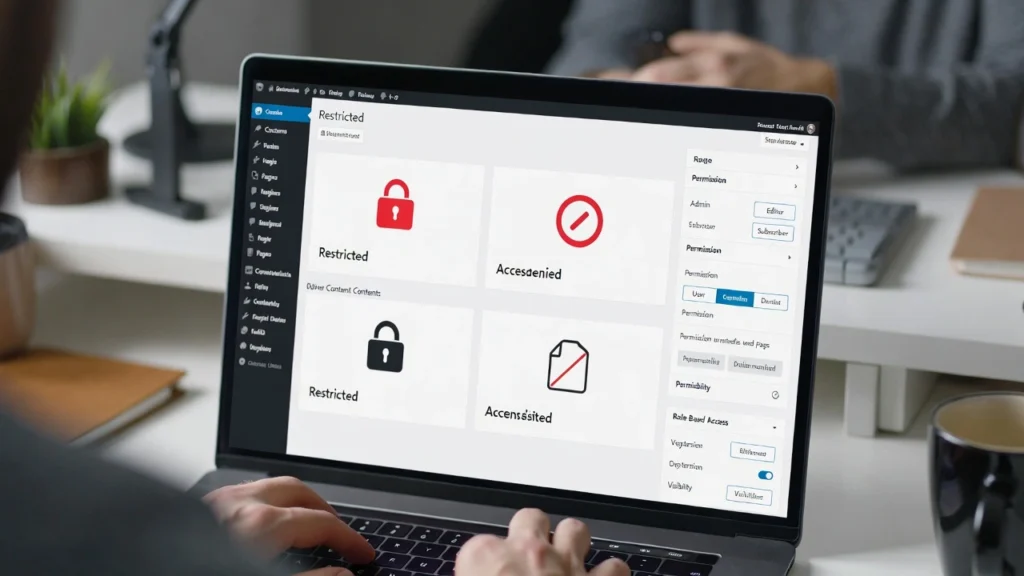
Restricting content by user role in WordPress allows you to control who sees what — for example, show premium articles only to subscribers, hide admin tools from guests, or give editors access to drafts without full control. This is essential for membership sites, intranet portals, e-learning platforms, or any site with tiered access. With privacy laws like GDPR and growing membership models, proper content restrictions not only enhance security but also improve user experience and monetization.
At Cope Business, we set up role-based content restrictions for clients during our technical SEO audit services to ensure secure, personalized sites that protect valuable content while boosting engagement and SEO through targeted internal linking.
This step-by-step guide shows you two easy methods to add content restrictions by user role in WordPress — using plugins (recommended for beginners), code (for lightweight control), and advanced setups (for complex scenarios).
Why Add Content Restrictions by User Role?
- Security & Privacy: Prevent unauthorized access to sensitive content
- Monetization: Create paywalls for premium/members-only areas
- Personalized UX: Show relevant content based on role (e.g., “Upgrade” for free users)
- Team Management: Give editors/contributors limited access without admin risks
- Membership Sites: Create roles like “Premium Member” or “Course Student”
- SEO Benefits: Gated content encourages logins, increasing time-on-site and retention
Without restrictions, all content is public — custom roles fix that.
Method 1: Using a Plugin (Easiest & Most Flexible)
Plugins provide visual rules, shortcodes, and more options.
Recommended Plugin: Restrict Content (Free/Pro) or MemberPress
Restrict Content is lightweight and highly rated for role-based access.
Steps
- Install Restrict Content (free) from Plugins > Add New.
- Activate → Go to Restrict Content > Settings.
- Set up restrictions:
- For a page/post: Edit content → In Restrict Content meta box → Choose roles that can access (e.g., Subscriber only)
- Global: Set site-wide rules for post types (e.g., restrict all “Premium” category posts to paid roles)
- Customize message: Set custom “Access Denied” text or redirect (e.g., to login/upgrade page).
- For shortcodes: Wrap content in
[restrict role="subscriber"]Premium content here[/restrict]— hides from non-subscribers. - Save → Test by logging in/out with different roles.
Pro Version (~$99/year): Adds payments, drip content, role sync with membership plugins.
Alternative Plugin: MemberPress (~$179/year) — Best for full membership sites with role-based restrictions.
Pros: Visual, per-page/shortcode control, easy for beginners.
Cons: Adds one plugin (very lightweight).
Method 2: Using Custom Code (Lightweight – Full Control)
For simple role checks without extra plugins.
Steps
- Use a child theme or WPCode (free plugin).
- Add this code to
functions.phpor WPCode snippet:
function cope_restrict_content_by_role($content) {
    if ( is_page('premium-page') && ! current_user_can('subscriber') ) {  // Change 'premium-page' and 'subscriber'
        return '<p>This content is restricted. <a href="' . wp_login_url() . '">Log in</a> or <a href="/upgrade/">Upgrade</a> to access.</p>';
    }
    return $content;
}
add_filter('the_content', 'cope_restrict_content_by_role');

// Shortcode for manual restrictions
function cope_restrict_shortcode($atts, $content = null) {
    $atts = shortcode_atts(array('role' => 'subscriber'), $atts);
    if ( current_user_can($atts['role']) ) {
        return do_shortcode($content);
    }
    return '<p>Restricted content. Please log in.</p>';
}
add_shortcode('restrict_role', 'cope_restrict_shortcode');
- Customize: Change conditions (e.g.,
is_single()for posts,in_category('premium')). - Use shortcode:
[restrict_role role="editor"]Secret content[/restrict_role]. - Save → Content is now restricted by role.
Pros: No plugin bloat, highly customizable.
Cons: Requires basic PHP; manual for each condition.
Method 3: Using Membership Plugins for Advanced Restrictions
For sites with paid tiers or complex access.
Recommended Plugin: MemberPress or Paid Memberships Pro
- Install MemberPress (~$179/year) or Paid Memberships Pro (free/pro).
- Set up membership levels (e.g., Free, Premium) — each tied to a role.
- For content: Edit post/page → In MemberPress meta box → Restrict to specific levels/roles.
- Shortcodes:
[pmpro_member role="subscriber"]Premium content[/pmpro_member]. - Add drip content, payments, and expiration.
Pros: Integrates with payments, full membership features.
Cons: Premium for advanced use.
Best Practices for Content Restrictions by User Role
- Use Strong Roles: Combine with custom roles (see our guide)
- Custom Messages: Direct users to login/upgrade — boosts conversions
- SEO: Noindex restricted pages if needed (All in One SEO)
- Performance: Restrictions have no speed impact; cache public pages
- Test Thoroughly: Check on different roles/devices; use incognito
- Compliance: Add privacy notices for logged-in content
Role-based restrictions turn your site into a personalized experience.
Final Thoughts
Adding content restrictions by user role in WordPress is essential for secure, monetized, or team-based sites. Use Restrict Content for simple setups or MemberPress for full membership features — both protect your content and enhance value.
Restricted content builds exclusivity — use it strategically.
Need help adding role-based restrictions, creating membership-protected areas, or optimizing SEO? Contact Cope Business for a free technical SEO consultation — we’ll build a secure, personalized system tailored to your business.


